
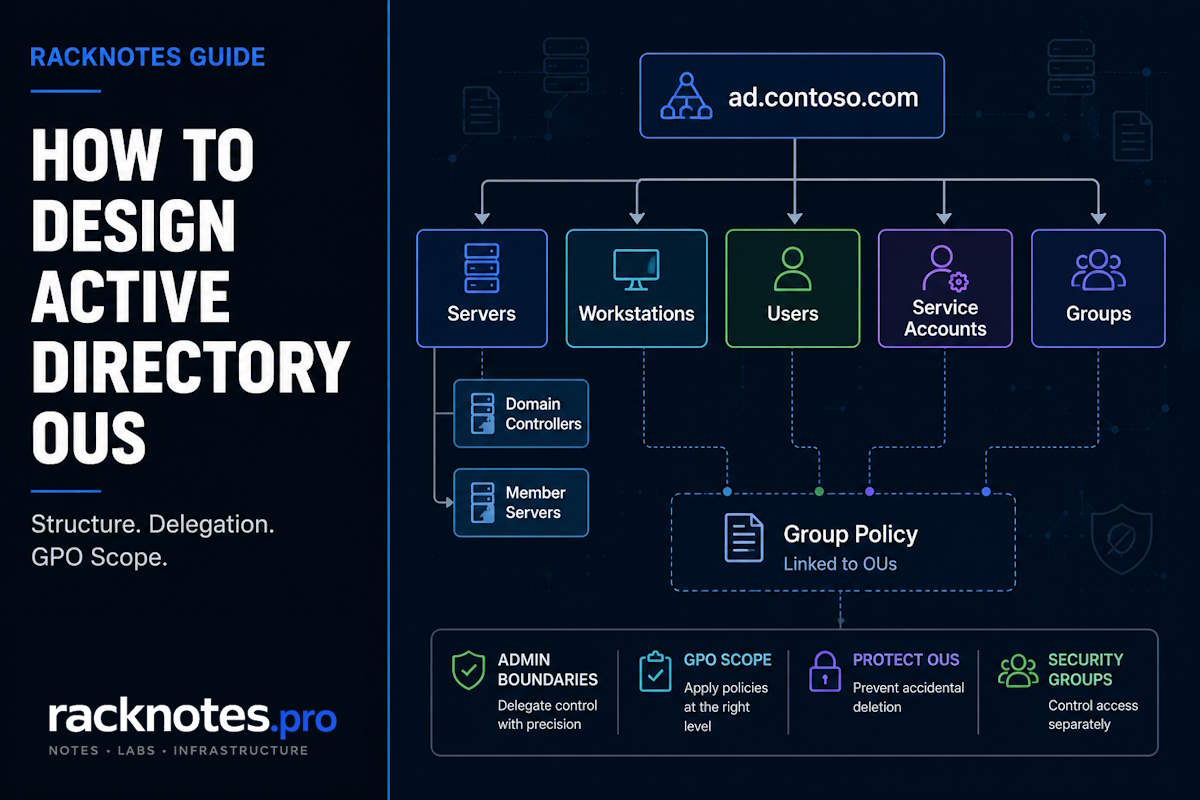
An effective Active Directory OU structure is built around administrative and policy boundaries, not around every box in the org chart. Separate object populations when they need different delegation or GPO scope, keep the hierarchy as shallow as practical, and add child OUs only when they solve a specific management requirement. Department and location OUs aren’t automatically wrong – the problem is creating them just because the department exists in HR, without any actual administrative or policy reason behind it. This guide covers a concrete recommended structure, when a separate OU is justified, GPO and delegation boundaries, safe PowerShell examples for building and reviewing the hierarchy, and a checklist for auditing what you’ve already got.
- OUs exist primarily for delegation and Group Policy scope, not for mirroring the org chart
- Create a department or location OU only when it needs different administration or policy – not because it exists on paper
- Separate users, workstations, member servers, and other populations when their requirements actually differ
- Keep the hierarchy as shallow as practical – add depth only with a concrete reason
- Security filtering is a supported way to refine GPO scope, not a workaround to avoid
- Keep Domain Controllers in the built-in Domain Controllers OU
- Protect OUs from accidental deletion and document what’s delegated where
Active Directory OU Structure: What You Are Designing
An OU is an administrative container inside a domain – it supports delegation and Group Policy linking. A security group is a security principal used for permissions, and it’s also a valid, supported way to refine GPO scope within a linked OU (more on that distinction below). A site is a separate concept entirely – it governs replication scheduling and DC-locator behavior across network locations, not administrative delegation.
These three tools solve different problems, and OU-design problems often start when one is used to do another’s job: putting users into OUs purely to manage file-share access, or building an elaborate OU tree to solve a problem security-group filtering already handles well. For the broader domain hierarchy these pieces sit inside, see Active Directory Structure Explained; for site/replication topology specifically, see Active Directory Sites and Services.
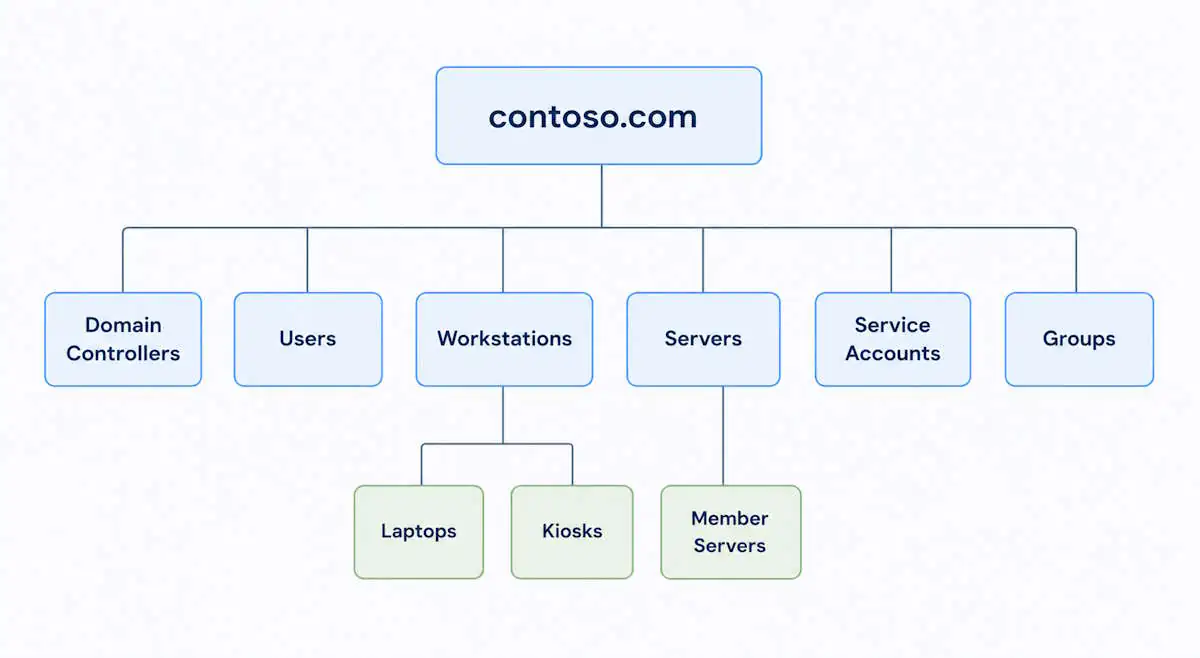
Recommended Active Directory OU Structure Example
contoso.com
├── Domain Controllers
├── Users
├── Workstations
│   ├── Laptops
│   └── Kiosks
├── Servers
│   └── Member Servers
├── Service Accounts
└── Groups| OU | Why it exists |
|---|---|
| Domain Controllers | Built-in – holds domain controller computer objects and the Default Domain Controllers Policy |
| Users | Logon scripts, roaming profiles, desktop restrictions – managed separately from computer policy |
| Workstations | Endpoint baselines, software deployment, BitLocker – split further only where a real policy difference exists |
| Servers / Member Servers | Different baselines and patch cadence than workstations, managed by the systems team |
| Service Accounts | Kept separate for delegation and administrative clarity – not itself a Fine-Grained Password Policy target |
| Groups | Keeps security/distribution groups out of the Users OU for cleaner browsing and queries |
When Departments or Locations Deserve Their Own OU
Create a dedicated OU when at least one of these is true:
- A different team actually administers that population
- A real, distinct Group Policy scope is needed
- The lifecycle or admin workflow differs meaningfully
- Isolating that population measurably simplifies management
A department existing in the org chart isn’t, by itself, one of these reasons.
Active Directory OU Structure Best Practices
- Design around administrative and policy boundaries, not organizational charts
- Keep the hierarchy shallow unless a deeper level has a concrete purpose
- Separate object classes when their GPO or delegation needs genuinely differ
- Keep Domain Controllers in the built-in OU
- Use Block Inheritance and Enforced deliberately and document them, not as a default habit
- Treat security filtering as refinement within a linked scope, not a substitute for OU design – and don’t create extra OUs just to avoid using it either
- Protect OUs from accidental deletion
- Document the owner, purpose, linked GPOs, and delegated groups for every OU that matters
- Prefer stable names and avoid hard-coded distinguished-name dependencies in scripts
- Review the hierarchy periodically as administration and policy needs change
Microsoft’s OU design guidance uses the same principle: structure follows administrative delegation, not organizational hierarchy. Depth itself has no hard technical ceiling – Microsoft’s OU design review guidance recommends staying within 10 levels for manageability, though most SMB and mid-market environments need far fewer than that in practice.
OUs vs Security Groups for Group Policy Scope
A GPO has to be linked to a site, domain, or OU to enter structural scope in the first place – that’s what OU placement controls. Security filtering then refines which specific users or computers within that linked scope actually apply the policy. Both are legitimate, supported tools, and they solve different problems: stable, long-lived policy or delegation boundaries are a good fit for a dedicated OU; a pilot rollout, a role-specific exception, or a temporary carve-out is often a better fit for security filtering than a new permanent OU. For the deeper mechanics – processing order, inheritance, WMI filtering, loopback – see Group Policy in Active Directory; this page stays focused on the structural decision.
Delegation Boundaries: Design OUs Around Who Administers What
| Administrative group | OU | Example delegated tasks |
|---|---|---|
| Helpdesk | Users | Reset non-privileged user passwords, unlock accounts |
| Endpoint team | Workstations | Manage workstation computer objects |
| Server team | Member Servers | Manage member-server computer objects |
| Application operations | Service Accounts | Only specifically approved account-management tasks |
Use groups for delegated administrators, and delegate at the narrowest OU that actually covers the task – not at the domain root. Delegating broad rights high in the directory can let those rights inherit to more objects and child containers than intended, depending on the specific ACE and inheritance scope chosen; the delegation isn’t automatically limited to the objects you had in mind. Keep Domain Admin membership out of routine object administration, and handle privileged or protected accounts through a separate, more restrictive path.
The Delegation of Control Wizard is the right starting point for implementing this. For inspecting or auditing what’s already been delegated on an OU:
dsacls "OU=Users,DC=ad,DC=contoso,DC=com"Use dsacls primarily for inspection. If you need a scripted write example, verify the exact inheritance and object-type syntax against Microsoft’s OU-based delegation guidance before running it against production.
Default Users and Computers Containers
CN=Users and CN=Computers are containers, not OUs – a GPO cannot be linked directly to either one. That’s the core reason unmanaged new objects landing there is a real operational problem, not just a cosmetic one: any baseline GPO you’ve linked to a proper OU simply never reaches them.
Redirect new-object creation to real OUs instead:
redircmp "OU=Workstations,DC=ad,DC=contoso,DC=com"
redirusr "OU=Users,DC=ad,DC=contoso,DC=com"
Microsoft’s container redirection documentation explains that this changes the domain’s default target container for applicable account and computer creation paths going forward. It doesn’t retroactively move anything already in CN=Computers or CN=Users, and it may not affect every provisioning workflow, depending on how objects are created. Verify the change took effect:
Get-ADDomain | Select-Object ComputersContainer, UsersContainerBoth should show your OU paths rather than the default CN= locations.
Create the OU Structure With PowerShell
$domain = "DC=ad,DC=contoso,DC=com"
$ous = @("Servers","Workstations","Users","Service Accounts","Groups")
foreach ($ou in $ous) {
    New-ADOrganizationalUnit -Name $ou -Path $domain -ProtectedFromAccidentalDeletion $true
}
New-ADOrganizationalUnit -Name "Member Servers" -Path "OU=Servers,$domain" -ProtectedFromAccidentalDeletion $true
This creation example will error if any of these OUs already exist, so use an idempotent check-then-create pattern if you’re running it against a live domain. Per Microsoft’s New-ADOrganizationalUnit documentation, the cmdlet creates an OU protected from accidental deletion by default unless -ProtectedFromAccidentalDeletion $false is specified. The explicit $true in the example above is therefore not required, but keeping it makes the script’s intent obvious. Don’t create or move the built-in Domain Controllers OU through this kind of script.
Inspect or Export the Existing OU Structure
Get-ADOrganizationalUnit -Filter * -Properties Description,ManagedBy |
    Select-Object Name, DistinguishedName, Description, ManagedBy
To export for documentation or review:
Get-ADOrganizationalUnit -Filter * -Properties Description,ManagedBy |
    Select-Object Name, DistinguishedName, Description, ManagedBy |
    Export-Csv .\ActiveDirectory-OUs.csv -NoTypeInformation
Once the OU skeleton exists, populating it with users, groups, and group membership is the next practical step. TrevTech has a PowerShell for Active Directory guide that walks through exactly that, from creating users and groups to moving objects between OUs from the command line.
Moving or Renaming OUs Safely
A GPO link is stored in the gPLink attribute of the site, domain, or OU object itself, referencing the GPO’s own directory object – renaming the OU does not require manually recreating the GPO links attached to it. What can break after a rename are scripts or automation with the old distinguished name hard-coded, provisioning tools referencing the old DN, documentation, and third-party integrations that stored the old path directly.
Moving an OU is different from simply renaming it. The GPO links attached directly to the OU remain with the OU, but moving it under a different parent changes the inheritance path. That can change which site/domain/parent-OU GPOs apply and which inherited ACLs reach the OU and its child objects. Before moving an OU, compare both the current and destination inheritance chains rather than checking only the OU’s directly linked GPOs.
Before a rename or move:
- Inventory scripts and automation that hard-code the OU’s distinguished name
- Check provisioning systems for the same dependency
- Check delegated ACL assumptions tied to the current path
- Document the linked GPOs for change control
- Perform the rename or move in a controlled window when the change affects production systems
- Verify automation still works afterward
- Verify GPO results for a representative sample of objects
Active Directory OU Structure Review Checklist
Use this when reviewing an existing domain:
- Every OU has a documented administrative, policy, or lifecycle reason to exist
- Domain Controllers remain in the built-in Domain Controllers OU
- Workstations and member servers are separated where their baselines or administrators differ
- New users and computers are not unintentionally accumulating in
CN=UsersorCN=Computers - OU depth exists for a reason rather than simply mirroring geography or the org chart
- Delegated permissions are assigned to groups at the narrowest practical scope
- Block Inheritance, Enforced links, and security-filtering exceptions are documented
- Important scripts and provisioning systems do not depend on undocumented hard-coded DNs
- Existing OUs are protected from accidental deletion
- Representative users and computers receive the expected GPOs after any structural change
Protect OUs From Accidental Deletion
New-ADOrganizationalUnit creates an OU protected from accidental deletion by default unless -ProtectedFromAccidentalDeletion $false is specified. Verify existing OUs, since older or imported ones may not have it set:
Get-ADOrganizationalUnit -Filter * | Select-Object Name, ProtectedFromAccidentalDeletionTemporarily remove protection only when you intend to delete the OU, as a deliberate acknowledgment rather than a routine step:
Set-ADOrganizationalUnit -Identity "OU=TestOU,DC=ad,DC=contoso,DC=com" -ProtectedFromAccidentalDeletion $false
Remove-ADOrganizationalUnit -Identity "OU=TestOU,DC=ad,DC=contoso,DC=com" -Recursive
If Active Directory Recycle Bin is enabled, a deleted OU and its contents may be restorable through that path rather than requiring a backup restore – see Active Directory Recycle Bin for the actual recovery procedure. This page’s job is prevention, not recovery.
Verify the Design After Moving Objects
Linking a GPO to an OU and confirming that it applied are two different checks. After a move, verify both.
- Confirm the object’s actual DistinguishedName after the move
- Confirm the expected GPO links exist at the target OU
- Run an elevated
gpresult /ron the affected machine and check Applied and Denied GPOs - Run
gpupdate /forcewhen appropriate - Restart or log off only if the specific setting or client-side extension actually requires foreground processing – background refresh handles most cases without one
- Confirm delegated admin tasks still work only in the intended scope, not more broadly
Detailed GPO troubleshooting – security filtering diagnosis, WMI filter evaluation, full inheritance chain analysis – belongs in the dedicated Group Policy guide linked above, not here.
Common Active Directory OU Structure Mistakes
Most of these mistakes are structural: easy to introduce early and difficult to unwind once delegation, scripts, and GPO links have accumulated around them.
| Mistake | Why it’s a problem |
|---|---|
| Copying the org chart without an administrative reason | Reorgs then force OU changes with no actual delegation or policy benefit gained |
| Creating an OU for every small targeting exception | Security filtering usually handles this without permanently growing the hierarchy |
| Flat structure when distinct teams genuinely need delegation | Forces broader delegation than intended, or awkward workarounds |
| Excessive nesting | Makes GPO inheritance harder to reason about without a matching benefit |
| Unmanaged machines left in default containers | Baseline GPOs linked to real OUs never reach them |
| Mixing member servers and workstations | Different baselines and patch cadence get harder to apply cleanly |
| Moving Domain Controllers out of the built-in OU without a documented reason | Affects existing GPO links and delegation tied to that OU |
| Broad delegation high in the tree | Rights can inherit further than intended |
| Undocumented Block Inheritance or security-filtering exceptions | Nobody can explain why a GPO isn’t applying months later |
| Hard-coded distinguished names in automation | Breaks silently on the next rename or move |
FAQ
What is the best Active Directory OU structure?
There’s no single universal tree. Use the shallowest structure that supports your actual delegation and Group Policy boundaries – the baseline example above (Domain Controllers, Users, Workstations, Servers, Service Accounts, Groups) covers most SMB and mid-market environments as a starting point.
Should Active Directory OUs follow departments?
Only when the department represents a real administrative or policy boundary – a different delegated admin team or distinct GPO requirements. A department that shares the same policies and administrators as everyone else doesn’t need its own OU.
How deep should an Active Directory OU structure be?
There’s no hard 3-4 level technical limit. Microsoft recommends staying within 10 levels for manageability, but prefer the shallowest hierarchy that actually supports your delegation and policy needs – most environments need far fewer levels than the maximum.
Should users and computers be in separate OUs?
Usually yes, since they typically need different policy and delegation – but it’s a strong default, not an absolute technical rule. A mixed OU can still work with a deliberate reason and an understanding of the filtering/scope tools involved.
Can I use security groups to filter a GPO?
Yes. Security filtering is a supported way to refine GPO scope within a linked site, domain, or OU – it’s not the wrong tool, and it’s often the right one for pilots or role-specific exceptions.
Can I rename an OU without breaking GPO links?
Yes. The GPO links attached to that OU don’t need to be manually recreated just because the OU was renamed. What can break is anything that hard-codes the old distinguished name – scripts, provisioning tools, and integrations – so check those separately.
Can a GPO be linked to CN=Computers or CN=Users?
No. Those are containers, not OUs, and GPOs can only link to sites, domains, or OUs. Use redircmp and redirusr to redirect new-object creation to real OUs instead.
How do I export an Active Directory OU structure?
Get-ADOrganizationalUnit -Filter * -Properties Description,ManagedBy | Select-Object Name, DistinguishedName, Description, ManagedBy | Export-Csv .\ActiveDirectory-OUs.csv -NoTypeInformation gives a documentable CSV of the current hierarchy, including the description and managing group for each OU.
Active Directory Series
25 articles – Windows Server 2025 · Forest & Domain · FSMO · GPO · Replication · DNS · Security · Backup & Recovery