
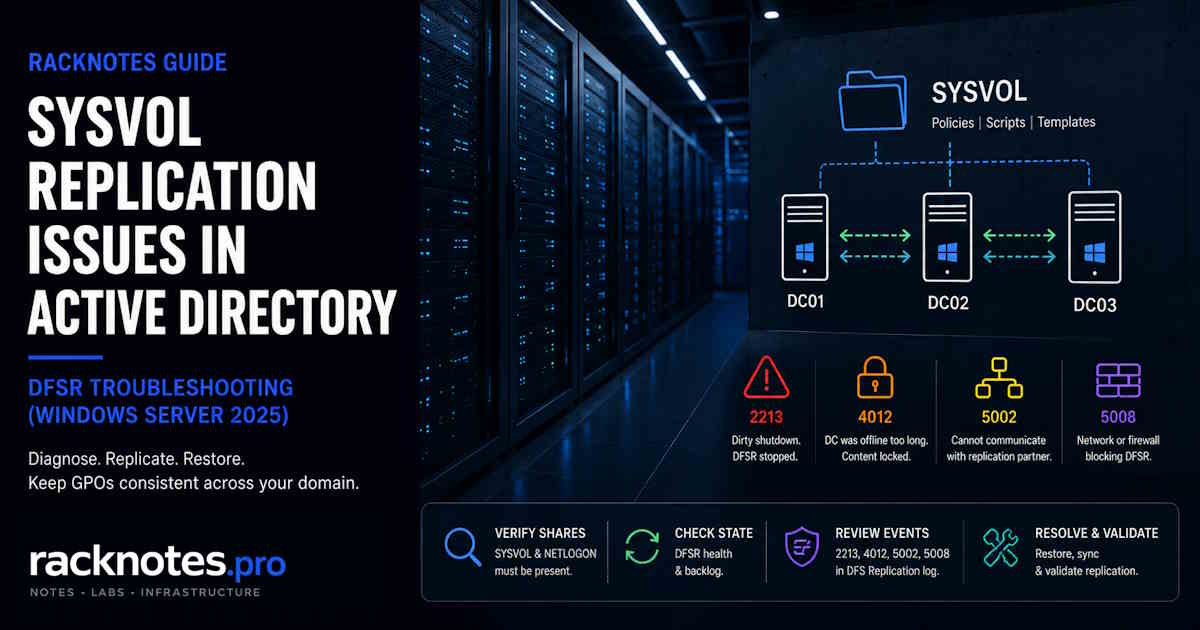
Sysvol replication issues Active Directory administrators encounter most often look like GPO failures: Group Policy changes stop applying, or apply inconsistently depending on which DC authenticated the client — and repadmin /replsum shows zero errors the entire time.
This is SYSVOL replication failure, not AD replication failure. The two are completely separate subsystems, and the tools that diagnose one will not catch the other.
- AD DS replication and SYSVOL replication run on different engines.
repadminshows AD object replication — it does not reflect DFSR state. - Start with
net shareon each DC — both SYSVOL and NETLOGON must be present. - On upgraded forests: run
dfsrmig /GetMigrationStatefirst. If FRS migration is not ELIMINATED, that is your problem — and on Windows Server 2025, an incomplete migration blocks DC promotion entirely. - DFS Replication events live in Applications and Services Logs → DFS Replication — not in Windows Logs → Application.
- Event 2213 = dirty shutdown, DFSR stopped. Event 4012 = DC offline too long, content locked — both common causes of sysvol replication issues active directory. Event 5002 = cannot communicate with replication partner. Event 5008 = network or firewall blocking DFSR.
- Non-authoritative restore (D2) for one or a minority of broken DCs. Authoritative restore (D4) on the PDC Emulator when SYSVOL is broken everywhere.
dcgpofix /ignoreschemadestroys all custom GPO file content. Last resort only.
AD Replication vs SYSVOL Replication: Why sysvol replication issues active directory Look Different
AD DS replication (managed by the KCC, diagnosed with repadmin) carries Active Directory objects: GPO metadata, user accounts, group memberships, site topology. When you create a GPO, the GPO object — name, GUID, version number, links — replicates to all DCs through the standard AD replication engine.
DFSR carries the actual policy files. Every GPO maps to a GUID-named folder under %WINDIR%\SYSVOL\domain\Policies\. Inside each folder is GPT.INI (the version counter), the folder structure for computer and user policy, scripts, and any ADMX templates. Clients pull these files from the NETLOGON share when applying GPO.
When DFSR breaks, AD replication stays healthy. repadmin /replsum shows zero errors. The GPO object says version 7 exists. But the SYSVOL on two of your three DCs still has version 4 files. A client authenticating to DC01 gets the current policy. A client hitting DC02 gets a version three updates behind.
That is why sysvol replication issues in Active Directory produce inconsistent GPO behavior across machines — the metadata and the files are out of sync.
For standard AD replication failures — USN rollback, lingering objects, Error 1722 — see the Active Directory replication not working guide. The symptoms overlap but the diagnosis is completely different.
Step 1: Verify SYSVOL and NETLOGON Shares
The first check for any sysvol replication issues active directory investigation — run this on every DC:
net shareBoth SYSVOL and NETLOGON must appear. If either is missing, you are looking at active sysvol replication issues in Active Directory — DFSR is not running or SYSVOL was never fully initialized on that DC.
Missing NETLOGON while SYSVOL is present is a specific pattern. Before restarting anything, check the SysVolReady registry key on that DC:
Get-ItemProperty "HKLM:\SYSTEM\CurrentControlSet\Services\Netlogon\Parameters" -Name SysVolReadyIf the value is 0, the Netlogon service has not yet received confirmation that SYSVOL is ready — and it will not publish the NETLOGON share until it does. This happens most often on newly promoted DCs where the initial DFSR sync has not completed. Set the value to 1 and restart Netlogon only after DFSR is confirmed healthy:
Set-ItemProperty "HKLM:\SYSTEM\CurrentControlSet\Services\Netlogon\Parameters" -Name SysVolReady -Value 1
Restart-Service Netlogon
If SysVolReady is already 1 and NETLOGON is still missing, restart the DFSR service, wait two minutes, then check again.
Missing SYSVOL on a recently promoted DC usually means the initial DFSR synchronization never completed. Check the DFS Replication event log for Event 4604 — that event confirms SYSVOL initialized successfully. No 4604 means the DC is still waiting for its first sync from a partner.
net share— SYSVOL and NETLOGON present on every DCdfsrmig /GetMigrationState— verify FRS migration state on upgraded forestsdfsrdiag backlog /RGName:"Domain System Volume" /RFName:"SYSVOL Share" /SendingMember:DC01 /ReceivingMember:DC02— pending file count between each DC pair- Event Viewer → Applications and Services Logs → DFS Replication — check for Events 2213, 4012, 5002, 5008
Step 2: Check FRS Migration State (Upgraded Forests)
On environments upgraded from Windows Server 2003 or 2008, SYSVOL may still be running on FRS — the older, pre-DFSR replication service. This is one of the most frequently missed causes of sysvol replication issues in Active Directory on long-running forests.
Windows Server 2025 has removed the FRS binaries entirely. If your domain still has SYSVOL on FRS, promoting a Server 2025 DC fails with: “FRS is deprecated. The server being promoted does not support FRS and cannot be promoted as a replica into the specified domain. You MUST migrate the specified domain to use DFS Replication using the DFSRMIG command before continuing.”
dfsrmig /GetMigrationStateELIMINATED is the only safe state. FRS is decommissioned, DFSR owns SYSVOL.
PREPARED means DFSR is installed but FRS is still the active replication engine. DFSR diagnostic tools will not show you the real problem — you are debugging the wrong service.
REDIRECTED means DFSR is active but FRS cleanup has not completed. Lingering FRS objects can block or confuse DFSR.
If migration is not ELIMINATED, complete the FRS-to-DFSR migration before any further DFSR diagnosis makes sense. If your forest was built clean on Windows Server 2016 or later, skip this step entirely.
Step 3: Check DFSR Backlog Between DCs
dfsrdiag backlog /RGName:"Domain System Volume" /RFName:"SYSVOL Share" /SendingMember:DC01 /ReceivingMember:DC02Run this for every DC pair. A non-zero stalled backlog is one of the clearest indicators of sysvol replication issues active directory troubleshooting can surface quickly. In a three-DC environment that means six checks (DC01→DC02, DC02→DC01, and so on).
0 files = in sync. Non-zero, count decreasing over time = replication is working, catching up — monitor over 15–30 minutes. Non-zero, count not changing = replication is stalled, proceed to the event log.
For a broader health check using PowerShell (requires RSAT-DFS-Mgmt-Con):
Get-DfsrBacklog -SourceComputerName DC01 -DestinationComputerName DC02 `
  -GroupName "Domain System Volume" -FolderName "SYSVOL Share" -Verbose
The -Verbose flag returns the total pending count even when it exceeds the 100-item display limit.
Step 4: Read the DFS Replication Event Log
This is where most operators lose time diagnosing sysvol replication issues in Active Directory. The DFS Replication log is not in the standard Windows Logs section.
Correct path: Event Viewer → Applications and Services Logs → DFS Replication
Windows Logs → Application may have a few DFSR entries, but the primary diagnostic log is in Applications and Services Logs. If you are not looking there, you are missing the relevant events.
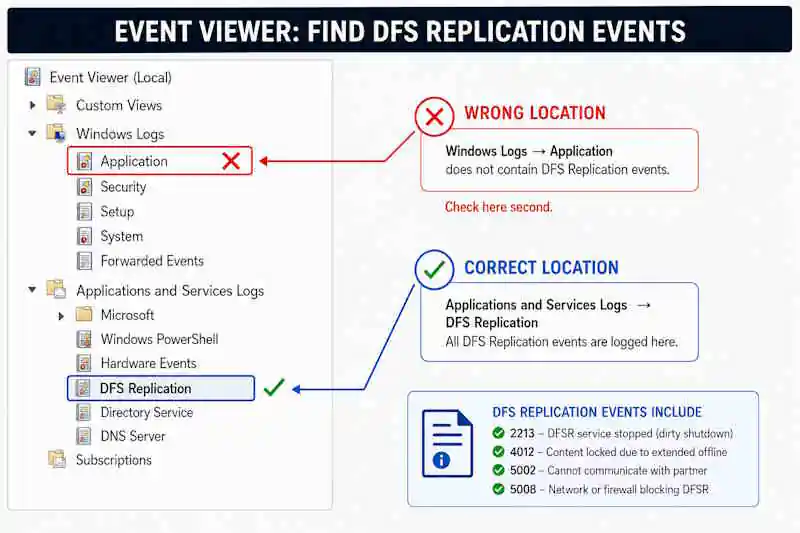
Key event IDs for sysvol replication issues active directory diagnosis:
| Event ID | Severity | Meaning | Immediate Action |
|---|---|---|---|
| 2213 | Warning | DFSR stopped — database not shut down cleanly (dirty shutdown / journal wrap) | Run ResumeReplication WMI call printed in the event text |
| 2104 | Error | Internal ESE database error — DFSR stopped on volume | Run chkdsk; consider database rebuild |
| 4012 | Error | DC offline > 60 days — content-freshness lockout, data considered stale | Non-authoritative or authoritative restore |
| 4202 | Warning | Staging area above high watermark | Monitor; 4206/4208 means action needed |
| 4208 | Warning | Staging quota exceeded even after cleanup | Increase staging quota |
| 4604 | Info | SYSVOL initialized successfully | Confirms healthy initial sync — no action |
| 4614 | Warning | SYSVOL initialized, waiting for initial replication | New DC still waiting for first sync from partner |
| 5002 | Error | Cannot communicate with replication partner — endpoint mapper error | Check partner DC is reachable, DFSR service running on partner |
| 5008 | Warning | Cannot connect to replication partner — network or firewall | Check network path, verify port 5722 TCP |
Events 5002 and 5008 both indicate partner connectivity problems but at different layers. Event 5002 fires when DFSR can reach the partner DC but gets an RPC endpoint error — the DFSR service on the partner may be stopped. Event 5008 fires when the partner is unreachable at the network level. Verify connectivity:
Test-NetConnection -ComputerName DC02 -Port 5722TcpTestSucceeded: False on any DC pair means DFSR cannot communicate at the network layer. The fix is firewall or routing, not a DFSR configuration change.
Step 5: Diagnose the Specific Failure
Dirty Shutdown — Event 2213
Event 2213 is the most common cause of DFSR stopping on a server that otherwise looks healthy. It fires when the DFSR ESE database was not committed cleanly — power loss, BSOD, abrupt service stop, or the NTFS USN change journal ran out of space before DFSR could process all pending changes.
The event text contains the exact recovery command. Copy it from the event and run it on that DC:
wmic /namespace:\\root\microsoftdfs path dfsrVolumeConfig where volumeGuid="<GUID-from-event>" call ResumeReplicationThe GUID is per-server — copy it from each server’s own 2213 event. After running the command, leave DFSR alone until Event 2214 appears (recovery complete). Do not restart the service mid-recovery — restarting resets the entire process from the beginning.
Windows Server 2025 — wmic is removed. The wmic binary is no longer present by default on Server 2025. When troubleshooting sysvol replication issues active directory on Server 2025, use the PowerShell equivalent instead:
$vol = Get-WmiObject -Namespace "root\microsoftdfs" -Class dfsrVolumeConfig |
  Where-Object { $_.VolumeGuid -eq "<GUID>" }
$vol.ResumeReplication()
To restore wmic if needed: dism /online /add-capability /CapabilityName:WMIC~~~~
On Server 2016 and later, auto-recovery is enabled by default — the sequence 2212 → 2218 → 2214 runs automatically. On older builds, Event 2213 always requires the manual resume call. Microsoft documents this behavior in the DFSR Event ID 2213 troubleshooting guide.
Content-Freshness Lockout — Event 4012
Event 4012 fires when a DC has been offline or unable to replicate for longer than MaxOfflineTimeInDays — default 60 days. DFSR treats the local SYSVOL data as potentially stale and stops replicating it to prevent other DCs from receiving outdated files.
The event description tells you to “remove the server from the replication group and re-add it.” For sysvol replication issues in Active Directory, ignore that instruction. That procedure applies to non-SYSVOL DFS namespaces. For SYSVOL, use non-authoritative or authoritative restore.
If you are confident the DC’s SYSVOL content is still current and just needs to resume, raise the threshold temporarily:
# PowerShell — works on all versions including Server 2025
$cfg = Get-WmiObject -Namespace "root\microsoftdfs" -Class DfsrMachineConfig
$cfg.MaxOfflineTimeInDays = 90
$cfg.Put()
Restart-Service DFSR
Set it back to 60 after replication stabilizes. This is an emergency lever, not a fix — the underlying cause still needs to be addressed.
Staging Quota Exhaustion — Events 4202, 4208
Staging quota exhaustion is an underappreciated cause of sysvol replication issues active directory environments accumulate over time — especially after large GPO deployments. The default DFSR staging quota is 4 GB. When the staging area fills up, DFSR cannot buffer incoming files before installing them, which causes replication to loop or stall. The staging quota should be at least as large as the 32 largest files in the replicated folder. Calculate what you need:
Get-ChildItem "C:\Windows\SYSVOL\domain\Policies" -Recurse |
  Sort-Object Length -Descending | Select-Object -First 32 |
  Measure-Object -Property Length -Sum | Select-Object -ExpandProperty Sum
Divide by 1,073,741,824 to get GB. Increase the quota:
Set-DfsrMembership -GroupName "Domain System Volume" -FolderName "SYSVOL Share" `
  -ComputerName DC01 -StagingPathQuotaInMB 8192
DFSR Database Corruption — Event 2104
Event 2104 is a less common but serious cause of sysvol replication issues in Active Directory — DFSR could not recover from an internal ESE database error and stopped replication on a volume. Check disk health first:
chkdsk C: /fIf the disk is clean, the DFSR database is corrupted and needs a rebuild. Stop the DFSR service, rename or delete the DFSR folder under C:\System Volume Information\, then restart DFSR. The service rebuilds the database and performs a non-authoritative sync from a healthy partner. Any files that existed only on this DC go to DfsrPrivate\ConflictAndDeleted.
SYSVOL Not Replicating After VM Snapshot Restore
Restoring a DC from a VM snapshot is a common trigger for sysvol replication issues in Active Directory. DFSR detects the version mismatch and halts replication to that DC to prevent spreading stale content. The service appears running but Event 5002 appears in the log. Restarting DFSR will not fix this — the DC needs a non-authoritative restore.
Non-Authoritative SYSVOL Restore (D2)
Use D2 when sysvol replication issues active directory affect one or a minority of DCs, and at least one healthy DC exists to pull from. The D2 procedure forces the broken DC to discard its local SYSVOL and pull a fresh copy from a healthy partner.
- In ADSIEdit, connect to the Default Naming Context. Navigate to the broken DC’s subscription object:
CN=SYSVOL Subscription,CN=Domain System Volume,CN=DFSR-LocalSettings,CN=DC02,OU=Domain Controllers,DC=corp,DC=local - Set
msDFSR-Enabled = FALSE - Force AD replication:
repadmin /syncall /AdeP - On the broken DC, poll AD:
dfsrdiag pollad - Wait for Event 4114 (“SYSVOL no longer being replicated”)
- Set
msDFSR-Enabled = TRUEon the same subscription object - Force AD replication again, then
dfsrdiag pollad - Wait for Event 4614 then Event 4604 (sync complete)
- Confirm:
net shareshows SYSVOL and NETLOGON on the restored DC
Authoritative SYSVOL Restore (D4)
Use D4 when sysvol replication issues active directory affect all DCs or the majority, and no healthy DC exists to pull from. The PDC Emulator is the standard choice for the authoritative source. Microsoft documents the full D4 procedure in the force authoritative and non-authoritative synchronization guide.
All DCs have broken SYSVOL. This scenario usually follows a mass-restore event, a prolonged split-brain condition, or staging area exhaustion that spread across the entire environment. AD replication shows healthy. DFSR log on every DC shows errors. net share on all DCs is missing SYSVOL or NETLOGON.
The only reliable path: identify the DC with the most current GPO files, designate it authoritative (D4), set all others to non-authoritative (D2), let the rest resync from the authoritative source.
Identify which DC has the most current SYSVOL content:
Get-ChildItem "C:\Windows\SYSVOL\domain\Policies" |
Sort-Object LastWriteTime -Descending | Select-Object Name, LastWriteTime- Stop DFSR on all DCs:
Stop-Service DFSR - On the authoritative DC, set both attributes in ADSIEdit on its subscription object:
msDFSR-Enabled = FALSEandmsDFSR-Options = 1 - On every other DC, set
msDFSR-Enabled = FALSEonly - Force AD replication:
repadmin /syncall /AdeP— confirm on all DCs - Start DFSR on the authoritative DC only. Wait for Event 4114, then set
msDFSR-Enabled = TRUE. Force AD replication, thendfsrdiag pollad. Wait for Event 4602 (designated primary sync complete) - Start DFSR on each remaining DC one at a time. For each: set
msDFSR-Enabled = TRUE→repadmin /syncall /AdeP→dfsrdiag pollad→ wait for Events 4614 then 4604 - Return DFSR service to Automatic start on all DCs
If you mark one DC authoritative but do not explicitly reset the others to non-authoritative, DFSR generates conflicts from any DC that was not reset. msDFSR-Options typically resets itself to 0 automatically; verify it after completion.
Emergency Recovery with dcgpofix
If no DC has reliable SYSVOL content and the only target is restoring the two default GPOs, dcgpofix can recreate them. This is the last-resort option for sysvol replication issues active directory where no backup exists and default policy is the immediate priority:
dcgpofix /ignoreschemadcgpofix destroys custom GPO content. dcgpofix recreates Default Domain Policy and Default Domain Controllers Policy from scratch. Custom GPOs — software deployment, security baselines, drive mappings, login scripts — are not touched. But their SYSVOL files are also not restored.
The result: dcgpofix runs successfully, default GPOs work again, and every other GPO appears intact in GPMC but silently fails to apply because the underlying files are still absent on SYSVOL. Run dcgpofix only when you have confirmed no DC has recoverable SYSVOL content and you understand that all custom GPO files are permanently lost without a backup.
| Method | When to Use | What It Restores |
|---|---|---|
| D2 non-authoritative | Minority of DCs broken, healthy DC exists | Broken DCs resync from healthy partner |
| D4 authoritative | All or majority of DCs broken | All DCs resync from designated source DC |
| Backup restore | Full DR, no good live copy | Full SYSVOL state from backup point |
| dcgpofix | No good SYSVOL anywhere, default GPOs only | Default Domain Policy + Default DC Policy only |
Post-Fix Verification
Do not stop at “shares are present.” Resolving sysvol replication issues in Active Directory is confirmed only when all of the following are true:
net shareon every DC shows both SYSVOL and NETLOGONdfsrdiag backlogreturns 0 files between all DC pairs- Event 4604 is present in the DFS Replication log on each DC
- GPT.INI version numbers match across all DCs — the
version=line must be identical:
Get-Content "C:\Windows\SYSVOL\domain\Policies\{31B2F340-016D-11D2-945F-00C04FB984F9}\GPT.INI" gpupdate /forceon a client workstation, repeated after authenticating to different DCs, produces consistent policy application
Operators frequently stop at step 1 and call it resolved. Steps 2 and 4 are what actually confirm that sysvol replication issues active directory are fully fixed — DFSR is working and content is consistent across all members.
Frequently Asked Questions
What is the difference between AD replication and sysvol replication issues active directory?
AD DS replication carries directory objects — user accounts, GPO metadata, configuration — using the KCC-managed multi-master engine. DFSR carries the actual GPO files stored in SYSVOL. Both must work for Group Policy to function. repadmin shows only AD object replication; DFSR has its own event log, its own service, and its own diagnostic tools. You can have clean AD replication and completely broken SYSVOL at the same time.
How do I know which DC has the correct SYSVOL to use as authoritative source?
Compare GPT.INI version numbers and file modification timestamps across DCs. The DC whose SYSVOL Policies folder has the newest modification times and highest version counters is the correct source. If timestamps are identical across all DCs, any DC can be authoritative.
Will restarting the DFSR service fix sysvol replication issues in Active Directory?
Sometimes. If DFSR stopped due to a transient error that has since cleared, a restart works. If the cause is Event 2213 (dirty shutdown), you must run the ResumeReplication call from the event text — a plain service restart will loop. If the cause is Event 4012 (content-freshness lockout) or a VM snapshot restore, restarting accomplishes nothing. Read the event before restarting.
What does Event ID 4012 mean in the context of sysvol replication issues active directory?
The DC has been offline or unable to replicate for more than 60 days. DFSR treats its SYSVOL data as potentially stale and refuses to replicate it. The fix is non-authoritative restore (D2) if at least one healthy DC exists, or authoritative restore (D4) if all DCs are affected. Do not follow the event’s instruction to “remove and re-add the server from the replication group” — that procedure applies to non-SYSVOL DFS namespaces, not SYSVOL.
What is the difference between D2 and D4 restore?
D2 (non-authoritative) tells one or more DCs to discard their local SYSVOL and pull a fresh copy from a healthy partner. D4 (authoritative) designates one DC as the source of truth and forces all others to pull from it. Use D2 when at least one DC has correct content. Use D4 when all DCs are broken. The Microsoft reference for both procedures is the DFSR troubleshooting documentation.
Is dcgpofix safe to run in production?
It depends on what you need. dcgpofix safely recreates Default Domain Policy and Default Domain Controllers Policy. It does not touch custom GPOs. But it also does not restore custom GPO files on SYSVOL — those remain absent after dcgpofix completes. If your environment relies on custom GPOs, dcgpofix alone is not a recovery solution for sysvol replication issues active directory.
Final Thoughts
SYSVOL replication issues in Active Directory are disorienting because repadmin shows nothing wrong. AD looks healthy. The failure is in a separate subsystem with its own event log, its own service, and its own recovery procedure.
The diagnostic path is straightforward once you know where to look: verify shares and the SysVolReady key, check FRS migration state on older forests, measure backlog between DC pairs, read the correct event log. Resolving sysvol replication issues active directory always comes down to a binary recovery decision — D2 when a healthy source exists, D4 when it does not.
The two mistakes that cost the most time: looking in the wrong event log, and restarting DFSR before reading what stopped it.
If sysvol replication issues active directory are resolved but GPO still does not apply consistently, the next diagnostic layer is DNS. Active Directory DNS problems covers SRV record failures, zone issues, and name resolution breakdowns that produce symptoms nearly identical to SYSVOL failures.
Active Directory Series
25 articles – Windows Server 2025 · Forest & Domain · FSMO · GPO · Replication · DNS · Security · Backup & Recovery