
Active Directory DNS problems rarely announce themselves as DNS problems. A domain controller can fail to resolve what it needs without presenting an obvious DNS error. Instead, the failure may show up as a user who can’t log in, AD replication stuck on error 1722, or Group Policy that quietly stopped applying weeks ago. Active Directory depends on DNS for service location, not just name resolution: every client, DC, and application looks up SRV records to find a domain controller, a Global Catalog, or a Kerberos KDC. When those records are missing, wrong, or stale, the visible symptom can point almost anywhere except DNS.
For authentication, domain join, DC discovery, Group Policy, and replication symptoms, DNS health is one of the highest-yield first checks. DNS can be the root cause even when the visible symptom is authentication, replication, or Group Policy, but it is not the only possibility. This guide focuses on ruling DNS in or out quickly before moving to firewalls, permissions, services, or other causes.
- Run
dcdiag /test:DNS /v /e /f:dns.txtas the first step on any Active Directory DNS problems investigation. Read the summary table at the bottom first, then work backward to the failing DC. - A domain controller should use only internal, AD-aware DNS servers, with redundant targets so it isn’t dependent on a single resolver. Do not use a public resolver such as 8.8.8.8 or 1.1.1.1 as primary.
- AD-integrated zones replicate automatically through AD replication. A file-backed Standard Primary zone doesn’t. A newly promoted DC doesn’t automatically get a writable copy of it.
- DNS scavenging misconfiguration causes two opposite failures: disabled means stale records accumulate, overly aggressive means live records get deleted.
- On Windows Server 2025, NetBIOS-based DC discovery is blocked by default, so correct DNS configuration matters even more.
What Active Directory DNS Problems Start With: DNS Requirements
Many Active Directory DNS problems trace back to missing or incorrect SRV records, or to a DNS server the DC can’t reach or trust. Active Directory uses DNS as its locator service. Every domain controller registers its service records through the Netlogon service at startup, on restart, and once per hour to keep them current.
The complete set of required records is documented in %systemroot%\System32\Config\Netlogon.dns on every DC. Use it as a reference when verifying registration manually. The authoritative SRV record specification is covered in Microsoft Learn: How Domain Controllers Are Located in Windows.
The critical SRV records AD depends on:
_ldap._tcp.<domain>
_ldap._tcp.dc._msdcs.<domain>
_ldap._tcp.<guid>.domains._msdcs.<forest>
_kerberos._tcp.<domain>
_kerberos._udp.<domain>
_kerberos._tcp.dc._msdcs.<domain>
_kpasswd._tcp.<domain>
_gc._tcp.<forest>
_ldap._tcp.gc._msdcs.<forest>
_ldap._tcp.pdc._msdcs.<domain>   (PDC Emulator only)
Beyond SRV records, each DC needs correct host and locator records for forward resolution, plus a GUID-based CNAME in _msdcs that replication partners use to find each other. PTR records in a reverse lookup zone are strongly recommended for diagnostics and for applications that perform reverse lookups, but reverse DNS itself isn’t a core requirement for DC Locator. Missing A records break client discovery. Missing or stale GUID-based CNAME records can prevent a replication partner from locating the source DC and can contribute to replication failures such as error 1722, though 1722 has several possible causes beyond DNS.
AD-Integrated vs Standard Primary Zones
AD-integrated zones store records in the directory itself, in either the DomainDnsZones or ForestDnsZones application partition, and replicate multi-master through AD replication. Every DC running DNS gets a writable, authoritative copy, and dynamic updates use Kerberos authentication. Standard Primary zones are a text file on one server that pushes to read-only secondaries through zone transfer. A file-backed Standard Primary zone does not replicate through Active Directory. Adding another DC or DNS server doesn’t automatically give that server a writable, AD-replicated copy of the zone: secondary zones, or another zone-transfer design, have to be configured separately.
The _msdcs.<forest root> namespace holds forest-wide DC Locator data, including GUID-based DC aliases and Global Catalog locator records. In modern AD DNS designs it should use forest-wide replication (ForestDnsZones) so those records are available across the forest. Most other zones are domain-scoped (DomainDnsZones).
DNS Configuration on a Domain Controller’s NIC
A domain controller should use only internal DNS servers that host or can resolve the AD namespace. In a multi-DC site, configure redundant internal DNS targets so the DC isn’t dependent on one unreachable resolver. A partner DC is commonly used as one of those targets, and a DC can point to itself as preferred or alternate DNS in supported configurations. What matters is avoiding a single point of DNS dependency, especially during promotion, initial replication, recovery, or island conditions.
A DC dependent on a single unreachable resolver can deadlock on reboot: DNS waits for AD initial sync, AD replication needs DNS to find partners, DNS can’t find partners, and the cycle stalls. Public resolvers such as 8.8.8.8 or 1.1.1.1 as primary break SRV discovery entirely, since public DNS has no knowledge of your AD namespace. Internet resolution belongs in forwarders configured on the DNS server, not on client NICs.
Diagnostic Toolkit for Active Directory DNS Problems
Before working through individual failure scenarios, start with these commands. They quickly separate DNS and DC Locator problems from failures that need a different troubleshooting path.
# Master DNS health check across all DCs in the forest
dcdiag /test:DNS /v /e /f:dns.txt

# Read the summary table at the bottom first:
# Columns: Auth  Basc  Forw  Del  Dyn  RReg  Ext
# Find FAIL/WARN, then search the body for DC: <name>
The dcdiag /test:DNS sub-tests and their meaning are documented in Microsoft Learn: Verify DNS functionality to support Active Directory. DnsBasic covers client configuration and zone presence. DnsRecordRegistration validates the A record, the GUID CNAME, and all SRV records.
# SRV record verification
Resolve-DnsName _ldap._tcp.dc._msdcs.corp.local -Type SRV
nslookup -type=srv _ldap._tcp.dc._msdcs.corp.local

# DC discovery test (bypasses cache)
nltest /dsgetdc:corp.local /force

# Force DNS re-registration
net stop netlogon && net start netlogon
ipconfig /registerdns

# Zone status
Get-DnsServerZone | Select ZoneName,ZoneType,IsDsIntegrated,ReplicationScope

# Forwarder check
Get-DnsServerForwarder

# Scavenging configuration
Get-DnsServerScavenging
Failure Scenario: SRV Records Missing, DC Not Discoverable
- Verify the records exist:
Resolve-DnsName _ldap._tcp.dc._msdcs.corp.local -Type SRV. An empty result means SRV records aren’t registered. - Check NIC DNS configuration:
Get-DnsClientServerAddress. Primary DNS must be an internal AD DNS server, not 127.0.0.1 alone, not a public resolver. - Verify the zone exists and is AD-integrated:
Get-DnsServerZone -Name corp.local, confirmIsDsIntegrated = True. - Re-register:
net stop netlogon && net start netlogon, thenipconfig /registerdns. Netlogon registers SRV records on startup. - Verify: re-run the SRV query, then run
dcdiag /test:DNS /vand confirm the RReg sub-test passes.
If the zone itself lacks the _msdcs and _sites subzones, dynamic registrations have nowhere to land. This happens when a Standard Primary zone was created manually without the proper delegations. Convert it to AD-integrated and the subzones appear automatically.
There Are Currently No Logon Servers Available to Service the Logon Request
Symptoms include logon delays, this exact message on the client, intermittent authentication failures, and Group Policy not applying. The message is not purely a DNS issue: network reachability, VPN connectivity for remote users, DC reachability, and the client’s computer secure channel can all produce it. DNS is a fast branch to check first, not the only branch.
- Confirm network path: the client is on the corporate network or the required VPN.
- Check DNS servers in use:
ipconfig /all. DNS must point at internal AD DNS servers, not an external resolver or a decommissioned DC’s IP. - Resolve DC Locator SRV records:
Resolve-DnsName _ldap._tcp.dc._msdcs.corp.local -Type SRV. - Run DC discovery:
nltest /dsgetdc:corp.local /force. It should return a DC with WRITABLE/DNS_DC flags. - Test reachability to the returned DC:
Test-NetConnection dc01.corp.local -Port 389. - If network and DNS are healthy, check the secure channel:
Test-ComputerSecureChannel -Verbose. A broken computer-to-domain trust produces this same message with clean DNS.
DNS is the first branch worth checking because it’s fast and cheap to rule out, not because it’s the only cause. If DC discovery and reachability both check out, move to the computer secure channel and trust relationship before circling back to DNS again.
If nltest returns ERROR_NO_SUCH_DOMAIN (1355) and the client’s DNS points at an external resolver or a dead IP, fix the DNS pointer first. DHCP is the usual delivery mechanism for that misconfiguration. Check the DHCP scope options (006 DNS Servers) before chasing anything else.
A recurring pattern behind this exact error: the DNS problem isn’t inside Active Directory at all. It’s a client that picked up a DHCP-assigned DNS server outside the AD-aware set, usually from a secondary VLAN or a guest DHCP scope that leaked into a segment it shouldn’t reach. The fix is a DHCP scope correction, not anything on the DC.
Domain Join Failures and DNS
When a domain join failure presents as a DC discovery or DNS error, check DNS first. Domain join can also fail for reasons unrelated to DNS, including network and RPC connectivity, LDAP reachability, account permissions, an existing computer account conflict, machine-account quota limits, or Group Policy restrictions on joining computers to the domain. Once DC discovery succeeds, %windir%\debug\netsetup.log and the returned status code are the fastest way to identify the next troubleshooting branch. Full guidance is in Microsoft Learn: Active Directory Domain Join Troubleshooting Guidance.
DNS Name Does Not Exist When Joining a Domain
Two DNS-related status codes worth distinguishing are:
0x54B (ERROR_NO_SUCH_DOMAIN) – “The specified domain either does not exist or could not be contacted.” The machine can’t discover a DC at all. Check whether the client resolves _ldap._tcp.dc._msdcs.corp.local. If not, its DNS configuration is wrong.
0x0000232B (DNS_ERROR_RCODE_NAME_ERROR) – “DNS name does not exist.” The DNS query used to locate the domain or its SRV records returned a name error. Check the client’s DNS server settings, the AD DNS zone, and the required SRV records.
0x216D is a different failure, and it is not a DNS-name-not-found code. Microsoft documents it as a domain join failure tied to the joining account exceeding the default computer-account creation limit, or a Group Policy restriction on joining computers to the domain. If a join error references 0x216D, look at account permissions and policy, not DNS.
# Run from the machine that's failing to join
nltest /dsgetdc:corp.local
Resolve-DnsName _ldap._tcp.dc._msdcs.corp.local -Type SRV
nslookup corp.local

# If DNS resolves but the join still fails, check time skew:
w32tm /query /status    # Kerberos fails if skew exceeds 5 minutes
For domain join failures that present as DC discovery or DNS errors, check the client’s DNS configuration and SRV records first. If DC discovery succeeds, use Netsetup.log and the returned status code to move to network, authentication, account, or Group Policy troubleshooting. Time synchronization is one possible next check after DNS is healthy; see Active Directory Time Synchronization. Firewall rules for ports 88, 389, and 445 are another branch to verify when the returned status points toward connectivity.
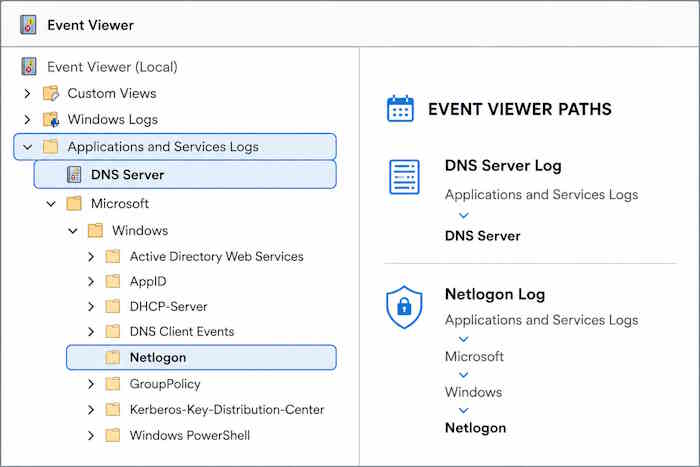
Event ID 4000: The DNS Server Was Unable to Open Active Directory
“The DNS server was unable to open Active Directory.” This message means an AD-integrated DNS server can’t access the directory data it needs to load a zone. It commonly appears alongside Event ID 4007, which reports that a specific AD-integrated zone failed to load. Microsoft’s documentation treats the pair together in Microsoft Learn: DNS Zones Don’t Load with Event 4000 and 4007.
- Confirm AD DS and DNS Server services are both running on the DC.
- Check the DC’s own DNS client configuration. A DC pointing at unreachable or incorrect DNS servers can’t resolve its own domain during zone load.
- Check AD replication and secure-channel health:
repadmin /showreplandTest-ComputerSecureChannel -Verbose. - Run
dcdiag /test:DNS /vand review the DnsBasic and connectivity sub-tests. - If the pattern matches Microsoft’s documented secure-channel scenario for 4000/4007, follow the supported secure-channel repair workflow instead of recreating the zone.
Recreating the zone from scratch before diagnosing the AD DS or secure-channel state can make the underlying problem harder to isolate.
Event ID 4013: DNS Waiting for AD Initial Synchronization
“The DNS server is waiting for Active Directory domain controller to become fully operational.” Event ID 4013 can appear during startup while an AD-integrated DNS server waits for initial AD replication before it loads zone data. A single occurrence at boot is a normal part of that sequence.
If Event 4013 persists, zones stay unavailable, or the DNS console stays unreachable well past a normal startup window, treat it as a signal to investigate rather than something to wait out. An islanded DC, one pointing only at itself or at an unreachable DNS partner and unable to complete inbound replication, is one common cause, but not the only one. Point the DC’s preferred DNS at a reachable in-site partner, remove stale DNS entries for decommissioned DCs, then reboot and confirm DNS starts clean. If the pattern doesn’t resolve, check replication health directly with repadmin /showrepl before assuming DNS pointers are the whole story.
Event ID 4015: DNS Critical Error
“The DNS server has encountered a critical error from the Active Directory.” Event ID 4015 carries an extended error code that narrows down the actual cause:
00002095: an RODC running DNS can’t reach a writable DC. Runnltest /dsgetdc:corp.local /WRITABLE /AVOIDSELF /TRY_NEXT_CLOSEST_SITE /DS_6to verify writable DC reachability.0000051B: DNS can’t access an AD object, usually a permissions issue on the DNS application partition. Check withGet-Acl "AD:\DC=DomainDnsZones,DC=corp,DC=local".ADMIN_LIMIT_EXCEEDED: orphaned records from demoted DCs accumulated in the zone, pushing a multi-valued attribute over its limit. Clean up stale NS records from decommissioned DCs.
Events 5774 and 5781: Netlogon DNS Registration Failures
Both are NETLOGON-source events logged when a DC’s SRV registration attempt fails. Event 5774 is a specific dynamic DNS registration failure. Event 5781 reports that Netlogon’s dynamic DNS registration or deletion could not be completed, usually meaning the DC keeps retrying and keeps failing.
Root causes: dynamic updates disabled on the zone, incorrect permissions on the AD-integrated zone, an unreachable DNS server, or a zone that isn’t AD-integrated so records can’t be securely written.
# Check zone dynamic update setting
Get-DnsServerZone -Name corp.local | Select DynamicUpdate
# Should be: Secure (for AD-integrated zones)

# Force re-registration and watch Event Viewer
nltest /dsregdns
ipconfig /registerdns

# Then verify
Resolve-DnsName _ldap._tcp.dc._msdcs.corp.local -Type SRV
If the zone shows DynamicUpdate: None, that’s the problem: set it to Secure for AD-integrated zones. If it shows NonSecureAndSecure, that’s a security risk (any host can overwrite DC locator records), so lock it down to Secure.
Error 1722 (0x6BA): The RPC Server Is Unavailable During Active Directory Replication
Win32 error 1722 is also known as 0x6BA or RPC_S_SERVER_UNAVAILABLE. Administrators may also see it as HRESULT 0x800706BA in tools and logs. It means the RPC client on the destination DC couldn’t connect to the RPC server on the source DC. DNS is one common cause, but routing, blocked RPC ports, service failures, authentication problems, and other lower-layer connectivity issues can produce the same error. DNS lookup failures cause a large number of 1722 RPC errors in AD replication, per Microsoft Learn: Troubleshoot Replication Error 1722, so it is worth ruling DNS out early instead of assuming a firewall problem.
If 1722 is caused by DNS, one common path is failure to resolve the source DC’s GUID-based CNAME or host record in _msdcs.
- Get the source DC’s name from repadmin:
repadmin /showrepl. - Resolve the GUID CNAME:
Resolve-DnsName <dsa-guid>._msdcs.corp.local -Type CNAME. Failure here points toward DNS as the cause. - Check the A record:
Resolve-DnsName dc02.corp.local. A wrong IP means a stale DNS entry. - Re-register on the source DC:
net stop netlogon && net start netlogon, thenipconfig /registerdns. - If DNS resolves correctly: check time skew (
w32tm /query /status, Kerberos fails past 5 minutes of skew) and the RPC port range (49152 to 65535 TCP). - Verify:
repadmin /syncall /AdePthenrepadmin /replsummary. Both should show no errors.
Missing or stale GUID-based CNAME records can prevent a replication partner from locating the source DC and can contribute to replication failures such as 1722. The code is not specific to DNS, and several unrelated root causes can produce it.
This section covers ruling DNS in or out for 1722. If DNS resolves correctly and 1722 continues, the cause sits outside DNS. See Active Directory Replication Not Working for routing, RPC, firewall, service, and authentication causes rather than duplicating that troubleshooting here.
Because 1722 reads like a network problem, operators often check RPC ports and firewall rules first. A quick CNAME query can rule DNS in or out before that broader troubleshooting begins.
Events 2087 and 2088 in the NTDS Replication log are direct DNS signals. They appear when a DC can’t resolve a replication partner’s CNAME and falls back to NetBIOS discovery. On Windows Server 2025, where NetBIOS-based DC discovery is blocked by default, that fallback path usually isn’t available, so a 2087/2088 pair is more likely to correlate with a hard replication failure than a degraded one. Confirm with repadmin /showrepl rather than assuming the outcome from the event alone.
DNS Zone Not Replicating Between DCs
A record created on DC1 never appears on DC2. A newly promoted DC doesn’t get a writable copy of a zone that isn’t AD-integrated.
# Check zone type and replication scope
Get-DnsServerZone | Select ZoneName,ZoneType,IsDsIntegrated,ReplicationScope

# Convert a file-backed Standard Primary zone to AD-integrated
ConvertTo-DnsServerPrimaryZone -Name "corp.local" -ReplicationScope "Domain" -Force
ConvertTo-DnsServerPrimaryZone -Name "_msdcs.corp.local" -ReplicationScope "Forest" -Force

# Verify the conversion
Get-DnsServerZone | Select ZoneName,ZoneType,IsDsIntegrated,ReplicationScope
A file-backed Standard Primary zone does not replicate through Active Directory. Adding another DC or DNS server doesn’t automatically give that server a writable, AD-replicated copy of the zone. ConvertTo-DnsServerPrimaryZone gives every DC running DNS a writable copy through normal AD replication instead.
After converting, the zone appears on other DCs on the next AD replication cycle, not instantly. Multi-site environments add inter-site replication latency on top. Don’t conclude the fix failed after 60 seconds. Wait for AD replication to complete, or force it with repadmin /syncall /AdeP.
DNS Scavenging Misconfiguration
Scavenging misconfiguration is one of the more insidious Active Directory DNS problems, because the failure arrives weeks after the misconfiguration, long after anyone connects it to a DNS change. It produces two opposite failure modes. Disabled: stale records accumulate and clients reach decommissioned DCs or old server IPs. Overly aggressive: live records get deleted and authentication fails across the board.
Scavenging depends on three pieces: the record itself must have a timestamp, the zone must have aging configured, and at least one DNS server must be authorized to scavenge. If any one is missing, scavenging does not run as expected. A common trap is leaving the zone’s authorized scavenge server set to a decommissioned DC, which can stop cleanup without an obvious failure.
# Check current scavenging config
Get-DnsServerScavenging
dnscmd /zoneinfo corp.local   # shows ScavengingServers

# Re-point scavenge server to a live DNS server
dnscmd /zoneresetscavengeservers corp.local 192.168.1.10

# Enable scavenging: a common starting configuration
Set-DnsServerScavenging -ScavengingState $true -ScavengingInterval 7.00:00:00
Set-DnsServerZoneAging -Name corp.local -Aging $true -NoRefreshInterval 7.00:00:00 -RefreshInterval 7.00:00:00
7 days no-refresh and 7 days refresh is a common starting point per Microsoft Learn: DNS Scavenging Setup, not a universal requirement. Environments with longer natural registration-refresh cycles may need longer intervals. The no-refresh plus refresh plus next-cycle model is a useful way to think about a stale record’s maximum lifetime, not a guarantee that every record disappears exactly on that schedule.
Do not run dnscmd /ageallrecords casually on a production AD-integrated zone. It timestamps every record, including static ones, which can make them eligible for scavenging once the configured no-refresh and refresh safety intervals pass and a scavenging cycle runs. Static DC and server A records created before scavenging was enabled can end up deleted this way. The failure surfaces weeks after the command ran and is rarely traced back to it.
Scavenging is not a one-time setup task. The scavenge-server assignment remains an operational dependency, so decommissioning that DNS server without updating the zone can silently stop cleanup.
Stale NS Records After DC Demotion
After demoting a DC, its NS records don’t always clean up automatically. If the old DC is still listed as an authoritative name server in the zone, or as a delegation target in a parent zone, clients and other DCs may try to contact it, wait for a timeout, then fall back to a working server. Resolution is fast most of the time, but individual lookups can stall for 15 to 30 seconds.
# List NS records in the zone
dnscmd /enumrecords corp.local @ /type NS

# List records in _msdcs
dnscmd /enumrecords _msdcs.corp.local @ /type NS

# Remove stale NS record for a decommissioned DC
dnscmd /recorddelete corp.local @ NS dc-old.corp.local

# Check delegation NS in the parent zone, if it's a subdomain:
# DNS Manager -> parent zone -> delegations -> NS tab
After cleaning NS records, verify delegations in parent zones. If the decommissioned DC was listed there as a glue NS record, update those too. Event 4015 with ADMIN_LIMIT_EXCEEDED is often triggered by orphaned NS records from multiple decommissioned DCs accumulating in the zone’s multi-valued attribute.
Global Catalog DNS Problems
Applications such as Exchange and Skype for Business, as well as multi-domain logons, rely on DNS to discover a Global Catalog. Missing GC locator records can cause GC-dependent applications and multi-domain logons to fail, select the wrong server, or experience discovery delays.
# Verify GC SRV records exist
Resolve-DnsName _gc._tcp.corp.local -Type SRV
Resolve-DnsName _ldap._tcp.gc._msdcs.corp.local -Type SRV

# Confirm the DC is advertising as GC
nltest /dsgetdc:corp.local /gc

# Check GC role on the DC
(Get-ADDomainController -Identity DC01).IsGlobalCatalog
If GC SRV records are missing but the DC has the GC role enabled, it’s a Netlogon registration problem: restart Netlogon and re-register DNS. If the GC role is disabled, enable it in Active Directory Sites and Services (DC, NTDS Settings, General, Global Catalog checkbox). GC records won’t register until the role is active, which takes a few minutes and a replication cycle after enabling.
Conditional Forwarder Misconfiguration
Cross-forest trusts and cross-domain name resolution depend on conditional forwarders. A conditional forwarder pointing at a dead IP, using an incorrect master server address, or carrying a stale configuration causes intermittent cross-domain failures that don’t show up in local DNS diagnostics.
# List conditional forwarders
Get-DnsServerZone | Where ZoneType -eq Forwarder | Select ZoneName,MasterServers

# Verify a forwarder resolves the target namespace
Resolve-DnsName _ldap._tcp.dc._msdcs.remote.forest -Type SRV -Server <forwarder-IP>

# Remove and recreate a broken forwarder
Remove-DnsServerZone -Name remote.forest
Add-DnsServerConditionalForwarderZone -Name remote.forest -MasterServers 192.168.2.10
If a conditional forwarder is misbehaving and correcting the master server addresses and replication scope doesn’t resolve it, removing and recreating it as a non-replicated forwarder on each DNS server individually is a reasonable fallback: more maintenance, but more predictable.
Reverse Lookup Zone Problems
Reverse DNS isn’t a core requirement for DC Locator, but its absence creates operational pain that compounds over time. Monitoring systems display IP addresses instead of hostnames. PTR-dependent tools produce warnings that distract from real issues. Some AD-aware applications that do reverse lookups on DC IPs fail or degrade silently.
# Test reverse resolution
nslookup 192.168.1.10
Resolve-DnsName 192.168.1.10

# List reverse lookup zones
Get-DnsServerZone | Where ZoneName -like "*.arpa"

# Create a reverse lookup zone if missing
Add-DnsServerPrimaryZone -NetworkId "192.168.1.0/24" -ReplicationScope "Domain"

# If the zone exists but PTR records are missing, re-register
ipconfig /registerdns   # registers PTR if DHCP or DNS is configured to do so
Windows DHCP servers can register PTR records on behalf of clients depending on the DHCP DNS update policy and client behavior. DC PTR records should be registered statically, or through ipconfig /registerdns run on the DC itself. Verify DHCP scope options point at the correct DNS server for PTR writes; DHCP registering PTR records against the wrong DNS server creates orphaned records that never appear in the zone you’re checking. Full guidance on DNS dynamic update behavior is at Microsoft Learn: DNS Dynamic Update with DHCP.
DHCP and Secure Dynamic Update Ownership
When DHCP performs dynamic DNS updates with its own computer account, two failure modes can follow. First, the DHCP server can end up owning a record that a DC or server should own, so the DC can no longer update its own A record because it doesn’t have write permission. Second, DHCP can overwrite a static server record with the wrong IP after a scope change.
# Preferred: dedicated PowerShell credential for DHCP DNS updates
$Credential = Get-Credential
Set-DhcpServerDnsCredential -Credential $Credential

# Legacy equivalent, still valid, run on each DHCP server:
netsh dhcp server set dnscredentials dhcpdns-update@corp.local *

# Check who owns a DNS record
$record = Get-DnsServerResourceRecord -ZoneName corp.local -Name dc01 -RRType A
# Owner is visible via ADSI Edit: CN=dc01,DC=corp,DC=local in DomainDnsZones
The DHCP scope-level “Enable DNS dynamic updates” setting applies to the whole scope, not to individual records. It can’t protect specific static entries while leaving others dynamic. Manually created static DNS records don’t receive normal dynamic timestamps unless someone deliberately ages them, so they’re already less exposed to scavenging by default. Use a dedicated DHCP DNS credential instead of the DnsUpdateProxy security group, especially when DHCP is co-located on a DC: DnsUpdateProxy members create records with no security, so any authenticated user can overwrite them, including DC locator SRV records.
Event ID Reference for Active Directory DNS Problems
The table below covers the Event IDs most commonly associated with Active Directory DNS problems, across DNS, NETLOGON, replication, and Group Policy sources.
| Event ID | Source | Description | Action |
|---|---|---|---|
| 4013 | DNS | Waiting for AD initial sync, normal at boot | Persistent: fix DC DNS pointers, check replication |
| 4015 | DNS | Critical DNS error from AD | Check extended error code: 2095 is RODC, 051B is permissions, ADMIN_LIMIT is orphaned NS |
| 4000 | DNS | DNS can’t open Active Directory | Verify AD DS services, DNS client config, and replication |
| 4007 | DNS | Can’t load AD-integrated zone | Check zone type, AD replication, secure-channel health |
| 4010 | DNS | Corrupted or inconsistent DNS record | Run dcdiag /test:dns, clean orphaned records |
| 5774 | NETLOGON | Dynamic DNS registration failed | Check zone dynamic update setting and DNS reachability |
| 5781 | NETLOGON | DNS registration or deletion failure, repeated | Verify zone is AD-integrated and accepts secure updates |
| 2087 | NTDS Replication | Replication partner CNAME unresolvable | Fix GUID CNAME registration on source DC |
| 2088 | NTDS Replication | DNS fallback to NetBIOS during replication | Fix DNS; on Server 2025 there is no NetBIOS fallback by default |
| 1030 | Userenv/GroupPolicy | Cannot query Group Policy objects | Verify DNS, then SYSVOL/DFSR health |
| 1058 | Userenv/GroupPolicy | Cannot read gpt.ini from SYSVOL | Verify DNS and SYSVOL share accessibility |
Events 1030 and 1058 look like Group Policy or SYSVOL failures. If they appear together with DC discovery or name-resolution problems, DNS is worth checking first: a DC that can’t resolve its own domain name can’t locate SYSVOL either. If DNS is healthy, continue with SYSVOL and DFSR troubleshooting, permissions, and Group Policy processing rather than treating 1030/1058 as DNS-specific failures.
Windows Server 2025 and Active Directory DNS Problems: What Changed
The core AD DNS structure is unchanged from Server 2019/2022: same SRV records, same Netlogon.dns, same internal-DNS-only guidance, same dcdiag workflow. The failures are the same. Server 2025 removes some of the fallback behavior that used to soften them.
NetBIOS DC discovery is blocked by default. The BlockNetBIOSDiscovery Net Logon Group Policy setting defaults to TRUE on Server 2025. DC Locator no longer relies on NetBIOS-based discovery by default, so DNS-based DC discovery matters even more. Environments that previously depended on legacy NetBIOS fallback should correct their DNS locator records rather than relying on it. Events 2087 and 2088 therefore deserve closer attention, but they do not automatically prove that replication has stopped; the outcome still depends on the specific failure and environment.
DC Locator performance counters are new. They expose DC-locator requests per second, success and failure latency, and Netlogon cache hits and misses, useful for spotting DNS-driven locator failures at scale before they surface as authentication complaints.
wmic.exe is disabled by default and pending full removal. Migrate any DNS management scripts using WMI to PowerShell DNS cmdlets (Get-DnsServerZone, ConvertTo-DnsServerPrimaryZone, Get-DnsServerScavenging) and Get-CimInstance.
Server-side DNS over HTTPS (DoH) is available starting with the 2026-06 Security Update (KB5094125) for Windows Server 2025: the DNS Server service can accept DoH queries from DoH-capable clients. Enable it with Set-DnsServerEncryptionProtocol -EnableDoh $true -UriTemplate "https://dns.corp.local:443/dns-query", and note that changing this setting requires a DNS Server service restart to take effect. It covers client-to-resolver traffic only: forwarder and upstream communication, zone transfers, and dynamic updates remain unencrypted by default. DoH is a transport security feature, not a fix for AD DNS correctness.
DNS is a hypothesis to rule out quickly on every AD failure, not a verdict to reach quickly. Check it first because it’s fast and cheap to check, not because it’s always the answer.
Active Directory DNS Problems – Common Misconfigurations Quick Reference
| Misconfiguration | Failure Mode | Fix |
|---|---|---|
| DC primary DNS = 127.0.0.1 only | Deadlock risk on reboot, persistent Event 4013 | Point primary DNS at a reachable internal DC; avoid a single point of dependency |
| DC primary DNS = 8.8.8.8 | SRV records not found, clients can’t discover a DC | Primary = internal AD DNS server |
| Zone type = Standard Primary | Zone doesn’t replicate, new DCs get no writable copy | Convert to AD-integrated with ConvertTo-DnsServerPrimaryZone |
| _msdcs zone = Domain scope | Cross-domain replication failures, GC not found forest-wide | Set ReplicationScope = Forest |
| Scavenging disabled | Stale records accumulate, clients hit dead IPs | Enable with a 7+7 day starting point, tune from there |
| Scavenge server is a decommissioned DC | Scavenging silently never runs | Re-point with dnscmd /zoneresetscavengeservers |
| Dynamic updates = NonSecureAndSecure | Any host can overwrite DC locator records | Set to Secure on AD-integrated zones |
| DHCP using DnsUpdateProxy on a co-located DC | DC locator records have no security, overwritable | Use a dedicated DHCP DNS credential instead |
| Stale NS records post-demotion | Intermittent timeouts, eventual Event 4015 ADMIN_LIMIT | Clean with dnscmd /recorddelete |
| Conditional forwarder pointing at a dead IP | Cross-domain and trust resolution fails intermittently | Correct master server addresses, recreate if needed |
Final Thoughts
Most AD troubleshooting guides start with the symptom. Active Directory DNS problems are worth inverting that approach: check DNS health early when authentication, domain join, DC discovery, Group Policy, or replication starts failing. A clean dcdiag /test:DNS /v /e output narrows the remaining problem space significantly. A failing result often tells you where to look, though not always the whole story. No Logon Servers, Event ID 4000, and error 1722 all include DNS as one possible branch rather than the only cause.
The two misconfigurations that cause disproportionate pain relative to how easily they’re prevented: DC DNS pointers, where a DC dependent on a single unreachable resolver can island itself, and scavenging, where a wrong configuration produces failures weeks later, long after anyone remembers the change. Both are quick to verify and quick to fix before they turn into incidents.
FAQ
How do I know if my Active Directory DNS problems are caused by a missing SRV record or something else?
Run Resolve-DnsName _ldap._tcp.dc._msdcs.<domain> -Type SRV from a client and from the DC itself. If it returns results from the DC but not from the client, the client is hitting a different DNS server than the DC uses. If it returns nothing from either, SRV records aren’t registered: restart Netlogon on the DC and confirm the zone exists and is AD-integrated.
Is Event ID 4013 a problem or can I ignore it?
A single Event 4013 at DC startup can be a normal part of an AD-integrated DNS server waiting for initial replication. Repeated occurrences, or zones that stay unavailable well past a normal startup window, can indicate an islanded DC or another replication or DNS configuration problem. Check the NIC DNS configuration first, then confirm replication health with repadmin /showrepl.
Why does Active Directory replication error 1722 keep appearing even after I’ve checked firewall rules?
Because 1722 is an RPC error, not a firewall error. One common cause is that the destination DC can’t resolve the source DC’s GUID-based CNAME record in _msdcs. Run repadmin /showrepl for the source DC’s name, then Resolve-DnsName <guid>._msdcs.<domain> -Type CNAME. If that fails, DNS is a likely contributor: fix it before opening firewall tickets. If DNS resolves cleanly, 1722 has other causes worth checking, including RPC port range and service health.
What’s the correct DNS configuration for a domain controller’s NIC?
Use only internal DNS servers that can resolve the AD namespace, with redundant targets so the DC isn’t dependent on a single resolver. A partner DC in the same site is commonly used as one of those targets, and a DC can point to itself as preferred or alternate DNS in supported configurations. Don’t configure public resolvers such as 8.8.8.8 or 1.1.1.1 on the DC NIC. Put Internet resolution in DNS forwarders instead.
How often should DNS scavenging run?
A common starting configuration is a 7-day no-refresh interval, a 7-day refresh interval, and scavenging running every 7 days, which puts a stale record’s maximum lifetime at roughly 21 days. Choose intervals that give dynamic clients multiple chances to refresh their records before they become eligible for scavenging. Don’t set the refresh interval shorter than the longest expected registration refresh period for records in the zone.
Can Active Directory DNS problems cause Group Policy failures even if users can log in?
Yes. Group Policy retrieves policy from SYSVOL, which is located via DNS. A DC with degraded DNS can authenticate Kerberos tickets, which are cached, while failing to resolve the path to SYSVOL for policy refresh. Events 1030 and 1058 can appear in this pattern, but they are not DNS-specific. Verify DNS health on the DC processing the policy before investigating SYSVOL permissions or replication.
How do I fix “There are currently no logon servers available to service the logon request”?
Work through it in order: confirm the client is on the corporate network or required VPN, check that it’s using internal AD DNS servers, resolve the domain’s SRV and DC Locator records, run nltest /dsgetdc:<domain> /force, test reachability to the DC that gets returned, then check the computer’s secure channel with Test-ComputerSecureChannel -Verbose. DNS is the fastest branch to rule out, not the only possible cause.
Active Directory Series
25 articles – Windows Server 2025 · Forest & Domain · FSMO · GPO · Replication · DNS · Security · Backup & Recovery