
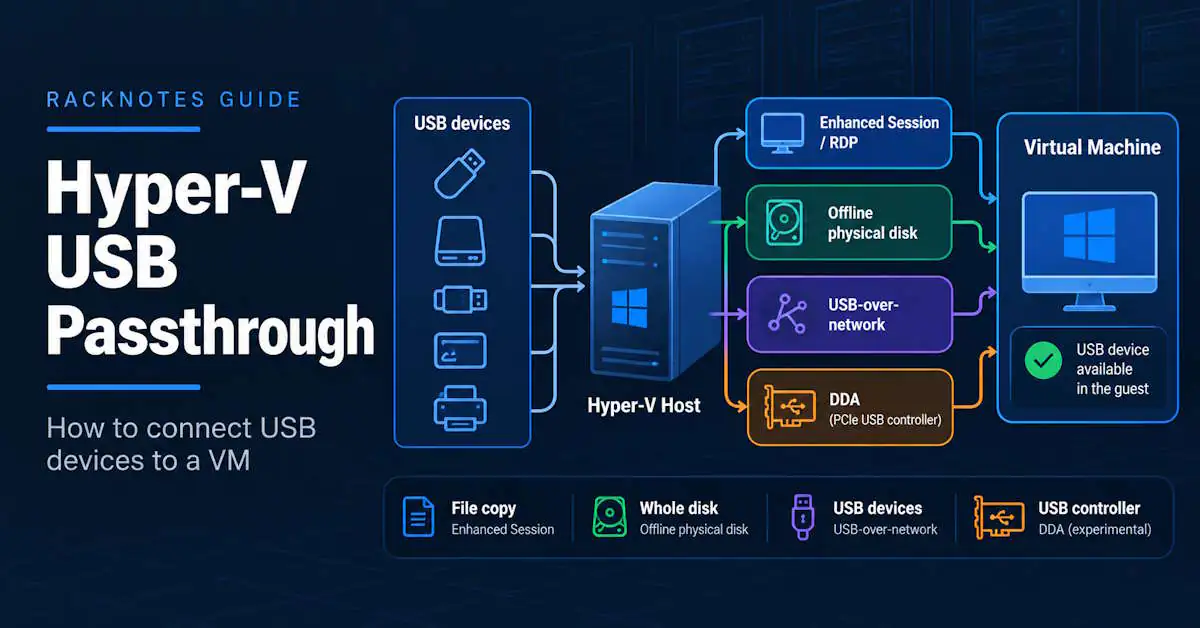
Hyper-V USB passthrough does not exist as a native feature. Microsoft states this directly in its own troubleshooting documentation: Hyper-V has no built-in way to hand a host USB port to a VM, the way VMware Workstation or ESXi does. What Hyper-V does offer is a set of workarounds, and each one fits a different kind of device.
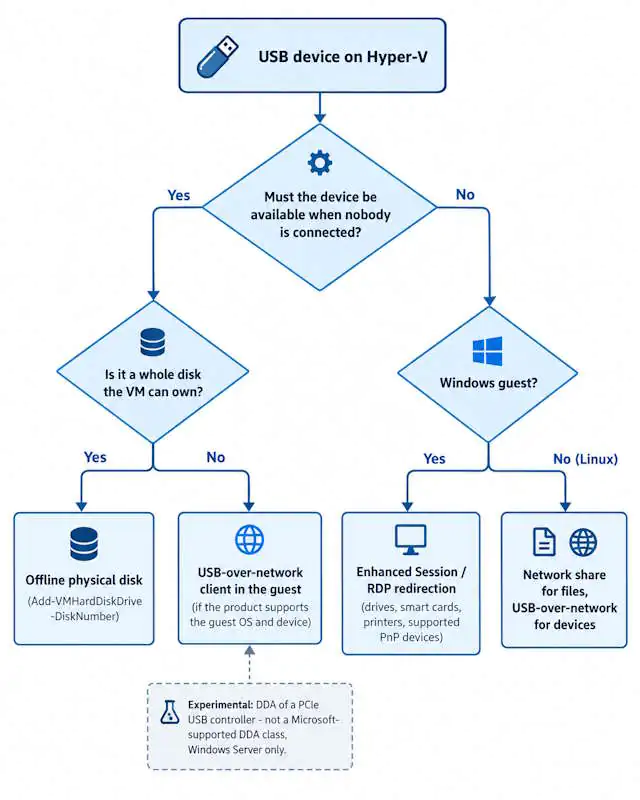
The method depends on three questions: what the device is, whether the guest runs Windows or Linux, and whether the device has to stay available when nobody is connected. Pick the wrong method and the device either never appears in the VM, or appears during an interactive session and is gone when the workload actually needs it.
USB flash drive or file copy: Enhanced Session or RDP drive redirection.
External USB disk the VM must own: attach it as an offline physical disk.
License dongle, Zigbee stick, or anything a service needs unattended: test USB-over-network, provided the product supports both the guest OS and that exact device.
- Hyper-V has no “add USB controller” option. Hyper-V Manager can’t map a host USB port to a VM.
- Enhanced Session and RDP redirection depend on an active session from a specific client. They are not a reliable device path for services or unattended workloads.
- Device sharing through Enhanced Session is documented for Windows guests only.
- Offline physical disk attachment works for Linux guests too, but the disk’s contents sit outside VHDX-based checkpoints and host-level VM backups.
- On a remote Hyper-V server, redirection uses the USB ports of the machine running VMConnect or the RDP client, not the server’s ports.
- Assigning a whole PCIe USB controller through DDA is experimental: Microsoft supports only GPUs and NVMe devices for DDA.
Does Hyper-V Support USB Passthrough?
Not in the VMware sense. Microsoft’s YubiKey troubleshooting article (updated February 2026) says it plainly: Hyper-V doesn’t include built-in USB passthrough, so a VM can’t directly access a USB device connected to the host. The same article then lists Enhanced Session Mode and RDP as the supported alternatives.
That gives four distinct mechanisms, and they are not interchangeable:
| Mechanism | What actually reaches the VM | Who owns the device |
|---|---|---|
| Enhanced Session / RDP redirection | A redirected drive, smart card, printer, or supported Plug and Play device | The user session on the client machine |
| Offline physical disk | A whole physical disk, presented as a SCSI or IDE disk | The VM, exclusively |
| USB-over-network | A virtual USB device created by client software inside the guest | The guest, through a network link |
| Discrete Device Assignment (DDA) | An entire PCIe device, such as a USB controller card (experimental, not a Microsoft-supported class) | The VM, exclusively |
Only the last two can put a real USB device in the guest’s own device tree. The first two translate the device into something else on the way in.
Why operators get this wrong: a redirected flash drive shows up in File Explorer and looks exactly like USB passthrough. It isn’t. The guest sees a drive mapped from the RDP client, so anything that needs raw USB access (firmware tools, format utilities, licensing services) won’t find a USB device at all.
Hyper-V USB Passthrough Methods: Choose the Right One for Your Device
Choose the Hyper-V USB passthrough method from the device type first, and then check the guest OS and availability columns.
| Device | Best-fit method | Linux guest | Available without an active session | Watch out |
|---|---|---|---|---|
| USB flash drive (copy files) | Enhanced Session or RDP drive redirection | Not through Enhanced Session; use a network share | No | Appears as a redirected drive, not a disk |
| External USB HDD/SSD the VM must own | Offline physical disk | Yes | Yes | Outside checkpoints; flash drives typically not eligible |
| Smart cards / selected supported security devices | Enhanced Session or RDP redirection | Not through Enhanced Session | No | Verify device class, client policy, and model; a specific key may not be listed |
| Printer | RDP printer redirection | Not through Enhanced Session | No | Redirected as a printer, not as USB |
| License dongle, Zigbee/Z-Wave stick, industrial USB | USB-over-network (if supported) | Only if the product has a client for that distro | Only if both ends run as services and reconnect after restarts | Device, driver, and license support vary |
| Whole PCIe USB controller | Experimental DDA (Windows Server only) | Not assured; needs platform, vendor, and guest validation | Hardware and driver dependent | Not a Microsoft-supported DDA class |
USB-to-serial adapters follow the dongle row: the guest needs to see a real USB device for the serial driver to load. Native Hyper-V COM port and named-pipe configuration is out of scope for this article. USB webcams and headsets are another special case: audio and camera traffic is usually redirected as its own class over RDP, while generic USB virtualization of isochronous devices tends to be the least reliable option.
Method 1: USB Passthrough with Enhanced Session Mode
Enhanced Session Mode makes VMConnect use RDP under the hood. That RDP channel is what carries clipboard, drives, smart cards, printers, and supported Plug and Play devices into the guest. Microsoft’s device sharing documentation lists it for Windows Server 2016 through 2025 and Windows 10/11 hosts, and states that the feature is only available for Windows VMs.
It’s also the simplest form of Hyper-V USB passthrough to set up, because it reuses RDP plumbing that Windows guests already have.
Prerequisites
- A Windows guest with Remote Desktop enabled (Settings > System > Remote Desktop).
- On Windows 10 (2004 and later) and Windows 11 guests: if VMConnect shows no sign-in prompt, turn off For improved security, only allow Windows Hello sign-in for Microsoft accounts on this device under Settings > Accounts > Sign-in options, then sign out or reboot the guest.
- The server-level Enhanced Session Mode policy enabled on the host, and the user-level Enhanced Session Mode setting enabled for your account.
- No RDP or Group Policy restriction blocking drive, smart card, or Plug and Play device redirection in the guest or on the client.
Enable it on the host
- Open Hyper-V Manager, select the host, and open Hyper-V Settings.
- Under Server, open Enhanced Session Mode Policy and allow it.
- Under User, open Enhanced Session Mode and enable it.
The server-level policy can also be checked and set from PowerShell on the host:
# HOST - read-only check
Get-VMHost | Select-Object Name, EnableEnhancedSessionMode

# HOST - changes the server-level policy
Set-VMHost -EnableEnhancedSessionMode $true
Re-run the read-only check afterwards: EnableEnhancedSessionMode should now read True. On Windows Server hosts, check this before anything else.
Redirect the USB device
- Close any open VMConnect window for the VM.
- Reconnect and select Show Options in the connection dialog.
- Open Local Resources, then select More under Local devices and resources.
- Tick what you need: Drives (includes removable drives), Smart cards, or a device under Other supported Plug and Play (PnP) devices. What appears in that last list depends on the device type, its driver, and redirection policy. Don’t expect an arbitrary USB key or token to show up there.
- Select OK and connect.
If the connection dialog or the Show Options button doesn’t appear, Microsoft’s documented fix is to open VMConnect on its own, from the Start menu or by running vmconnect.exe from an administrator command line.
Verify inside the guest
Verification depends on what you redirected, because each class shows up in a different place:
- Drives: look under This PC for an entry like “E on HOSTNAME”, where HOSTNAME is the machine running VMConnect. It does not show up in Disk Management, and that’s expected. From a guest command prompt,
dir \\tsclient\Econfirms the redirection path independently of Explorer. - Printers: check the guest’s printer list, not Device Manager.
- Smart cards: run
certutil -scinfoin the guest, or test the actual sign-in or signing workflow that needs the card. - Other PnP devices: check Device Manager in the guest while the session is connected. If the device is missing there, look at redirection and policy before blaming the guest driver.
Method 2: Redirect USB Devices over Remote Desktop (RDP)
Plain RDP uses the same redirection engine as Enhanced Session, without VMConnect. For Hyper-V USB passthrough to a VM on a remote host, it’s the better option, since you connect straight from your own workstation. It also covers cases where Enhanced Session isn’t available.
- In the guest, enable Remote Desktop and allow the Remote Desktop firewall rules.
- For direct RDP on the default port, make sure the guest is reachable on TCP 3389 from your workstation. If it isn’t, that’s a VM networking problem, covered in the Hyper-V VM network troubleshooting guide.
- Open Remote Desktop Connection (
mstsc.exe), select Show Options, then Local Resources > More. - Select drives, smart cards, or the device under Other supported Plug and Play (PnP) devices.
- Connect, then verify the device in the guest the same class-specific way as in Method 1.
Microsoft’s RDP redirection reference lists the redirection classes RDP handles: drives, printers, smart cards, audio, cameras, and others. Most of those are redirected as their class, not as raw USB. A smart card reader arrives as a smart card, and a printer arrives as a printer. That’s why they work reliably, and why an unusual device with no matching class often doesn’t arrive at all.
The session dependency. Everything redirected over RDP rides a connection from one specific client. Four events behave differently:
- Disconnect: the session keeps running in the guest, but the client end of the redirection is gone, so the device is generally unreachable until someone reconnects from that client. Behavior after reconnect varies by device class.
- Sign-out or session termination: the session and its redirections end.
- Client shutdown or network loss: same practical effect as a disconnect.
- Services and scheduled tasks: they run outside the interactive session, so they generally can’t rely on redirected devices even while a user is connected.
Short version: redirection is for people sitting at a session. If a workload has to run unattended, it’s the wrong method.
Method 3: Attach a USB Drive as an Offline Physical Disk
For storage, this is the one native form of Hyper-V USB passthrough that gives a VM exclusive, persistent access to a USB drive. It doesn’t pass through a USB device. It passes through a whole physical disk that happens to be connected over USB, and the guest sees it as an ordinary SCSI or IDE disk.
Two consequences follow, and both are easy to miss:
- Flash drives typically don’t qualify. Microsoft’s Hyper-V team documented early on that a disk Windows reports as removable can’t be attached this way. Most USB flash drives report as removable media, while most external HDDs and SSDs report as fixed disks. Check how Windows classifies your specific drive before planning around it.
- The host loses the disk. The disk has to be offline on the host, and the VM takes exclusive access. Anything on the host that used that drive letter stops working.
Identify the disk on the host
# HOST - read-only: list disks and how Windows classifies them
Get-Disk | Select-Object Number, FriendlyName, BusType, Size, IsOffline, IsSystem, IsBoot

# HOST - read-only: removable vs fixed media
Get-CimInstance Win32_DiskDrive | Select-Object Index, Model, InterfaceType, MediaType
A USB disk shows BusType as USB. If MediaType reads Removable Media, expect it not to appear in the Physical hard disk list in the VM’s settings.
- Identify the disk by size, model, and bus type, not by disk number alone. Disk numbers can change after a reboot or a re-plug. The number 3 in the examples below is a placeholder, not a value to copy.
- Confirm
IsSystemandIsBootare bothFalsefor that disk. Never offline the host’s boot or system disk. - Back up anything on the drive that matters. A wrong disk number here is not a recoverable typo.
- Close every host process using the drive: backup agents, indexers, antivirus scans, Explorer windows.
# HOST - CHANGES STATE: take the verified disk offline (3 is a placeholder)
Set-Disk -Number 3 -IsOffline $true

# HOST - read-only: confirm the change
Get-Disk -Number 3 | Select-Object Number, FriendlyName, IsOffline
Attach it to the VM
In Hyper-V Manager: VM Settings > SCSI Controller > Hard Drive > Add, then choose Physical hard disk and pick the offline disk. Or in PowerShell, using the documented -DiskNumber parameter of Add-VMHardDiskDrive:
# HOST - CHANGES STATE: attach offline physical disk 3 to the VM's SCSI controller 0
Get-VMScsiController -VMName srv01 -ControllerNumber 0 | Add-VMHardDiskDrive -DiskNumber 3

# HOST - read-only: confirm the VM now references a physical disk
Get-VMHardDiskDrive -VMName srv01 | Select-Object ControllerType, ControllerNumber, ControllerLocation, DiskNumber, Path
The pipeline above follows the documented examples in Microsoft’s Add-VMHardDiskDrive reference; confirm it on your Windows Server version against a non-critical VM first. Use the SCSI controller. On Generation 2 VMs it’s the only option, and on Generation 1 it allows adding and removing the disk while the VM runs; the IDE controller requires a shutdown.
Verify inside the guest
The guest numbers disks independently of the host. Disk 3 on the host may well be disk 1 in the guest, so identify it again on the guest side before changing anything.
- Windows guest: run
Get-Disk | Select-Object Number, FriendlyName, Size, IsOffline, IsReadOnlyand find the disk by size. If it shows offline, bring it online withSet-Disk -Number <n> -IsOffline $false(GUEST, changes state). Only clearIsReadOnlywithSet-Disk -Number <n> -IsReadOnly $falseif you know why it was set and the disk is meant to be writable from this VM. - Linux guest:
lsblkshould list a newsdXdevice with the expected size. Mount it as you would any SCSI disk. - Either guest: the existing partitions and data should be visible. Do not initialize or format the disk if Disk Management offers to; an existing data disk doesn’t need it.
What you give up. Checkpoints and host-level VM backups are built around virtual hard disks. The contents of a pass-through disk sit outside both, and depending on version and checkpoint type, Hyper-V may refuse the checkpoint outright while the disk is attached. The VM’s own configuration and VHDX files are still covered; the USB disk isn’t. The disk is also a host-local dependency, which makes live migration impractical for that VM. If the data matters, back up the pass-through disk from inside the guest. The trade-offs are covered in more depth in the Hyper-V storage guide and the Hyper-V backup guide.
Removing it cleanly
- In the guest, stop anything using the disk, then take it offline (Windows) or unmount it (Linux).
- Remove the drive from the VM: in Settings, select the hard drive and choose Remove, or use
Remove-VMHardDiskDriveon the host. Confirm withGet-VMHardDiskDrive -VMName srv01that the physical disk entry is gone. - On the host, re-identify the disk with
Get-Disk(size, model,BusType) before touching it, then bring it back online if the host needs it:Set-Disk -Number <n> -IsOffline $false(HOST, changes state). - Only now unplug the USB cable.
Unplugging a pass-through USB disk from a running VM is the same as yanking a disk out of a running server. And if the drive is gone while the VM configuration still references it, the next VM start can fail until that stale drive entry is removed. That symptom lands squarely in Hyper-V VM won’t start territory, which is a frustrating place to end up over a USB cable.
Hyper-V USB Passthrough for Home Assistant and Linux VMs
Home Assistant on Hyper-V is a common homelab pattern, and it’s where the limits of Hyper-V USB passthrough bite hardest. A Zigbee or Z-Wave coordinator is a USB serial device. Home Assistant needs it present at all times, inside a Linux guest, with no one signed in.
None of the native redirection methods fit that:
- Enhanced Session device sharing is documented for Windows guests only.
- RDP redirection depends on an interactive session from a specific client.
- Offline physical disk attachment only works for disks.
The realistic options split by how Home Assistant is installed:
- Home Assistant OS (appliance VM). The kernel and package set are managed by the OS, so you can’t assume a USB-over-network client can be installed or loaded there. Check what the current OS release and its add-ons support before planning around it.
- A general-purpose Linux VM running Home Assistant. Here you control the kernel and packages. The open USB/IP protocol is part of the mainline Linux kernel, and commercial USB-over-network products with Linux clients also exist. Whether a specific coordinator works still depends on the server side, the client, and the device.
- A network-attached coordinator. Ethernet- and Wi-Fi-based Zigbee coordinators remove USB from the equation entirely, and Home Assistant talks to them over TCP. That’s an alternative to USB passthrough, not a form of it.
A predictable failure follows from the session dependency: a coordinator set up through a redirected session works while the console is open, then becomes unreachable after a disconnect, a sign-out, or a host restart. No Hyper-V setting fixes that, because the dependency is the session itself. The coordinator has to move to a method that doesn’t need one.
For other Linux guests, the same split applies. Use a network share (SMB or NFS) for file transfer, an offline physical disk when the VM needs a whole drive, and USB-over-network for real USB devices where the product supports your distro. Some Ubuntu images offer an xrdp-based enhanced session, but treat its drive redirection as a convenience, not a device path.
Method 4: USB-over-Network for Dongles and Specialized Devices
USB-over-network is the closest thing to real Hyper-V USB passthrough. A server component shares the physical USB device over TCP. A client component inside the guest creates a virtual USB device, so the guest’s own driver stack loads as if the device were plugged in locally.
That makes it a possible method for license dongles, USB-to-serial adapters, and industrial devices, provided the USB-sharing product supports the guest OS and that exact device. Not a guarantee.
It is not a native Hyper-V feature, and it comes with its own complexity budget:
- Drivers. The client has to support the guest OS and driver-signing requirements, and the device’s own driver still has to load in the guest.
- Device class. Bulk devices such as dongles and serial adapters are the typical fit. Isochronous devices (webcams, audio interfaces) are the most sensitive to latency and bandwidth, and support for them varies by product.
- Network dependency. Latency or a dropped link means a dropped device.
- Security. Exposing a USB device over the network exposes whatever that device can do. Keep the traffic on a management VLAN and restrict which hosts can attach.
- Licensing. Some dongle-protected applications refuse to run in a VM, or over a remote USB link, regardless of method. Check the vendor’s policy before buying anything.
- Where the server runs. Server-side software on the Hyper-V host works if the product supports it, but it adds software to the hypervisor. A small dedicated USB server box keeps the host clean and lets the VM move between hosts.
Before using it for unattended workloads, confirm that both ends run as services and that the device reconnects after a guest reboot, host reboot, and network interruption. If any of those three needs a person to click something, the setup isn’t unattended yet.
For a dongle that unlocks one application in one VM, the dedicated-box approach is usually the simpler long-term choice. The device stays put while the VM is free to move.
Can You Pass Through an Entire USB Controller with DDA?
Technically, sometimes. Officially, not really.
Discrete Device Assignment passes a whole PCIe device into a VM. A PCIe USB controller card is a PCIe device, so in principle every USB port on that card belongs to the VM. Microsoft, however, supports only two DDA device classes: graphics adapters and NVMe storage. Other devices may work, and a hardware vendor can choose to support them, but Microsoft doesn’t. Treat USB controller assignment as an experiment on your specific hardware, not as a supported Hyper-V USB passthrough method.
Hard constraints before going down this path:
- DDA is a Windows Server feature (2016 through 2025). It isn’t available on Windows 10/11 client Hyper-V.
- The host needs server-class hardware with Native PCI Express Control and Access Control Services (ACS) on the PCIe root complex. Devices that use legacy INTx interrupts aren’t supported.
- Onboard USB controllers are usually tied to other chipset functions, so a dedicated add-in card is the realistic candidate.
- Guest support for DDA in general doesn’t prove that a particular USB controller and its driver will work in that guest.
- While a device is assigned, the VM loses Save/Restore, live migration, Dynamic Memory, and the ability to be added to an HA cluster.
Microsoft’s SurveyDDA.ps1 script, linked from the DDA planning page, reports which devices on a host are assignable and why the rest aren’t. Run it before buying a USB card for this purpose. Why this matters in practice: DDA spends hardware-debugging budget, the most expensive kind, because firmware and chipset quirks don’t get patched on your schedule.
Hyper-V Manager USB Passthrough: What Can You Configure?
Less than people expect. Hyper-V Manager’s Add Hardware list in VM settings has no USB controller, and no per-port USB mapping exists anywhere in the console. What Hyper-V Manager does control:
| Setting | Where | Effect on USB |
|---|---|---|
| Enhanced Session Mode Policy | Hyper-V Settings > Server | Allows enhanced sessions on this host |
| Enhanced Session Mode | Hyper-V Settings > User | Makes VMConnect use enhanced sessions for this user |
| Physical hard disk | VM Settings > SCSI/IDE Controller > Hard Drive | Attaches an offline USB disk as a pass-through disk |
| Local Resources | VMConnect connection dialog (not Hyper-V Manager) | Chooses which client devices are redirected |
Host USB vs workstation USB. This distinction sits behind many failed Hyper-V USB passthrough attempts that end with “I enabled everything and nothing shows up.” Redirection always uses the USB ports of the machine where VMConnect or mstsc.exe is running. Connect from your laptop to a remote Hyper-V server, and you can redirect the laptop’s USB stick, not a dongle plugged into the server.
For a device plugged into the server itself, there are three routes. Run the redirected session from the server’s own console, where the server is the client. Attach USB storage as an offline physical disk. Or share the device with USB-over-network software on the host or on a separate USB server. On a Server Core host, the console route isn’t available, because Hyper-V Manager and VMConnect need the desktop experience; the other two still apply. Detailed VM hardware options are covered in the Hyper-V VM configuration guide.
Hyper-V USB Passthrough Not Working: Troubleshooting
When Hyper-V USB passthrough fails, the order below reflects practical investigation priority, not a frequency ranking: check the method first, the session second, and the guest driver last.
USB Device Not Detected or Recognized in a Hyper-V VM
Symptoms: the device works on the host or workstation, but the guest can’t use it.
Likely cause, in order of checking:
- The method can’t carry this device class at all. Redirection covers drives, smart cards, printers, and supported PnP devices; a generic USB device with no matching class usually doesn’t qualify.
- The device is plugged into the wrong machine. With a remote host, redirection uses the client’s ports.
- The guest is Linux, and Enhanced Session device sharing is documented for Windows only.
- RDP or Group Policy settings block that redirection class.
- The device isn’t healthy on the physical side. Check it in Device Manager on the machine it’s plugged into.
Safe fix: switch methods rather than retrying the same one. For a storage device, use the offline disk method; for a raw USB device, test USB-over-network with a product that supports both the guest and the device.
How to verify: use the class-specific check from Method 1. A raw USB device (USB-over-network or DDA) should appear in the guest’s Device Manager or lsusb with a working driver; a redirected drive won’t, and doesn’t need to.
USB Drive Not Showing Up in the Virtual Machine
First decide which method you used, because the right place to look differs.
- Redirected drive (Methods 1-2): look under This PC for “E on HOSTNAME”, or run
dir \\tsclient\E. It will never appear in Disk Management. If it’s missing from Explorer too, reopen the connection and confirm Drives is ticked under Local Resources > More. - Offline physical disk (Method 3): look in Disk Management or
Get-Diskin the guest. A disk that’s present but offline needs the guest-side identity check andSet-Disksteps from Method 3, not a format.
Mixing these two up is how a working redirection gets diagnosed as a broken disk.
Physical Hard Disk Option Is Empty or the USB Disk Can’t Be Added
- Is the disk offline on the host?
Get-Disk -Number <n> | Select-Object IsOfflinemust returnTrue. - Does Windows report it as removable media? Check
MediaTypeinWin32_DiskDrive. Removable media typically can’t be used as a pass-through disk; a USB HDD/SSD enclosure is the realistic alternative. - Is it already attached to another VM? A pass-through disk is exclusive to one VM.
Get-VM | Get-VMHardDiskDrive | Where-Object DiskNumberlists every VM that references a physical disk. - Is something on the host still holding it? Close backup agents, antivirus scans, and Explorer windows, re-identify the disk, then retry taking it offline.
- Still failing? Record the exact wording of the VM Settings message, then check the
Microsoft-Windows-Hyper-V-VMMS-Adminevent log for entries at the same timestamp.
Error wording varies by Windows version, and searching a paraphrase rarely finds the right answer. Search the exact text you recorded.
Enhanced Session Mode or Local Resources USB Redirection Not Available
- The Enhanced Session toolbar icon shows Enhanced Session as unavailable for this VM: check the server-level policy, the user-level setting, that the guest is Windows, and that Remote Desktop is enabled in the guest.
- The VMConnect window shows no sign-in prompt on a Windows 10/11 guest: turn off the Windows Hello-only sign-in option, then sign out of the guest before reconnecting.
- The Show Options dialog never appears: open VMConnect on its own from the Start menu or
vmconnect.exe. - More shows no devices, or not the one you need: the device may not belong to a redirectable class, or policy may block that class. That’s a method or policy problem, not a Hyper-V setting.
To tell a policy block from a driver problem, run gpresult /h C:\Temp\gp.html in the guest (and on the client machine for client-side settings) and look for Remote Desktop Services device and resource redirection policies, such as the ones under Computer Configuration > Administrative Templates > Windows Components > Remote Desktop Services > Remote Desktop Session Host > Device and Resource Redirection. A device class blocked there won’t appear no matter what the guest driver does.
After any change, reconnect and confirm the session type from the Enhanced Session icon on the VMConnect toolbar before testing the device again.
USB Dongle or Security Key Not Recognized
Microsoft’s YubiKey article is the documented reference case: the key appears in the VM when selected under Other supported Plug and Play (PnP) devices, through either Enhanced Session or RDP. Treat that as a YubiKey result, not a promise for every key or dongle. Smart-card redirection and Plug and Play device redirection are separate classes, so a FIDO2 key, a smart card, and a PIV token can behave differently over the same session. Microsoft’s own fallback checklist points to the device’s OS support and model-specific configuration.
License dongles are a different category. Many depend on low-level USB access that redirection doesn’t provide, and some licensing schemes reject virtual machines outright. For those, USB-over-network is the method to test, after checking the vendor’s licensing terms and the product’s support for that dongle.
Device Disconnects After the RDP Session Ends
Working as designed. Redirected devices depend on the session and the client behind it. If the device must stay available, move it to the offline physical disk method (storage) or a supported USB-over-network setup (other devices).
USB Device Does Not Work in an Ubuntu or Linux VM
Enhanced Session device sharing is documented for Windows VMs only. For Hyper-V USB passthrough into Linux guests, use a network share for files, an offline physical disk for whole drives, and a USB-over-network client for real devices where the product supports your distro. Check lsblk for disks and lsusb for USB-over-network devices to confirm what the guest actually sees.
Final Thoughts
Hyper-V USB passthrough is less a feature than a decision. Redirection is fine for interactive work on Windows guests: copy files, sign in with a smart card, print. Offline physical disk attachment covers USB storage that one VM must own, at the cost of keeping that disk outside checkpoints and host-level backups. Anything that has to run unattended, especially on Linux guests, belongs on a supported USB-over-network setup or on a network-attached version of the device.
For most homelab and SMB hosts, the practical default is simple. Use redirection for people, and use the network for services. Pick the method from the device’s job, not from what looks closest to a VMware checkbox.
Frequently Asked Questions
Can I use USB passthrough in Hyper-V Manager?
No. Hyper-V USB passthrough isn’t a Hyper-V Manager feature: there’s no USB controller option and no per-port mapping. It can enable Enhanced Session Mode for redirection and attach an offline USB disk as a physical hard disk, and that’s the extent of it.
Can Hyper-V pass a USB drive directly to a VM?
Only as a whole offline physical disk, and typically only if Windows reports the drive as a fixed disk rather than removable media. That usually means external HDDs and SSDs qualify, while most flash drives don’t. For a flash drive, use drive redirection through Enhanced Session or RDP, which presents it as a redirected drive rather than a disk.
Does Hyper-V USB passthrough work with Linux VMs?
Partly. Enhanced Session device sharing is documented for Windows guests only, so redirection is off the table. An offline physical disk works fine in a Linux guest and shows up as a normal SCSI disk. For USB devices such as Zigbee coordinators or serial adapters, use a USB-over-network client inside the Linux guest if the product supports your distro and device, or switch to a network-attached version of the device.
Can I pass through a USB license dongle?
Sometimes, and the vendor decides more than Hyper-V does. Redirection works for some dongles, but many need low-level USB access that RDP doesn’t provide. USB-over-network has better odds when the product supports that dongle. Check the licensing terms first, because some schemes refuse to run in a VM at all.
Does USB passthrough keep working when I disconnect?
Redirected devices can’t be relied on: they depend on an active session from the client they’re plugged into, and sign-out ends them entirely. Offline physical disks don’t depend on who is signed in. USB-over-network devices don’t either, provided both ends run as services and reconnect on their own after reboots and network drops.
Is Hyper-V USB passthrough the same as PCIe passthrough?
No. PCIe passthrough in Hyper-V is Discrete Device Assignment, which hands a whole PCIe device to the VM. Assigning a PCIe USB controller card that way on Windows Server is possible on some hardware, but it’s experimental: Microsoft only supports GPUs and NVMe devices for DDA, and the VM loses live migration, Save/Restore, and Dynamic Memory while the device is assigned.
Hyper-V Series
16 articles – Windows Server 2025 · Requirements · Licensing · Networking · Storage · USB Passthrough · TPM 2.0 · Backup · Clustering