
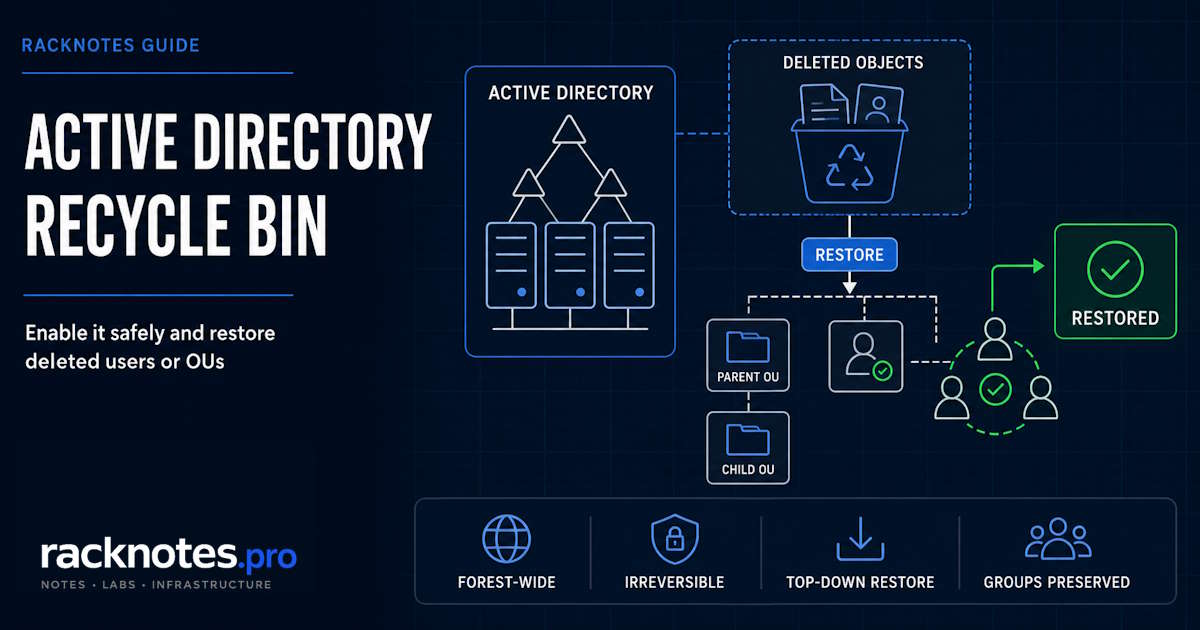
Active Directory Recycle Bin turns object deletion from a reconstruction project into a restore operation, but only for objects deleted after you turn it on, and only if you restore them in the right order. Get the order wrong on a nested OU and you will hit a parent-object error before you get anywhere near the users inside it.
- Active Directory Recycle Bin is a forest-wide, irreversible feature. Enable it against the Domain Naming Master after confirming functional levels and permissions.
- It restores only objects deleted after the feature was enabled. Enabling it converts existing tombstones to recycled objects, so they are no longer restorable through the Recycle Bin. If recovery is still required for those, evaluate an AD DS backup-based restore.
- A genuine Recycle Bin restore preserves the deleted object’s attributes and group memberships. That is fundamentally different from tombstone reanimation.
- Restore a deleted OU hierarchy top-down: parent OU first, nested OUs next, then users, groups, or computers.
- Inspect every search result, confirm the object count and GUID, then run
Restore-ADObjectwith-WhatIfbefore the actual restore.
What Active Directory Recycle Bin can and cannot restore
Before running any command, match your situation to the correct recovery path. Recycle Bin is not the answer to every AD recovery problem, and reaching for it in the wrong scenario just burns time.
| Situation | Correct recovery path |
|---|---|
| Object was deleted after Recycle Bin was enabled | Restore with ADAC or Restore-ADObject |
| Object was deleted before Recycle Bin was enabled | Recycle Bin cannot restore it; evaluate backup-based recovery |
| User was removed from groups, but the user object itself was not deleted | Recycle Bin has nothing to restore; this needs backup or audit data |
| Parent OU was also deleted | Restore the parent OU first, or use -TargetPath to land the object elsewhere |
| Object is already recycled (past its deleted-object lifetime) | Recycle Bin restore is no longer available |
| GPO SYSVOL files are missing | Recycle Bin alone is insufficient; SYSVOL needs a separate recovery path |
| A domain controller or the forest failed | Use DC or forest recovery procedures, not this one |
Active Directory Recycle Bin requirements
Confirm the forest is actually eligible for Active Directory Recycle Bin before doing anything else:
$forest = Get-ADForest
$forest | Select-Object Name, ForestMode, DomainNamingMaster

(Get-ADForest).Domains | ForEach-Object {
    Get-ADDomain $_ | Select-Object DNSRoot, DomainMode
}
Microsoft’s current how-to lists Windows Server 2008 R2 or later as the required forest and domain functional level, which in practice means every domain controller in the forest needs to run 2008 R2 or newer. The feature is forest-wide, so this check runs once per forest, not once per domain.
Microsoft documentation is inconsistent about the built-in group requirement. The current how-to lists Domain Admins, while the Level 200 ADAC reference lists Enterprise Admins. The protocol requirement is the Manage-Optional-Features control access right on the forest scope. Enterprise Admins is the conservative built-in choice unless equivalent rights have been delegated elsewhere.
You will also need RSAT with either the Active Directory Administrative Center (ADAC) or the AD PowerShell module installed. Microsoft’s current Recycle Bin documentation applies to Windows Server 2016, 2019, 2022, and 2025. The enablement and restore workflow in this article is the same across all four.
Enabling Active Directory Recycle Bin is irreversible. There is no supported way to turn it off once it is on, and the change applies to the entire forest, not just one domain.
Objects deleted before you enable the feature stop being recoverable through the Recycle Bin. Existing tombstones convert to recycled objects the moment the feature turns on. If recovery is still required for those, evaluate an AD DS backup-based restore taken before enablement, provided that backup is still valid.
Enabling the feature also increases AD database storage requirements, because deleted objects retain their full attribute data during the deleted-object lifetime. Garbage collection can reclaim that internal space for reuse, but the NTDS.DIT file itself does not automatically shrink.
Recover anything you still need first, then enable the Recycle Bin. Reaching for it as a reaction to a deletion you are still hoping to undo does not help, since the objects from that incident are already unrecoverable through the Bin by the time it is on.
How to check whether Active Directory Recycle Bin is already enabled
Run this before assuming either way:
Get-ADOptionalFeature -Filter 'Name -like "Recycle Bin*"' |
  Format-List Name, EnabledScopes
A populated EnabledScopes property (showing your forest or partition DNs) means the feature is enabled. An empty EnabledScopes property means it is not enabled for the forest, and you can proceed to enabling it below.
How to enable Active Directory Recycle Bin with PowerShell
When enabling Active Directory Recycle Bin, target the Domain Naming Master explicitly instead of letting the cmdlet pick a DC for you.
$forest = Get-ADForest

Enable-ADOptionalFeature `
  -Identity 'Recycle Bin Feature' `
  -Scope ForestOrConfigurationSet `
  -Target $forest.Name `
  -Server $forest.DomainNamingMaster
Confirm the irreversibility prompt when running this interactively. If the command fails against the DC you targeted, do not move FSMO roles as the first troubleshooting step. First verify the current Domain Naming Master (see our FSMO roles guide for identification and transfer procedures), connectivity, permissions, and ADWS. Consider a role transfer only if the role holder itself needs remediation.
Automation note: for scripted execution, -Confirm:$false skips the interactive prompt. Use it only after separate change approval and prechecks, never as a script default for an irreversible, forest-wide change.
Verify it took:
Get-ADOptionalFeature `
  -Identity 'Recycle Bin Feature' `
  -Server $forest.DomainNamingMaster |
  Select-Object Name, EnabledScopes
A populated EnabledScopes property confirms enablement on that DC. It does not by itself confirm replication has finished across every DC in the forest. Give it time, or check replication status separately (see our AD replication troubleshooting guide) before relying on the feature everywhere.
How to enable Active Directory Recycle Bin in ADAC
- Open Active Directory Administrative Center (
dsac.exe) from Server Manager, Tools. - Select the forest or domain node in the navigation pane.
- In the Tasks pane, choose Enable Recycle Bin.
- Confirm the irreversibility warning, then confirm the replication reminder.
- Press F5. A Deleted Objects container now appears under each domain partition.
The Enable Recycle Bin task stays greyed out if the functional level requirement is not met, or if the feature is already enabled.
How to find deleted Active Directory objects
Do not search and restore in the same breath. Search, look at what came back, then restore. Pick one writable, healthy domain controller and use it consistently for every step below: search, restore, and verification. Splitting these across different DCs in a multi-DC environment risks inconsistent results if replication has not finished yet.
$restoreDC = 'dc01.contoso.com'
$targetDomain = Get-ADDomain -Server $restoreDC
$deletedObjectsContainer = $targetDomain.DeletedObjectsContainer

$deletedUser = Get-ADObject `
  -Server $restoreDC `
  -SearchBase $deletedObjectsContainer `
  -IncludeDeletedObjects `
  -Filter 'isDeleted -eq $true -and -not (isRecycled -eq $true) -and samAccountName -eq "jdoe"' `
  -Properties samAccountName, displayName, lastKnownParent, msDS-lastKnownRDN, whenChanged

$deletedUser | Format-List ObjectGUID, samAccountName, displayName, lastKnownParent, whenChanged
Scoping the search to DeletedObjectsContainer, excluding already-recycled objects, and pulling back only the properties you need turns the result into something you can actually read before acting on it.
whenChanged is useful as a local clue, but it is not a replicated attribute and can differ between domain controllers. For the originating deletion time, inspect the replication metadata of the isDeleted attribute on the same DC used for the rest of the workflow:
Get-ADReplicationAttributeMetadata `
  -Object $deletedUser.ObjectGUID `
  -Server $restoreDC `
  -IncludeDeletedObjects `
  -Properties isDeleted |
  Select-Object AttributeName, LastOriginatingChangeTime, LastOriginatingChangeDirectoryServerIdentity
How to restore a deleted user, group, or computer
Once exactly one object matches, restore it by ObjectGUID, not by name and not by re-running the filter directly into the restore cmdlet:
if (@($deletedUser).Count -ne 1) {
    throw "Expected exactly one deleted object. Review the search results before restoring."
}

Restore-ADObject -Server $restoreDC -Identity $deletedUser.ObjectGUID -WhatIf
Restore-ADObject -Server $restoreDC -Identity $deletedUser.ObjectGUID -Confirm
Run the -WhatIf pass first. It costs nothing and confirms the cmdlet is about to act on the object you think it is.
Restore to a different location or rename during restore:
Restore-ADObject -Server $restoreDC -Identity $deletedUser.ObjectGUID `
  -TargetPath "OU=Finance,DC=contoso,DC=com" `
  -NewName "John Doe"
Without -TargetPath, the object restores to wherever lastKnownParent points, which is exactly why the parent OU needs to come back first if it was deleted too. Restoring to a different container brings the object back, but it does not reconstruct the original OU hierarchy on its own.
ADAC restores objects only from domain partitions (see Advanced AD DS Management Using ADAC). Use Restore-ADObject for Configuration, Domain DNS, and Forest DNS partition objects.
User example, post-restore verification:
Get-ADUser -Server $restoreDC -Identity 'jdoe' -Properties Enabled, UserPrincipalName, MemberOf |
  Select-Object SamAccountName, Enabled, UserPrincipalName, MemberOf
For a restored group or computer, check the object-class-appropriate cmdlet instead:
Get-ADGroup -Server $restoreDC -Identity 'GroupName' -Properties Members
Get-ADComputer -Server $restoreDC -Identity 'ComputerName' -Properties Enabled
A genuine Recycle Bin restore returns the object to the consistent logical state it had immediately before deletion, which is a stronger guarantee than tombstone reanimation ever gave you. Even so, verify the account’s enabled state, authentication, UPN, SPNs where relevant, and group memberships after restoration.
Operational caution: Recycle Bin restores the object state that existed immediately before deletion. It does not apply policy or access changes made after the deletion, so review the restored object against current access requirements before treating the restore as finished.
How to restore a deleted OU and its child objects
Deleting an OU moves everything inside it into the Deleted Objects container with mangled names, and the container shows them as a flat list, not a tree. Restoring the top-level OU does not automatically restore what was inside it. Microsoft is explicit that a parent object must be restored before a child object, and ADAC’s own documentation notes that restoring a base OU does not restore nested OUs, users, groups, or computers underneath it.
Restore a deleted OU hierarchy from the top down. Restore the parent OU first, then each level of nested OUs, and restore users, groups, and computers only after their parent containers exist.
- The top-most parent OU.
- Its immediate child OUs.
- The next level down, repeating per level.
- Leaf objects (users, computers, groups) last.
Step 1: restore the parent OU. Do not identify a deleted OU by a wildcard name match alone. The deleted object’s Name attribute carries a delete-mangled suffix, and a broad -like filter can return more than one candidate. Confirm ObjectGUID, lastKnownParent, and whenChanged before restoring.
$deletedOU = Get-ADObject `
  -Server $restoreDC `
  -SearchBase $deletedObjectsContainer `
  -IncludeDeletedObjects `
  -Filter 'isDeleted -eq $true -and -not (isRecycled -eq $true) -and ObjectClass -eq "organizationalUnit" -and msDS-lastKnownRDN -eq "Sales" -and lastKnownParent -eq "DC=contoso,DC=com"' `
  -Properties ObjectGUID, msDS-lastKnownRDN, lastKnownParent, whenChanged

if (@($deletedOU).Count -ne 1) {
    throw "Expected exactly one deleted OU. Review the search results before restoring."
}

Restore-ADObject -Server $restoreDC -Identity $deletedOU.ObjectGUID -WhatIf
Restore-ADObject -Server $restoreDC -Identity $deletedOU.ObjectGUID -Confirm
Step 2: restore immediate child OUs. After the parent restores and replicates, its children’s lastKnownParent updates to the restored location. Query for them and confirm the list before restoring anything:
$parentDN = 'OU=Sales,DC=contoso,DC=com'

$childOUs = Get-ADObject `
  -Server $restoreDC `
  -SearchBase $deletedObjectsContainer `
  -IncludeDeletedObjects `
  -Filter 'isDeleted -eq $true -and -not (isRecycled -eq $true) -and ObjectClass -eq "organizationalUnit" -and lastKnownParent -eq $parentDN' `
  -Properties ObjectGUID, msDS-lastKnownRDN, lastKnownParent, whenChanged

$childOUs | Format-Table ObjectGUID, msDS-lastKnownRDN, lastKnownParent, whenChanged

# Restore each verified child OU by its own GUID, one at a time
Restore-ADObject -Server $restoreDC -Identity $childOUs[0].ObjectGUID -WhatIf
Restore-ADObject -Server $restoreDC -Identity $childOUs[0].ObjectGUID -Confirm
Repeat the restore command for each additional child OU GUID returned above. Once a level is fully restored and replicated, requery for the next level down using the same filter pattern with the newly restored OU as $parentDN.
Step 3: restore leaf objects. Only after every parent OU in the chain exists, query and restore the users, groups, and computers underneath using the same preview-then-restore-by-GUID pattern:
$leafObjects = Get-ADObject `
  -Server $restoreDC `
  -SearchBase $deletedObjectsContainer `
  -IncludeDeletedObjects `
  -Filter 'isDeleted -eq $true -and -not (isRecycled -eq $true) -and ObjectClass -ne "organizationalUnit" -and lastKnownParent -eq $parentDN' `
  -Properties ObjectGUID, ObjectClass, msDS-lastKnownRDN, lastKnownParent, whenChanged

$leafObjects | Format-Table ObjectGUID, ObjectClass, msDS-lastKnownRDN, lastKnownParent, whenChanged

Restore-ADObject -Server $restoreDC -Identity $leafObjects[0].ObjectGUID -WhatIf
Restore-ADObject -Server $restoreDC -Identity $leafObjects[0].ObjectGUID -Confirm
Do not run a blind, automatic recursive restore across a whole subtree. The preview-first, level-by-level pattern above costs a few extra commands and avoids restoring an object into the wrong place because a level was skipped or replication had not caught up.
Trying to restore a child before its parent produces error 0x2089: the object’s parent is either uninstantiated or deleted. Restore the parent, confirm replication, wait for the children’s lastKnownParent value to update, then continue down the tree.
Are group memberships restored?
Yes, when the object was deleted after the Recycle Bin was already enabled. Preserved link-valued attributes mean restored users automatically regain their group memberships and the corresponding access rights, within and across domains.
This does not apply to memberships that were removed without deleting the object. If someone was mistakenly pulled out of a group but the user account itself was never deleted, there is no deleted object for the Recycle Bin to restore. That scenario needs a backup or audit-log based recovery, not this workflow.
| Recovery method | Attributes | Memberships | Backup required | Pre-enable deletion |
|---|---|---|---|---|
| Active Directory Recycle Bin | Preserved while restorable | Preserved | No | No |
| Tombstone reanimation | Limited attributes | Rebuild manually | No | Only while Recycle Bin is disabled and the tombstone still exists |
| Authoritative restore | Restores backup-era state | Depends on procedure and available link data | Yes | Potentially, with a valid pre-deletion AD DS backup |
Why operators get this wrong: a lot of AD troubleshooting knowledge still comes from the tombstone-reanimation era, where a restored account came back disabled, without a password, and stripped of group memberships that had to be rebuilt by hand. That is real, documented behavior. It describes reanimation with the Recycle Bin disabled, not a genuine Recycle Bin restore.
Once the Recycle Bin is on, the object comes back the way it left, memberships included. Treat “rebuild memberships manually” as a legacy step, not a standing requirement, once you have confirmed the Bin was actually enabled at deletion time.
Forward-link restore ordering, where a security principal must exist before its group membership can be re-linked, matters in authoritative restore and tombstone-reanimation procedures. It is not part of a normal Active Directory Recycle Bin restore, where preserved link-valued attributes are restored automatically along with the object.
How long deleted objects remain restorable
The effective msDS-DeletedObjectLifetime controls how long an object remains restorable. If it is unset, it inherits the calculated tombstoneLifetime; if both are unset, the protocol fallback is 60 days.
Read both values before assuming anything:
$cnc = (Get-ADRootDSE).configurationNamingContext
Get-ADObject "CN=Directory Service,CN=Windows NT,CN=Services,$cnc" `
  -Properties tombstoneLifetime, msDS-deletedObjectLifetime |
  Format-List tombstoneLifetime, msDS-deletedObjectLifetime
Do not assume the effective restore window is 180 days just because that is a commonly cited default. An unset msDS-DeletedObjectLifetime inherits whatever tombstoneLifetime actually is in the forest.
That value does not automatically increase when DCs get upgraded or functional levels get raised. An older forest that has been through several in-place upgrades can still be sitting at 60 days without anyone having changed it on purpose. Reviewing these values periodically is a natural fit for a broader directory health routine (see our AD health check guide).
Review and, if necessary, change the deleted-object lifetime
Change the retention value only when the effective window does not meet the organization’s actual recovery requirements, and treat it as a normal change: test it, and run it through whatever change-control process governs other forest-wide AD settings. It affects backup planning, storage growth, and compliance posture, not just how long the Deleted Objects container stays populated.
$desiredDeletedObjectLifetime = 180  # Example only; set from approved policy

Set-ADObject `
  "CN=Directory Service,CN=Windows NT,CN=Services,$cnc" `
  -Partition $cnc `
  -Replace @{'msDS-DeletedObjectLifetime' = $desiredDeletedObjectLifetime} `
  -WhatIf
Review the -WhatIf output against the current values read above, then run the same command without -WhatIf once the change is approved.
Common Active Directory Recycle Bin restore errors
| Error or symptom | Likely cause | Recommended action |
|---|---|---|
| Enable command returns an unsupported-operation error | Command was not sent to the Domain Naming Master, scope is wrong, or prerequisites are unmet | Identify the Domain Naming Master, use -Server, verify functional levels |
0x2089, the object’s parent is uninstantiated or deleted | Trying to restore a child before its parent OU | Restore the parent first, confirm replication, then restore children |
Illegal modify operation on restore | Recycle Bin is not actually enabled | Run Get-ADOptionalFeature and check EnabledScopes before troubleshooting further |
| Enable Recycle Bin is greyed out in ADAC | Functional level below 2008 R2, or feature already enabled | Check forest and domain mode with Get-ADForest and Get-ADDomain |
| Multiple objects match the restore filter | Broad name or SAM filter caught more than one deletion | Stop, review GUIDs, RDNs, dates, and parents before restoring anything |
| Object restores to the wrong location | lastKnownParent is unavailable, or a different -TargetPath was used | Verify the parent and target path before restoring |
| Restored user is enabled and functional, but group memberships look wrong | Membership changed after the object was deleted, or the restore was actually a tombstone reanimation | Check the originating metadata for isDeleted and confirm which DC processed the deletion; confirm the Recycle Bin was enabled before deletion |
| An object with the original name already exists | A duplicate object was manually recreated after deletion | Rename or move the duplicate, then restore the original |
What Active Directory Recycle Bin does not replace
- Objects deleted before the feature was enabled.
- Group memberships removed without deleting the object.
- SYSVOL content. A Group Policy Object’s AD portion can come back through the Recycle Bin; the SYSVOL files still need a separate recovery path.
- Broad attribute corruption that did not involve deletion.
- A failed domain controller or a forest-wide failure. Those are backup and forest-recovery problems, not Recycle Bin problems.
- Objects that have already passed their deleted-object lifetime and become fully recycled or purged.
In a newly created lab forest with no objects that still require legacy recovery, enabling Active Directory Recycle Bin early is usually practical. Production forests should treat it as a planned, forest-wide change: run the prerequisite checks first, and schedule it inside a change window rather than reacting to a single bad deletion.
FAQ
Can Active Directory Recycle Bin be disabled after enabling it?
No. Enabling it is irreversible and applies across the entire forest.
Can it restore objects deleted before it was enabled?
Not through the Recycle Bin. Existing tombstones convert to recycled objects when the feature is enabled. If recovery is still required for those, evaluate an authoritative restore from a backup taken before enablement.
Does restoring a user also restore group memberships?
Yes, if the Recycle Bin was already enabled when the object was deleted. It does not restore memberships that were removed without deleting the object itself.
Can a deleted OU and all its contents be restored in one step?
Do not rely on a one-step subtree restore. ADAC batch restore can succeed in simple, complete selections, but Microsoft recommends restoring the parent first and then restoring each subtree level separately.
What does error 0x2089 mean?
The object’s parent is still deleted or otherwise unavailable. Restore the parent container first, then retry.
How long do deleted objects stay recoverable?
The effective msDS-DeletedObjectLifetime controls that. If it is unset, it inherits the calculated tombstoneLifetime. If both are unset, the protocol fallback is 60 days. Read the actual values in your forest instead of assuming a default.
Does the Recycle Bin replace Active Directory backups?
No. It does not recover SYSVOL content, failed domain controllers, or forest-wide failures, and it cannot help once an object is past its deleted-object lifetime.
Can it restore a group membership that was removed without deleting the user?
No. The Recycle Bin restores deleted objects. It is not attribute-version history for objects that stayed live.
Official Microsoft references
- Enable Active Directory Recycle Bin in Windows Server
- Enable-ADOptionalFeature
- Restore-ADObject
- Get-ADReplicationAttributeMetadata
- Advanced AD DS Management Using ADAC (Level 200)
- MS-ADTS: Tombstone Lifetime and Deleted-Object Lifetime
- The AD Recycle Bin: Understanding, Implementing, Best Practices, and Troubleshooting
- Restore deleted user accounts and group memberships in AD
Active Directory Series
25 articles – Windows Server 2025 · Forest & Domain · FSMO · GPO · Replication · DNS · Security · Backup & Recovery