
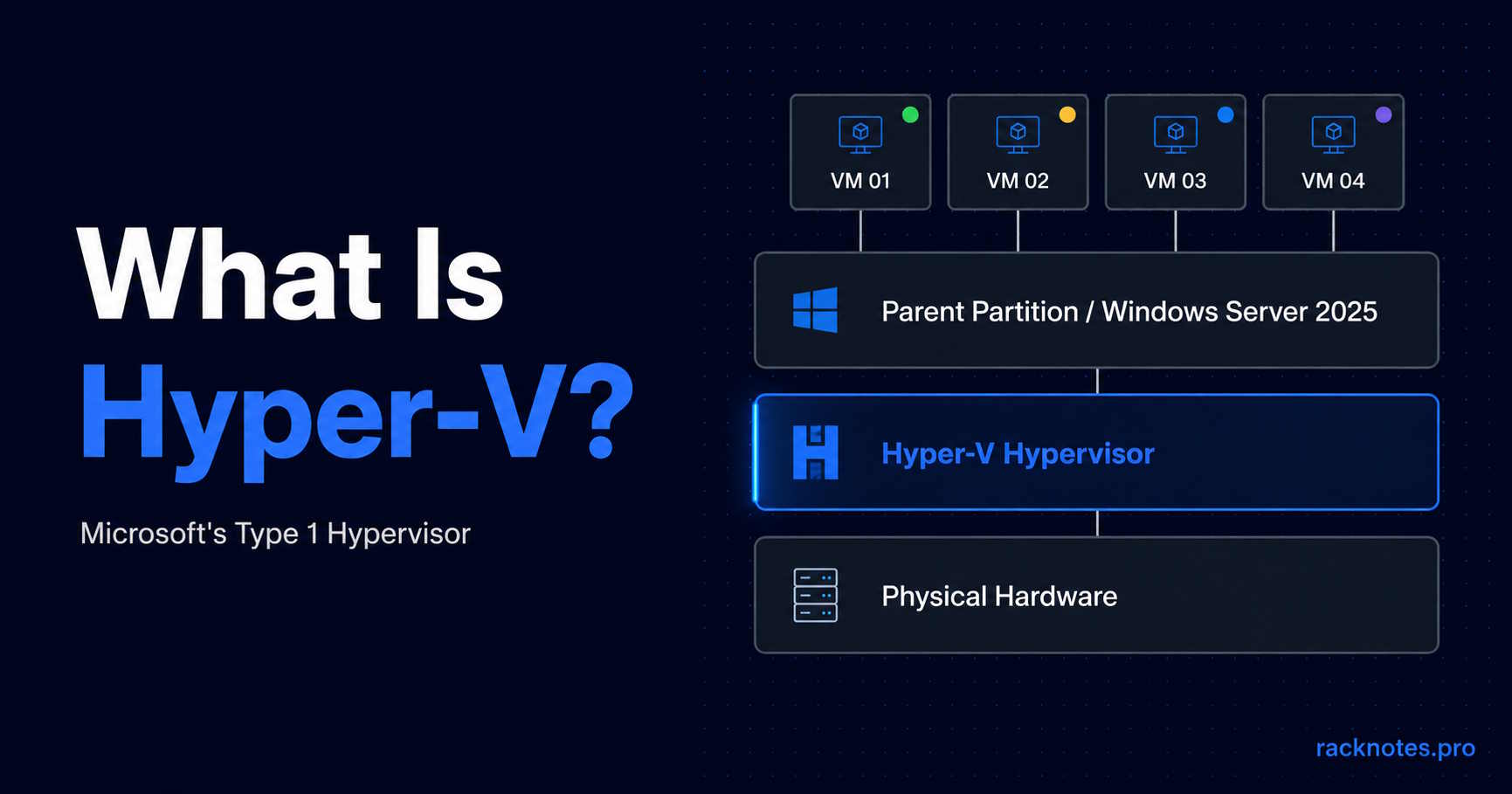
What is Hyper-V? Hyper-V is Microsoft’s Type 1 hypervisor for creating and running virtual machines on Windows Server and supported Windows 11 editions. The hypervisor runs directly on the hardware. When Hyper-V is enabled, Windows runs in the privileged root (parent) partition above the hypervisor, while guest operating systems run in isolated child partitions.
In practice, Hyper-V is used for server consolidation, Windows and Linux virtual machines, development/test labs, clustered high availability through Failover Clustering, moving running workloads with Live Migration, and disaster recovery through Hyper-V Replica. It is built into Windows Server 2025 and into Windows 11 Pro, Enterprise, and Education. The old standalone free Hyper-V Server product ended with Hyper-V Server 2019.
If you’re coming from Proxmox, the architecture is comparable to KVM. The operational reality – licensing, tooling, and ecosystem – is very different.
- Hyper-V is included with Windows Server 2025 and supported Windows 11 editions; the standalone free Hyper-V Server ended with version 2019. Windows Server host and guest licensing still applies.
- Checkpoints are not backups. Treating them as backups is one of the most common and expensive mistakes in Hyper-V environments.
- Hyper-V has no in-place setting to change a VM from Generation 1 to Generation 2. Gen 2 is the right default for most supported 64-bit guest operating systems.
- Hyper-V on Windows 11 Pro lacks Failover Clustering and the Windows Server HA stack, not the ability to run meaningful local workloads.
What Hyper-V Is Used For
Hyper-V is mainly used to consolidate physical servers into VMs, isolate workloads, run development/test environments, provide high availability, and replicate VMs for disaster recovery. In production, server consolidation is often the starting point before more advanced features are configured.
Server consolidation. A single Windows Server 2025 host runs dozens of virtual machines – Windows Server VMs, Linux guests, legacy workloads – on shared physical hardware.
Development and test isolation. Hyper-V on Windows 11 Pro earns its place by spinning up clean VMs for GPO testing, Linux container hosts, or isolated build environments – at no cost beyond the OS license already in place.
Disaster recovery through Hyper-V Replica. For SMB shops that cannot justify a full replication platform, Replica is a legitimate built-in option that integrates with Failover Clustering. It is not Veeam, but it is not nothing.
Workload isolation for security-sensitive services. Domain controllers, certificate authorities, PAM jump hosts – where hard VM boundaries and integration with Windows security features like Virtual Secure Mode and Credential Guard matter.
Azure-connected scenarios. Hyper-V technology is foundational to Microsoft’s Azure virtualization stack, though Azure’s infrastructure and operational model differ substantially from an on-premises deployment.
How Hyper-V Works
Hyper-V introduces a thin software layer – the hypervisor – between hardware and operating systems. When Hyper-V starts, Windows runs in the privileged root (parent) partition. That partition owns the management stack and most physical device drivers. Guest VMs run in child partitions and communicate through VMBus plus synthetic devices to access virtualized storage, networking, and other services efficiently.
Child partitions do not talk to physical hardware directly. They talk to the parent partition over VMBus – a high-speed in-memory communication channel – and the parent partition’s Virtualization Service Providers (VSPs) handle the actual hardware I/O on the guest’s behalf through Virtualization Service Consumers (VSCs) inside the guest. Microsoft’s Hyper-V architecture documentation covers the partition model and VMBus in detail.
| Component | Role | Operator-relevant detail |
|---|---|---|
| Hypervisor | CPU/memory virtualization, partition isolation | Loads before Windows; not directly interacted with by admins |
| Parent (root) partition | Owns most physical device drivers and the management stack; runs VMMS | This is the Windows Server OS you manage directly |
| Child partition | Guest VM | No direct hardware access without passthrough/DDA configuration |
| VMBus | Parent-child communication channel | Uses Hyper-V integration components and synthetic drivers; these are built into modern supported Windows and Linux guests |
Hyper-V hosts require compatible 64-bit hardware with virtualization support, SLAT, and the required processor security features. Exact host requirements also depend on the Windows edition and workload sizing. See Hyper-V Requirements for the full hardware and system checklist, compatibility checks, and Windows 11 requirements.
Hyper-V Versions and Deployment Options
The answer to “what is Hyper-V” depends on which product you mean. Several distinct platforms share the Hyper-V name.
| Platform | Best use | HA / Clustering | Licensing model | Status |
|---|---|---|---|---|
| Windows Server Hyper-V | Production virtualization | Yes (Failover Clustering) | Included with licensed Windows Server | Active |
| Client Hyper-V (Windows 11 Pro/Enterprise/Education) | Local development, labs, isolated workloads | No Windows Server cluster stack | Included with supported Windows editions | Active |
| Hyper-V Server 2019 | Existing legacy standalone deployments | Yes – Failover Clustering (legacy platform) | Was a free standalone SKU | Discontinued – extended support only |
| Azure Local | Azure-connected HCI | Yes | Subscription / core-based service model | Active |
Hyper-V on Windows Server
This is the production platform. Enabling the Hyper-V role on Windows Server 2025 Standard or Datacenter provides virtual machines, Live Migration, Hyper-V Replica, nested virtualization, and Failover Clustering integration. Some advanced security and clustered GPU scenarios require Datacenter, so edition choice still matters beyond VM licensing rights. See How to Install Hyper-V on Windows Server 2025 for the setup walkthrough.
Hyper-V on Windows 11 Pro
Client Hyper-V is intended for local virtualization, development, testing, labs, and workstation workloads. It can still run important local workloads, security sandboxes, and build environments. What it lacks is the Windows Server failover-clustering and host-level HA stack required for a production virtualization cluster: no Failover Clustering, no clustered Live Migration, no production HA/DR stack.
Hyper-V Manager installs as a Windows feature on Pro, Enterprise, and Education SKUs. Windows 11 Home does not include Hyper-V as a supported feature.
The Discontinued Standalone Hyper-V Server
The standalone SKU is discontinued. Microsoft’s standalone Hyper-V Server – a free stripped-down Windows Server Core build with only the Hyper-V role – shipped its last version in 2019. Per Microsoft’s Hyper-V Server 2019 lifecycle page, mainstream support ended January 9, 2024, and extended support ends January 9, 2029. Any guide still presenting “free Hyper-V Server” as a current option is outdated.
Azure Local: Not a Drop-In Replacement
Microsoft promotes Azure Local (formerly Azure Stack HCI) for HCI scenarios. It is relevant here, but it is not a replacement for the free standalone SKU. Azure Local uses an Azure-connected subscription model and is generally licensed per physical core – a materially different cost structure from Hyper-V Server 2019.
Core Hyper-V Features
Live Migration
Live Migration moves a running VM from one Hyper-V host to another without shutting down the VM and normally without user-visible downtime. In production clusters, this is how you drain a host for maintenance without scheduling workload downtime. Live Migration does not inherently require Failover Clustering – standalone Hyper-V hosts can perform live migration once networking, storage, authentication, and CPU compatibility requirements are met. Full clustering setup: Hyper-V Failover Clustering.
Two operational gotchas appear repeatedly. First, CPU compatibility: a VM exposing newer processor features may not migrate to a host with an incompatible CPU generation. Second, authentication: in a domain, Kerberos constrained delegation is the preferred configuration – especially on Windows Server 2025, where Credential Guard can prevent CredSSP-based delegation from working the way it did on earlier releases. Workgroup deployments require a separately supported non-domain configuration and should be tested carefully before being treated as an operational maintenance path.
Hyper-V Replica
Replica provides asynchronous VM replication from a primary Hyper-V host to a replica server. Replication frequency ranges from 30 seconds to 15 minutes; that interval is a replication cadence, not a guaranteed recovery point. Replica is built into Windows Server and integrates with Failover Clustering through the Hyper-V Replica Broker role.
It is not a backup. Replica propagates writes – including ransomware encryption, accidental deletions, and corrupted database writes – with the configured replication lag. A genuine backup solution runs alongside Replica, not instead of it – see Hyper-V Backup for VSS, checkpoint, and restore-failure specifics.
Checkpoints
Checkpoint misuse is a recurring source of production incidents in Hyper-V environments.
A checkpoint captures VM state at a point in time. A standard checkpoint captures disk and running state, including memory. A production checkpoint uses guest-aware backup mechanisms (VSS on Windows guests, file-system freeze on supported Linux guests) to create a data-consistent checkpoint and resumes the VM through a normal boot path after restore.
Checkpoints are not backups. Long-lived or deeply chained checkpoints can consume substantial storage and create noticeable merge I/O. Standard checkpoints are not application-consistent and should not be a routine recovery method for domain controllers. Checkpoints remain part of the VM’s storage dependency and are not an independent copy – losing the underlying VM storage can therefore take the checkpoint chain with it.
Windows Server 2012 and later virtualized domain controllers include VM-Generation ID safeguards against classic USN rollback after supported virtualization rollback events. Reverting a checkpoint is still not a substitute for a proper AD recovery process.
If you use Hyper-V checkpoints on a database, authentication service, or other transactional workload, use production checkpoints rather than Standard checkpoints. Where fallback to a Standard checkpoint is unacceptable, configure ProductionOnly. In Hyper-V, Production mode can create a Standard checkpoint if the production checkpoint fails; ProductionOnly fails the checkpoint instead.
Full checkpoint and AVHDX troubleshooting: Hyper-V Checkpoint & AVHDX Troubleshooting.
Generation 1 vs Generation 2 VMs
Hyper-V has no in-place setting to change a VM from Generation 1 to Generation 2. Treat the generation choice as effectively permanent for the VM object.
| Factor | Generation 1 | Generation 2 |
|---|---|---|
| Firmware | Legacy BIOS | UEFI, Secure Boot capable |
| Boot disk controller | IDE | SCSI |
| Boot performance | Slower (legacy emulation) | Faster |
| Guest OS support | Very old OSes, some legacy appliances | Current Windows and Linux distributions |
| Use case today | Legacy-only compatibility | Default for new VMs |
Generation 2 VMs use UEFI firmware, synthetic SCSI boot, and synthetic network adapters. They support Secure Boot and virtual TPM 2.0 (vTPM). Gen 2 is the right default for most supported 64-bit guest operating systems – Windows Server 2012 R2 and later, modern Linux distributions. Choosing Generation 1 “to be safe” for a new Windows Server 2025 VM adds no compatibility benefit. Full VM configuration guidance: Hyper-V VM Configuration.
Dynamic Memory
Dynamic Memory adjusts a VM’s assigned RAM at runtime within administrator-defined minimum, startup, and maximum values. It can improve host density for general-purpose workloads, VDI, and servers whose memory demand changes over time.
Database workloads require more careful configuration. Microsoft supports Dynamic Memory with SQL Server on Windows, but the result depends on SQL Server version, Hot Add support, startup memory, and SQL Server’s own max server memory setting. For latency-sensitive databases where stable memory allocation matters more than host density, static memory is often the safer operational default.
The practical rule is not “never use Dynamic Memory.” It is to avoid enabling it on a critical workload until you have validated how that application detects, allocates, and releases memory.
Switch Embedded Teaming (SET)
For modern Hyper-V deployments, use Switch Embedded Teaming rather than NIC Teaming (LBFO). SET integrates teaming directly into the Hyper-V virtual switch and is the preferred design for current virtualization and SDN scenarios. On Windows Server 2022 and newer, a Hyper-V virtual switch can no longer be bound to an LBFO team; use Switch Embedded Teaming (SET) when NIC teaming is required for the Hyper-V switch. Full virtual switch and networking breakdown: Hyper-V Networking.
What’s New in Windows Server 2025 Hyper-V
Per Microsoft’s what’s new documentation:
GPU Partitioning (GPU-P) is now production-supported with Live Migration on supported CPU/GPU/driver combinations. A running VM with a GPU-P assignment can be migrated, which was not possible in Windows Server 2022. Standalone planned migration is supported; clustered high-availability GPU-P scenarios require Windows Server 2025 Datacenter.
Scalability limits, per Microsoft’s scale limits documentation: Windows Server 2025 Hyper-V hosts support up to 4 PB of memory on systems using 5-level paging, or 256 TB with 4-level paging, and up to 2,048 logical processors per physical host. Generation 2 VMs support up to 240 TB of memory and 2,048 virtual processors. In the Hyper-V Manager UI the vCPU limit displays lower – reaching the 2,048 ceiling requires PowerShell configuration.
Dynamic processor compatibility is available for VMs using configuration version 10.0 or later on Windows Server 2025. When processor compatibility is enabled in CommonClusterFeatureSet mode, Hyper-V calculates the processor features common to the cluster so VMs can retain more CPU capabilities while remaining migratable between those nodes.
Hotpatching: Azure Arc-enabled Hotpatch is available for Windows Server 2025 Standard and Datacenter. As of May 2026, Microsoft no longer charges a separate Hotpatch fee for eligible Arc-connected Windows Server 2025 machines. Hotpatch reduces reboot frequency, but it does not eliminate reboots entirely – periodic baseline cumulative updates still require a restart. It is worth evaluating where maintenance windows are expensive, but the additional management-plane complexity may not be justified for standard SMB deployments that reboot on a normal patch cycle.
Live Migration for workgroup clusters: Workgroup Failover Clusters existed before 2025; what changed is the ability to live-migrate Hyper-V VMs within a non-domain cluster model. This is not operationally identical to an AD-based cluster – identity, certificate management, and some tooling work differently. Relevant for edge deployments and specific security architectures where domain-joining cluster nodes is not acceptable.
Is Hyper-V Free?
Hyper-V does not require a separate hypervisor license when it is enabled as a Windows Server role, but Windows Server itself is not free. The host and Windows Server guest operating systems still need appropriate licensing, and Windows Server CAL requirements may also apply. Client Hyper-V is included with supported Windows 11 Pro, Enterprise, and Education editions.
The old standalone Hyper-V Server was the genuinely free Microsoft hypervisor SKU. Hyper-V Server 2019 was the final release and is now a legacy product in extended support.
Windows Server licensing becomes more complex once Standard vs Datacenter virtualization rights, physical-core licensing, per-VM licensing, CALs, clusters, and VM density enter the calculation. See Hyper-V Licensing for the current Windows Server 2025 rules, Standard vs Datacenter math, and calculator examples.
Common Hyper-V Misconceptions
“Checkpoints are our backup strategy.” Checkpoints are operational tooling for controlled rollback windows. When storage fails, the checkpoints fail with the VMs.
“Hyper-V is dead.” The standalone free Hyper-V Server SKU is discontinued; the Hyper-V role in Windows Server is actively developed. Windows Server 2025 added meaningful features. Hyper-V technology underpins Azure’s infrastructure.
“Dynamic Memory is safe everywhere.” It is not. SQL Server, Exchange, and some Java applications require workload-specific sizing and validation. For latency-sensitive databases or workloads that depend on NUMA topology and fixed memory guarantees, static memory is often the safer default.
“The host can run workloads without affecting VM performance.” It can at low utilization, but under storage, CPU, or memory pressure, management workloads on the parent partition compete with VMs for resources. In production clusters, keep the host lean. Monitoring agents, backup clients, and antivirus exclusions for VHDX files matter more than they appear to.
“VM-level antivirus is sufficient.” It is not. Hyper-V hosts still need endpoint protection configured appropriately for virtualization workloads. Microsoft recommends Hyper-V-specific exclusions for active VM disks, checkpoint files, configuration files, and Hyper-V processes; however, Microsoft Defender Antivirus automatically configures many Hyper-V role exclusions on supported Windows Server versions. With third-party security products, verify the vendor’s Hyper-V exclusions instead of assuming the defaults are safe.
“Leaving hosts in a workgroup is simpler for small deployments.” It may reduce initial setup work, but it complicates Live Migration authentication, certificate and identity management, clustering, and centralized security configuration. Use workgroup hosts as a deliberate architecture choice, not merely to avoid joining a domain.
Hyper-V vs VMware vs Proxmox in 2026
Hyper-V is usually the better fit in Windows-heavy environments. In an existing Windows/AD environment, Failover Clustering fits naturally into the same identity, management, and administration model. In environments where the Windows Server hosts and Windows workloads are already licensed, Hyper-V does not add a separate hypervisor license.
Proxmox is often the better fit for Linux-first or licensing-sensitive deployments. Zero hypervisor licensing cost, strong ZFS integration, a web UI that covers most operational needs, and an active open-source community. Full comparison: Proxmox vs Hyper-V.
VMware remains deeply established in large enterprises with existing vSphere, vSAN, and NSX investments. Broadcom removed the old free ESXi offering during the 2024 licensing transition, then reintroduced a limited free ESXi 8.0 Update 3e hypervisor in 2025. The free edition is useful for standalone labs and basic virtualization, but it does not include vCenter integration, vMotion, HA, DRS, VADP-based backup, or official Broadcom support – a very different comparison from a licensed vSphere environment. For the Proxmox side of the migration decision, see ESXi to Proxmox migration and Proxmox vs ESXi Free 2026.
Is Hyper-V Right for You?
Hyper-V is a natural fit if you are already running Windows Server for AD, DNS, file services, or other Microsoft workloads. It does not add a separate hypervisor license when the Windows Server hosts and workloads are already licensed appropriately, and the management tools already in use work with it. A sysadmin team that already knows Windows Server adds relatively little operational complexity by adding Hyper-V.
Proxmox makes more sense when building infrastructure from scratch without an existing Windows investment, especially when the primary workloads are Linux and licensing cost is a genuine constraint. It is also the stronger choice if the team’s strength is Linux administration.
Mixed Hyper-V/Proxmox environments are practical when each platform has a clear role: Windows workloads on Hyper-V, Linux-heavy or development workloads on Proxmox. Veeam can protect VMs on both platforms; Proxmox Backup Server covers the Proxmox side rather than Hyper-V itself.
FAQ
Is Hyper-V free in 2026?
Not as a standalone current product. Hyper-V is included with Windows Server and supported Windows 11 editions, but Windows Server host and guest licensing still applies. The old free standalone Hyper-V Server ended with Hyper-V Server 2019. See Hyper-V Licensing for Standard vs Datacenter rights, core licensing, CALs, and cost examples.
Is Hyper-V being discontinued?
No. The Hyper-V role is active in Windows Server 2025 and received significant updates. Only the standalone free Hyper-V Server product was discontinued after Hyper-V Server 2019. The Hyper-V role in Windows Server continues to be actively developed.
What’s the difference between Hyper-V on Windows Server and Hyper-V on Windows 11 Pro?
Windows Server gives the full production platform: Live Migration, Failover Clustering, Hyper-V Replica, nested virtualization, and Windows Admin Center integration. Some advanced features such as guarded/shielded infrastructure and clustered GPU-P require Datacenter. Windows 11 Pro gives local VM management – no clustered live migration, no HA, no production cluster stack. Windows 11 Home does not include Hyper-V as a supported feature.
Are Hyper-V checkpoints the same as backups?
No. Checkpoints remain part of the VM’s storage dependency rather than an independent copy, so losing the underlying VM storage can take the checkpoint chain with it. Standard checkpoints are not application-consistent. If you use checkpoints on transactional workloads, use production checkpoints. For workloads where falling back to a Standard checkpoint is unacceptable, configure ProductionOnly – the default Production mode can fall back to a Standard checkpoint if the production checkpoint fails.
Should I use Generation 1 or Generation 2 VMs?
Generation 2 is the right default for modern supported operating systems. Hyper-V cannot change the generation of an existing VM in place – moving a Gen 1 workload to Gen 2 normally requires creating a new Gen 2 VM and migrating its disks and boot configuration. Generation 1 exists only for older operating systems and legacy appliances that do not support UEFI.
Does Hyper-V support nested virtualization?
Yes. Intel support has been available since Windows Server 2016 and Windows 10. AMD nested virtualization requires Windows Server 2022 or Windows 11, with VM configuration version 9.3 or later, and CPU support in both the physical host and the VM. See Microsoft’s nested virtualization documentation for current requirements.
Hyper-V vs Proxmox – which should I choose?
Hyper-V for Windows-centric environments already running Active Directory and Windows Server licensing. Proxmox for Linux-first workloads, cost-sensitive deployments, and shops without existing Windows infrastructure. The full comparison covers licensing math, feature parity, and management overhead: Proxmox vs Hyper-V.
Final Thoughts
Hyper-V in 2026 is a mature, production-ready platform that makes the most sense in Windows-heavy infrastructure where the required Windows Server licensing is already in place and the management tooling is familiar. In those environments, the question is less whether to use Hyper-V than how to configure it correctly and avoid the failure modes that matter.
Before production, verify the host requirements, confirm the licensing model, and get a real backup solution in place before the first production VM goes live. Checkpoints will not save you.
The standalone Hyper-V Server era is over. What remains is a well-integrated hypervisor for operators who know the Windows ecosystem.
Hyper-V Series
14 articles – Windows Server 2025 · Requirements · Licensing · Networking · Storage · Backup · Clustering