
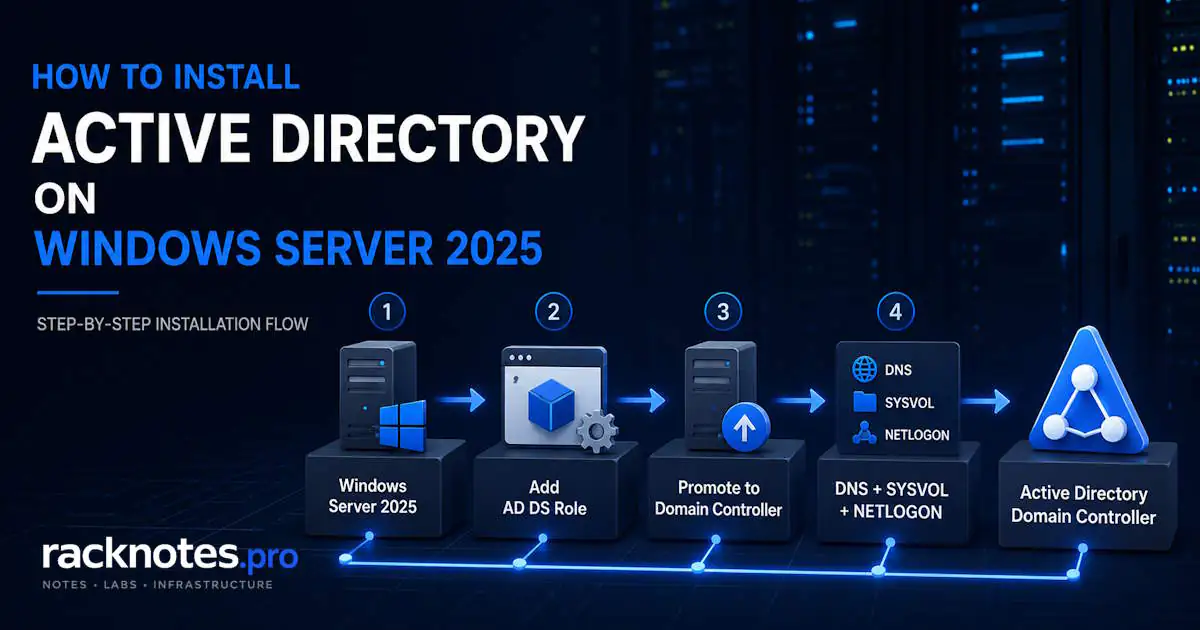
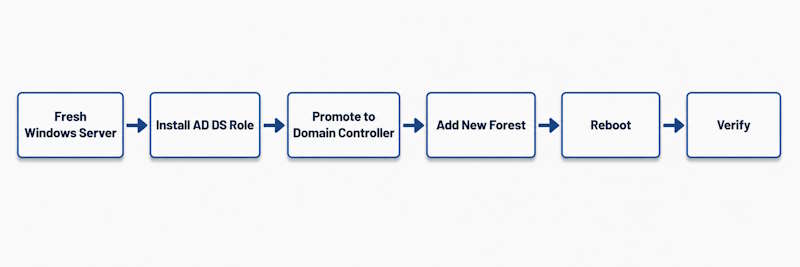
Installing Active Directory on Windows Server requires two separate operations: installing the Active Directory Domain Services (AD DS) role, and then promoting the server to a domain controller to create the first forest and domain. Installing the role alone does not create a domain controller. This guide covers both operations using Server Manager and PowerShell, with Windows Server 2025 as the primary example and compatibility notes for Windows Server 2022 and 2019. The sequence matches Microsoft’s Install Active Directory Domain Services documentation.
If you need background on what Active Directory actually is before deploying it, see what Active Directory is and how AD DS works. This guide skips that and goes straight to deployment.
This guide covers installing AD DS and promoting the first domain controller in a new forest on Windows Server. It does not cover installing RSAT/ADUC on a workstation, installing the ActiveDirectory PowerShell module on a client machine, adding an additional DC to an existing domain, or post-install configuration.
Before You Install Active Directory
Confirm the Windows Server Version
Windows Server 2025 is the primary example. The core AD DS installation workflow is the same on Windows Server 2022 and 2019. The main version-specific difference relevant to this guide is which functional levels each server version supports.
Set the Final Server Name
Set the hostname you actually want before promotion, not after. Renaming a domain controller later is extra administrative work, though it does not require transferring FSMO roles; Windows supports renaming a DC with netdom computername. Using the final name now avoids unnecessary churn.
Configure a Stable IP Address
Configure a static IP address before promotion. A domain controller and AD-integrated DNS should remain reachable at a predictable address, so DHCP-based addressing is poor operational practice for a DC even though the promotion wizard does not enforce a static IP.
Choose the AD DNS Namespace
Use a subdomain of a DNS name your organization actually controls, for example ad.example.com or corp.example.com. Avoid .local for new deployments because .local is used by multicast DNS and can create name-resolution conflicts or ambiguity on modern networks. Using your public apex domain internally is possible but adds split-DNS management overhead. For the full forest/domain naming discussion, see Active Directory forest and domain structure; this guide only covers what you need to pick a namespace and move on.
Confirm Supported Storage
Keep the AD DS database, log files, and SYSVOL on supported local storage. Microsoft specifically states that the Active Directory database, logs, and SYSVOL must not be stored on a ReFS-formatted data volume. For a straightforward deployment, keep the default paths on NTFS unless you have a documented reason to use a different supported layout.
Plan DNS Correctly
You do not need to remove or avoid the DNS Server role before installing AD DS. For a new forest, AD DS deployment installs DNS Server as part of promotion by default. An existing DNS configuration on the server is not automatically broken just because it predates AD DS; evaluate what’s already there rather than assuming it needs to be torn out.
Step 1: Install Active Directory Domain Services (AD DS)
Install AD DS with Server Manager
- Open Server Manager.
- Go to Manage -> Add Roles and Features.
- Choose Role-based or feature-based installation.
- Select the destination server.
- Select Active Directory Domain Services.
- Accept the required management features when prompted.
- Complete the role installation.
At this point, the server has the AD DS binaries installed, but it is not yet a domain controller. That distinction matters: installing the role and promoting the server are two different actions, and the notification to finish the second one appears right after the first completes.
Step 2: Promote This Server to a Domain Controller
After the AD DS role finishes installing, Server Manager shows a post-deployment notification: Promote this server to a domain controller. This step creates the actual directory service.
Choose Add a New Forest
The wizard offers three deployment operations:
- Add a domain controller to an existing domain
- Add a new domain to an existing forest
- Add a new forest
For a first domain controller in a new environment, select Add a new forest. The other two options are for extending an environment that already exists and are out of scope here.
Enter the Root Domain Name
Enter your chosen namespace, for example ad.example.com. This becomes the forest root domain.
Choose Forest and Domain Functional Levels
Functional-level guidance goes stale quickly, so use these current rules:
- Windows Server 2019 and Windows Server 2022 use Windows Server 2016 as their newest supported AD DS functional level. There is no “Windows Server 2022” functional level.
- Windows Server 2025 introduces a genuinely new Windows Server 2025 functional level.
- A Windows Server 2025 domain controller can also run in a Windows Server 2016 functional-level environment when compatibility with older DC versions is required.
- Microsoft’s own guidance is to use the highest functional level your DC estate actually supports.
Functional levels can be raised later. Lowering them again is more restricted, but Microsoft does document supported scenarios for lowering both domain and forest functional levels when prerequisites are met; it is not an absolute one-way door.
DNS Server and Global Catalog
For the first DC in a new forest, DNS Server is normally installed as part of the deployment, and the first DC is also a Global Catalog by default. You generally don’t need to change either setting here.
Set the DSRM Password
The Directory Services Restore Mode (DSRM) password protects offline directory-service maintenance. Store it securely; treat it the same as any other high-privilege credential.
If the password is ever lost, you do not need Windows Server installation media to reset it. Microsoft documents resetting the DSRM password with ntdsutil, either on the local DC or from another DC, without rebooting into DSRM.
DNS Options and the Delegation Warning
You may see the warning A delegation for this DNS server cannot be created... on the DNS Options or prerequisites screen. This does not automatically mean domain controller promotion has failed. For a new forest, the warning is often expected when no parent DNS delegation is required. For a child domain or an existing parent DNS namespace, however, the delegation may need to be verified or created manually.
For a full breakdown of when this warning is safe to ignore and when the parent DNS delegation must be created manually, see A Delegation for This DNS Server Cannot Be Created: Fix or Ignore?.
Confirm the NetBIOS Domain Name
The wizard proposes a NetBIOS name based on your domain name. Change it only if you have a specific naming requirement; the default is fine for most deployments.
Database, Log, and SYSVOL Paths
The wizard shows default paths for the NTDS database, logs, and SYSVOL. Most straightforward deployments can keep the defaults; there’s no need to design a custom storage layout for a first DC unless you have a specific reason to.
Run the Prerequisites Check and Install
Review the configuration summary. Optionally use View Script to see the PowerShell equivalent of the wizard configuration. This is useful if you want to automate the next deployment. Run the prerequisites check, then install. The server reboots automatically after successful promotion.
How long this takes depends on hardware, pending updates, and the environment; there’s no fixed time worth promising here.
Install Active Directory with PowerShell
Install the AD DS Role
Install-WindowsFeature -Name AD-Domain-Services -IncludeManagementTools-IncludeManagementTools adds the AD DS administration tools on this server. This installs the role; it does not promote anything yet.
Test the New-Forest Deployment Before Installing
Test-ADDSForestInstallation -DomainName "ad.example.com"This runs the same prerequisite checks as the GUI wizard without starting the actual deployment. Run it before committing to the deployment.
Create the New Forest
Install-ADDSForest -DomainName "ad.example.com"PowerShell will securely prompt for the DSRM password; there’s no need to pass it as a plain-text parameter in a script you might reuse. DNS Server installs by default for a new forest with this cmdlet, so there’s no need to add an explicit DNS flag for a standard deployment. See Microsoft’s Install-ADDSForest reference for the full parameter list.
If you do want to set a functional level explicitly, use a valid value: Win2025 for a Windows Server 2025-only environment, or Win2016 when compatibility with older supported DC versions is required. Win2022 is not a valid functional-level value and doesn’t exist as an AD DS functional level.
Verify the Active Directory Installation
Keep this verification short. The goal is only to confirm that the first DC came up successfully; ongoing configuration belongs in the post-install checklist below.
Confirm the Domain and Forest
Get-ADDomain
Get-ADForest
Both should return the new domain and forest without error.
Confirm SYSVOL and NETLOGON
net shareSYSVOL and NETLOGON should both appear once promotion has initialized.
Confirm FSMO Roles on the First DC
netdom query fsmoThe first DC in a new forest owns all five FSMO roles by default. For what each of those roles actually does, see FSMO roles in Active Directory; this guide only confirms they exist once you install Active Directory successfully.
Stop Here and Continue with the Post-Install Checklist
Operational rule: installation is complete once the domain, forest, SYSVOL, and FSMO roles all verify successfully. Everything after that is post-install work, not installation work.
NTP configuration, DNS forwarders, reverse lookup zones, replication baselines, OU design, GPO baselines, backup, and adding a second DC are all post-install tasks, and they belong in the Active Directory post-install checklist, not here.
Windows Server 2025 / 2022 / 2019 Compatibility
| Server version | AD DS installation workflow | Newest functional level supported by that DC version |
|---|---|---|
| Windows Server 2025 | Server Manager or PowerShell | Windows Server 2025 |
| Windows Server 2022 | Same core workflow | Windows Server 2016 |
| Windows Server 2019 | Same core workflow | Windows Server 2016 |
A Windows Server 2025 DC can also run at the Windows Server 2016 functional level when the environment needs to support older DC versions alongside it.
FAQ
Can I install Active Directory on Windows 11?
No. AD DS is a Windows Server role. Windows 10 and 11 can install RSAT/ADUC to manage an existing directory, which is a different task from deploying AD DS itself.
What is the difference between installing AD DS and promoting a domain controller?
Installing the role adds the AD DS binaries and management tools to the server. Promotion is what actually creates or joins the directory service and turns the server into a domain controller. Installing the role by itself does neither.
Do I need to install DNS before Active Directory?
No separate DNS pre-installation is required for a new forest. AD DS deployment installs DNS Server as part of promotion by default. An already-installed DNS role isn’t automatically a broken configuration; it just needs to be evaluated rather than assumed to be the problem.
What functional level should I use on Windows Server 2025?
Use the highest level your planned DC estate actually supports. A Windows Server 2025 functional level requires every DC to run Windows Server 2025. A Windows Server 2016 functional level allows Windows Server 2016, 2019, 2022, and 2025 DCs to coexist.
Can I install Active Directory with PowerShell?
Yes: Install-WindowsFeature for the role, Test-ADDSForestInstallation to check prerequisites, and Install-ADDSForest to actually create the forest. All three cmdlets work whether you install Active Directory on Windows Server 2025, 2022, or 2019.
What does “Promote this server to a domain controller” mean?
It means the AD DS role alone isn’t enough. This step is what creates or joins the directory service and configures the server as an actual domain controller.
Active Directory Series
25 articles – Windows Server 2025 · Forest & Domain · FSMO · GPO · Replication · DNS · Security · Backup & Recovery