
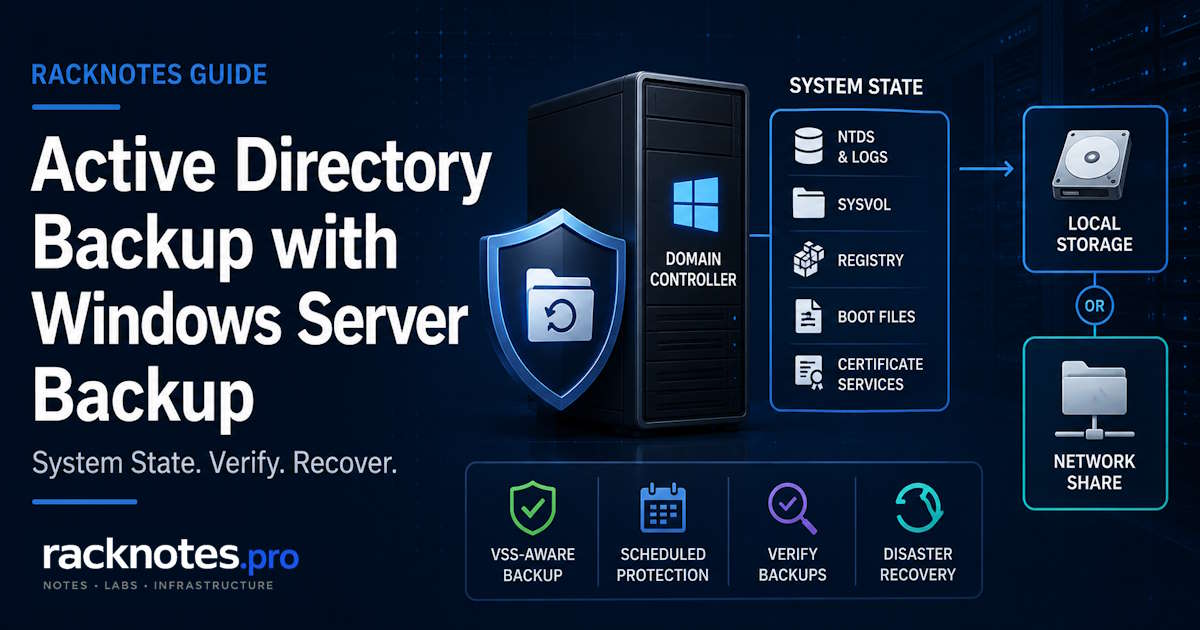
A domain controller can show a successful infrastructure backup while still lacking a supported Active Directory recovery point. Neither a nightly file-level copy of C:\Windows\NTDS nor a hypervisor snapshot labeled “backup” in a monitoring dashboard, by itself, provides the supported and tested AD recovery point this article is about.
This guide covers what an actual Active Directory backup requires: what System State contains on a domain controller, how to create it through the GUI, wbadmin, and native scheduling, where it can be stored, and how to verify it’s usable before you need it.
- A supported AD recovery point must include the domain controller’s System State through an Active Directory-compatible, VSS-aware backup process
- Windows Server Backup can create System State backups through the GUI or wbadmin
- A System State backup can target a local volume or a remote shared folder – both are supported
- A Windows Server Backup full-server/BMR backup, or an equivalent product workflow that includes System State and supports domain-controller recovery, can also be appropriate
- A raw
ntds.ditcopy and a crash-consistent VM snapshot are not substitutes for an AD-aware backup - Verify backup visibility, contents, AD backup timestamps, and periodic restore success – not just that the job finished
- Keep backup age inside the applicable AD lifetime:
tombstoneLifetime, or the lower oftombstoneLifetimeandmsDS-DeletedObjectLifetimewhen Recycle Bin is enabled
What Qualifies as an Active Directory Backup
A recoverable Active Directory backup must capture the domain controller’s System State through a supported, AD-compatible backup process that coordinates with the AD DS VSS writer and documents a supported domain-controller restore workflow. Windows Server Backup provides this through its GUI, the wbadmin command-line interface, and the WindowsServerBackup PowerShell module. A Windows Server Backup full-server/BMR backup, or an equivalent product workflow that includes System State and supports domain-controller recovery, can also be appropriate – Microsoft’s own forest recovery guidance recommends a full server backup specifically because it can support both bare-metal recovery and System State recovery. A raw ntds.dit copy or a crash-consistent VM snapshot alone does not meet that standard.
Three things commonly get treated as an AD backup and aren’t:
A hypervisor snapshot or checkpoint captures disk state, but Active Directory tracks replication using Update Sequence Numbers (USNs) that assume time only moves forward. Restoring from an unsupported snapshot rollback can desynchronize a DC from its replication partners. Windows Server 2012 and later mitigate this for supported hypervisors through VM-Generation ID, and a supported nonauthoritative restore may be possible on VM-Generation-ID-aware hosts using documented procedures – but that safeguard makes specific rollback scenarios safer, it doesn’t turn routine snapshots into a backup strategy. The full mechanics are covered in the USN rollback article.
A raw copy of ntds.dit is not a supported Active Directory backup, regardless of whether the database was stopped first. It omits SYSVOL, the registry, boot data, transaction logs, and the supported restore metadata and workflow that a real System State backup provides. Use a backup product that invokes the standard backup/VSS APIs instead.
A crash-consistent VM image that doesn’t coordinate with the AD DS VSS writer may capture the right bytes without the AD-specific consistency handling a proper backup performs. This isn’t a blanket dismissal of VM-level protection – a VM-level product can produce a valid, AD-consistent recovery point if it correctly coordinates with VSS/AD DS and documents a supported restore workflow. Confirm that explicitly for whatever product you’re using rather than assuming it.
What System State Includes on a Domain Controller
System State is a defined set of components, and on a domain controller that set is larger than on a member server. On a DC, System State includes:
- Boot files and the Windows Registry
- The COM+ Class Registration database
- The Active Directory database (NTDS) and transaction logs
- The SYSVOL folder
- Certificate Services database, if the server is a certificate authority
System State does not include user registry hives (HKEY_CURRENT_USER) – Windows Server Backup explicitly excludes these from both System State backup and System State recovery.
Why operators get this wrong: System State sounds like “the important system files,” which leads people to assume a general server backup automatically covers it in the way AD needs. On a domain controller, System State is what makes a supported non-authoritative or authoritative restore possible afterward – a backup that doesn’t capture it through the documented process doesn’t give you that restore path, even if the disk image looks complete.
Prerequisites and Supported Versions
The procedures below apply to Windows Server 2025, 2022, 2019, and 2016. Microsoft documents support across the current wbadmin, WindowsServerBackup, and forest recovery references.
To run a System State backup, you need to be a member of Backup Operators or Administrators, or have the appropriate permissions delegated. wbadmin must be run from an elevated command prompt.
Install Windows Server Backup
Windows Server Backup is a feature, not a role, and isn’t installed by default.
Install-WindowsFeature -Name Windows-Server-Backup -IncludeManagementToolsOr through Server Manager: Add Roles and Features > Features > Windows Server Backup. This installs the GUI snap-in, the wbadmin command line tool, and the WindowsServerBackup PowerShell module together.
Create a One-Time System State Backup with the GUI
- Open Server Manager > Tools > Windows Server Backup.
- Select Local Backup.
- In the Actions pane, select Backup Once.
- On the Backup options page, select Different options, then Next.
- On the Select backup configuration page, select Custom, then Next.
- On the Select Items for Backup page, select Add Items.
- Check System State, then OK, then Next.
- On the Specify destination type page, choose Local drives or Remote shared folder. For a remote share, enter the UNC path, choose whether the backup should inherit the share permissions, and then provide credentials for an account with write access when prompted.
- Review and start the backup.
The GUI is fine for a one-off backup or for confirming the process works during initial setup. For a recurring schedule, use the native scheduling approach below rather than a generic scheduled task.
Create a System State Backup with wbadmin
Local target:
wbadmin start systemstatebackup -backupTarget:E: -quietRemote share:
wbadmin start systemstatebackup -backupTarget:\\backup01\ADSystemState$ -quietBoth are supported destinations for this specific subcommand, per the wbadmin start systemstatebackup command reference. -quiet suppresses the confirmation prompt, which is what you want for an unattended run. A one-time run like this uses the credentials available to the elevated session it’s launched from – a scheduled remote backup is different and needs its own identity, covered below.
The target volume also can’t be one of the volumes included in the backup by default – you’ll get a “critical volume” error if you try. For a local target, use a separate backup volume rather than a volume that Windows Server Backup must include in the System State or critical-volume set. Validate the target on the exact server build before scheduling the job.
Schedule Recurring System State Backups
Windows Server Backup supports native scheduled System State backups through the WindowsServerBackup PowerShell module. For a standard daily schedule, the native Windows Server Backup policy is the clearest supported option – use Task Scheduler only when the workflow genuinely needs custom orchestration:
$policy = New-WBPolicy
Add-WBSystemState -Policy $policy

$target = New-WBBackupTarget -VolumePath "E:"
Add-WBBackupTarget -Policy $policy -Target $target

$schedule = [datetime]::Today.AddHours(22)
Set-WBSchedule -Policy $policy -Schedule $schedule

# Review the target and schedule before committing the policy
Set-WBPolicy -Policy $policy
Set-WBPolicy commits the policy – review the target and schedule before running it against a production domain controller. This example schedules a local-volume target; a network target requires New-WBBackupTarget -NetworkPath and its own tested credential/ACL design rather than reusing this local example unchanged.
wbadmin enable backup provides the same capability from the command line if you’re standardizing on wbadmin rather than PowerShell for consistency with other scripts.
Task Scheduler wrapping a wbadmin start systemstatebackup command is an alternative worth using only when you need a custom workflow the native scheduler doesn’t support – for example, running a pre-backup or post-backup script alongside it. A one-time interactive wbadmin run and an unattended scheduled run are not the same thing: the scheduled identity must have reliable share and NTFS permissions at the moment the job actually runs, not just when you tested it interactively. If you do use Task Scheduler, /RU SYSTEM is appropriate for a local target, but Local System does not automatically have access to a remote share – a remote-share target needs an explicitly designed credential model: a dedicated service account, a group managed service account (gMSA), or another controlled identity with tested write access to that specific share.
Choose Local, Remote, and Protected Storage
Both local and remote targets are supported – the right choice depends on tradeoffs, not a single mandatory architecture:
- Local dedicated disk or volume on the DC gives the fastest recovery path for a same-host, non-catastrophic failure, and has no network dependency. It does nothing to protect you if the DC itself is lost.
- A remote shared folder protects against source-host loss and centralizes off-host storage, but it doesn’t automatically provide multi-version retention. Network availability, credentials, ACLs, target-path design, and overwrite behavior all need to be tested.
- A layered approach – local first, then a copy or replication step to off-host storage – is common where recovery speed and host-loss protection both matter.
- At least one copy that isn’t reachable using the same credentials as daily operations, if ransomware or a compromised admin account is part of your threat model. A backup an attacker can also delete or encrypt isn’t much of a backup.
Remote-share retention warning: Windows Server Backup can overwrite the previous backup when the same computer writes again to the same remote target. Validate the behavior of the selected command and policy, use separate target paths or a backup platform with explicit retention when multiple recovery points are required, and don’t assume the share itself provides version history. See wbadmin enable backup and wbadmin start backup for the documented target and retention behavior.
RODC limitation: do not treat a Read-Only Domain Controller’s backup as the recovery source for a writable domain controller. For resilient forest recovery planning, maintain recent trusted backups from at least two writable DCs per domain – in a two-DC domain, that normally means protecting both.
This is the same layered storage principle used elsewhere on this site for Hyper-V and Proxmox backups – Active Directory doesn’t get a pass on it just because the backup mechanism differs.
Verify Versions, Contents, and AD Backup Timestamps
A backup job finishing without an error proves the job ran – it doesn’t by itself prove the recovery point is usable. Work through this in order:
- Job completion and event log review – confirm the job actually reported success, not just that it started.
- Backup/version visibility:
For a remote or other-server target, specify it explicitly:
wbadmin get versionsSee the wbadmin get versions reference for the full parameter set.wbadmin get versions -backupTarget:\\backup01\ADSystemState$ -machine:DC01 - Expected components present. Copy the exact version identifier returned by
wbadmin get versionsto avoid transcription errors. Microsoft documents the identifier format asMM/DD/YYYY-HH:MM:See wbadmin get items.wbadmin get items -version:<MM/DD/YYYY-HH:MM> -backupTarget:\\backup01\ADSystemState$ -machine:DC01 - AD backup timestamp recorded:
This reports the last backup timestamp recorded for each directory partition through the supported AD backup APIs. It complements the Windows Server Backup job status and backup catalog checks above.
repadmin /showbackup - A periodic isolated restore test. None of the four checks above prove a complete, successful recovery – only an actual restore in an isolated environment does that.
Investigate a backup that completes unusually quickly or differs sharply in size from your environment’s established baseline before you trust it, not after.
Check the Effective Active Directory Backup Lifetime
The maximum usable age of a domain controller backup depends on the forest configuration. If Active Directory Recycle Bin is disabled, use the configured tombstoneLifetime. If Recycle Bin is enabled, Microsoft defines the backup lifetime as the lower of tombstoneLifetime and msDS-DeletedObjectLifetime.
$directoryService = Get-ADObject `
  "CN=Directory Service,CN=Windows NT,CN=Services,$((Get-ADRootDSE).configurationNamingContext)" `
  -Properties tombstoneLifetime,msDS-DeletedObjectLifetime

$tsl = if ($null -eq $directoryService.tombstoneLifetime) {
    60
} else {
    [int]$directoryService.tombstoneLifetime
}

$deletedObjectLifetime = if ($null -eq $directoryService.'msDS-DeletedObjectLifetime') {
    $tsl
} else {
    [int]$directoryService.'msDS-DeletedObjectLifetime'
}

[pscustomobject]@{
    TombstoneLifetimeDays     = $tsl
    DeletedObjectLifetimeDays = $deletedObjectLifetime
}
A null tombstoneLifetime value doesn’t mean the forest has no limit – the AD protocol default is 60 days. A null msDS-DeletedObjectLifetime value defaults to the calculated tombstone lifetime. If Recycle Bin is enabled, use the lower of the two effective values when selecting a recovery backup.
Backups outside the applicable lifetime shouldn’t be treated as valid domain-controller recovery sources. Restoring stale directory data can introduce lingering-object and replication-consistency risks. repadmin /showbackup reports the last backup timestamp recorded for each naming context through the supported AD backup APIs on the targeted domain controller – run it against each DC selected for recovery planning, not just one, to compare recorded timestamps with the applicable lifetime. See Microsoft’s guidance on investigating AD partitions not backed up within half the tombstone lifetime. It complements Windows Server Backup job status and catalog checks, but it doesn’t replace a restore test.
Snapshot/Checkpoint vs. AD-Aware Backup
| Protection method | AD-consistent by itself | Supported AD restore workflow | Best use |
|---|---|---|---|
| Hypervisor snapshot/checkpoint | No | Limited: a supported nonauthoritative restore may be possible with VM-Generation-ID-aware hosts and documented procedures | Short-lived rollback/testing; not primary backup protection |
| System State backup | Yes | Yes | AD DS recovery |
| Full server/BMR backup with System State | Yes, when created through a supported application-consistent workflow | Yes | Server and AD recovery together |
Raw ntds.dit copy | No | No | Not a backup method |
Do not let snapshots substitute for regular AD-aware backups of the writable DCs selected in your recovery plan.
What System State Can and Cannot Recover
A System State backup supports non-authoritative restore, authoritative restore of specific objects or subtrees, and recovery of SYSVOL, the NTDS database, and the other System State components listed earlier.
It does not, by itself:
- Restore individual deleted objects as the fastest path. If the AD Recycle Bin is enabled and the object is still within its retention window, that path is faster and less disruptive than a System State restore.
- Act as a portable bare-metal image. A standalone System State backup is designed for System State recovery, not migration to different hardware – restoring it to a different server or a fresh Windows installation is unsupported or not recommended. When recovery to new hardware or a new OS instance is part of the plan, prepare a full-server/BMR backup and follow the documented recovery sequence instead.
- Automatically mean a failed DC should be restored from backup. If healthy writable DCs remain in the domain, rebuilding and re-promoting a replacement server is often simpler and lower-risk than restoring the failed DC from backup. Restore from backup when the recovery objective specifically requires the previous DC’s state, or when no healthy replication source remains.
- Replace a documented domain or forest recovery plan. Losing every DC in one domain may require recovering that domain, but it doesn’t automatically mean the entire forest needs recovery. Full forest recovery is reserved for forest-wide loss, corruption, or compromise and follows a separate sequence.
Active Directory Backup Checklist
- Maintain at least two writable DCs per domain where practical and, for resilient forest recovery, keep recent trusted backups from at least two suitable writable DCs per domain
- Do not rely on an RODC backup to restore a writable DC
- Run AD-aware backups at least daily in most environments, then tighten the schedule if the RPO or change rate requires it
- Use an AD-compatible backup product that coordinates with the AD DS VSS writer and documents a supported domain-controller restore workflow
- Choose local, remote, or layered storage based on recovery speed, source-host failure protection, credential isolation, and retention needs
- Keep at least one protected, off-host or otherwise deletion-resistant copy
- Track backup age against the applicable AD backup lifetime and investigate any naming context that hasn’t been backed up within half of that window
- Review wbadmin results, backup-related event logs, and repadmin /showbackup on a regular cadence
- Maintain known and secured DSRM credentials for every DC
- Test the restore procedure in an isolated environment – full forest recovery plans at least annually and after material architecture changes; narrower restore procedures more often, based on risk and change frequency
- Review the full recovery plan after any significant infrastructure change, not only on a calendar schedule
Choose the Next Recovery Procedure
This article covers producing a valid, restorable backup. The right next step depends on what actually needs recovering:
- Deleted a user, group, or OU and the Recycle Bin is enabled – AD Recycle Bin restore (its own dedicated article)
- A domain controller failed and needs to come back from this backup, or you need the authoritative-vs-non-authoritative decision – authoritative vs non-authoritative restore (its own dedicated article)
- The forest has suffered forest-wide corruption or compromise, or all usable DCs are unavailable – Active Directory forest recovery (its own dedicated article)
- Building the RTO/RPO plan and restore-testing schedule around all of this – Active Directory disaster recovery plan (its own dedicated article)
An unrestored backup is an assumption, not a verified recovery capability.
Active Directory Series
25 articles – Windows Server 2025 · Forest & Domain · FSMO · GPO · Replication · DNS · Security · Backup & Recovery