
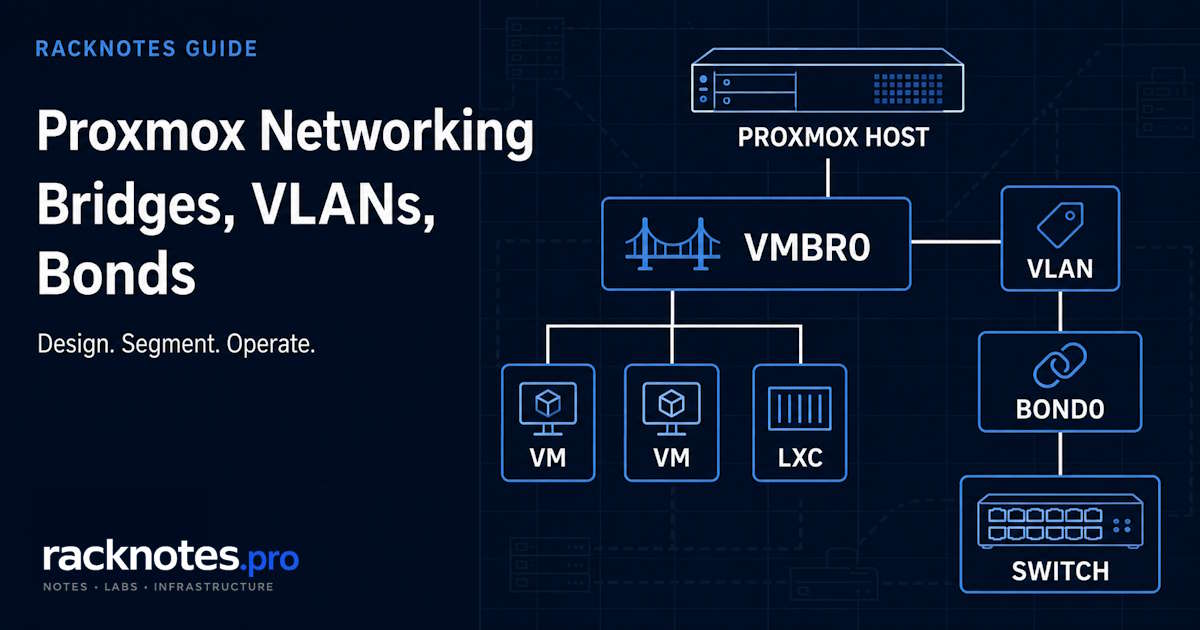
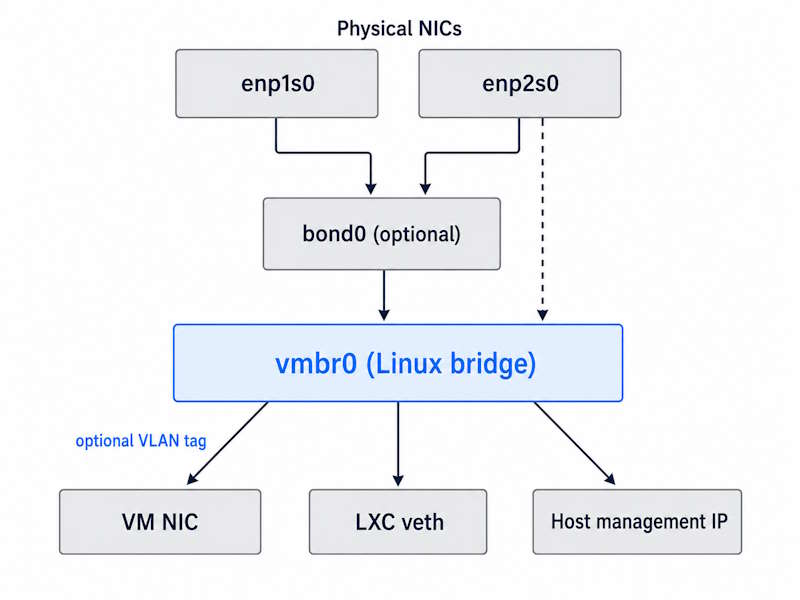
Proxmox networking is built around a simple stack: a physical NIC or optional bond connects to a Linux bridge, and VM or container network interfaces connect to that bridge. VLAN tags can then segment guest traffic without creating a separate physical network for every workload.
For a single host on one trusted LAN, the default vmbr0 configuration is usually enough. Add a VLAN-aware bridge when workloads need separate trust zones, and add a bond only when you have a defined link-failover or aggregate-throughput requirement.
This Proxmox networking guide shows the standard Proxmox VE 9.2 configurations for bridges, VLANs, active-backup, and LACP, including GUI paths, complete /etc/network/interfaces examples, safe apply steps, verification commands, and common failure fixes.
Single host, one trusted LAN: keep the installer-created vmbr0, place the static management IP on the bridge, and connect guests to it.
Need network isolation: make the bridge VLAN-aware, allow only the VLAN IDs you use, configure the switch port as a matching trunk, and set the VLAN Tag on each VM or container NIC.
Need NIC or cable failover: create an active-backup bond and use that bond as the bridge port.
Need aggregate capacity across multiple flows: use an 802.3ad/LACP bond only with a correctly configured managed switch or multi-switch aggregation design.
Before changing the management network, keep console or IPMI access available and preview the ifupdown2 reload.
How Proxmox networking fits together
Most traditional Proxmox host networks are built from three core building blocks: Linux bridges, optional VLAN tagging, and optional NIC bonds. Proxmox VE also supports routed, NAT, Open vSwitch, and SDN designs, but those solve different requirements and are outside the basic single-host workflow.
These components solve different layers of the design: a bridge connects guests, VLANs segment Layer 2 traffic, and a bond combines physical uplinks. Confusion starts when they are treated as alternatives instead of components that may be stacked together.
| Component | Role | Required? | Typical example |
|---|---|---|---|
| Physical NIC | Connects host to physical network | Yes | enp1s0 |
| Linux bond | Combines multiple physical NICs | No | bond0 |
| Linux bridge | Connects guests and host to Layer 2 | Standard design | vmbr0 |
| VLAN-aware bridge | Passes selected VLAN tags | No | VLANs 10, 20, 30 |
| VM VLAN Tag | Places guest NIC into a VLAN | No | Tag 20 |
| SDN VNet | Datacenter-level virtual network | No | Multi-node VNet |
Proxmox networking runs on standard Linux networking. There is no proprietary virtual switch like VMware’s vSwitch, just Linux bridges, VLAN tagging, and bonding implemented through the kernel. Traditional node configuration lives in /etc/network/interfaces and is managed by ifupdown2; the node Network GUI writes to the same file.
Which Proxmox network design should you use?
| Requirement | Recommended design |
|---|---|
| One host, one trusted LAN | Single physical NIC to vmbr0 |
| Isolated VM-only test network | Internal bridge without physical port |
| IoT, guest, DMZ, or management separation | VLAN-aware bridge plus matching switch/router configuration |
| NIC or cable failover | Active-backup bond to bridge |
| Aggregate bandwidth across many flows | 802.3ad bond to bridge, plus managed switch LACP |
| Cluster heartbeat redundancy | Multiple Corosync links on independent paths where possible |
| Busy shared storage | Dedicated or capacity-planned storage network |
| Same virtual networks across multiple nodes | Evaluate Proxmox SDN zones and VNets |
Choose Proxmox networking complexity only for a defined requirement
Start with a flat bridge when every workload belongs to the same trust zone. Add VLANs when you need real policy or security boundaries, such as separating IoT, guest, exposed, management, storage, or lab traffic. VM count alone does not determine network complexity. A host with many low-traffic trusted services may work well on one bridge, while a smaller environment may still require VLANs for security boundaries or a bond for a defined availability requirement.
Each Proxmox networking layer carries ongoing cost, not just setup cost. VLANs consume operational budget through switch config, host config, and routing rules to maintain. Bonds consume debugging budget, because their failures are multi-variable and involve the switch. A bridge failure is obvious and usually reverts cleanly; a bond failure tends to look like intermittent packet loss that resists reproduction.
RackNotes principle
Complexity should be earned. Every networking layer added to a Proxmox host creates another failure domain, another debugging path, and another mental overhead. Add complexity when operational requirements demand it, not before.
The default vmbr0 setup
A fresh install creates the default Proxmox networking layout: one bridge (vmbr0) bound to your physical NIC, and the default vmbr0 created during installation already carries the management IP. VMs created without specifying a different bridge attach to this one.
For the standard bridged design used by most Proxmox installations, a Linux bridge is the foundation that connects VM and container interfaces to the physical or virtual network. A bridge performs Layer 2 forwarding: frames arrive on one port, the bridge reads the destination MAC, frames leave through the appropriate port. Routing, NAT, and firewalling are not part of what a basic bridge does.
Why the management IP lives on the bridge, not the NIC: if the IP were on the physical NIC, the bridge would be isolated from external traffic. Putting the IP on the bridge lets the host and all guests share the same network access through the same physical port.
auto lo
iface lo inet loopback

iface enp1s0 inet manual

auto vmbr0
iface vmbr0 inet static
    address 192.168.1.10/24
    gateway 192.168.1.1
    bridge-ports enp1s0
    bridge-stp off
    bridge-fd 0
The physical NIC stays in manual mode with no address of its own. VM tap interfaces attach dynamically and need no entries in this file. Keep only one normal default gateway defined on the host unless you have deliberately designed policy routing; a second gateway stanza elsewhere in the file is a common source of “works sometimes” connectivity.
NIC names vary by hardware, a recurring source of copy-paste failures: eth0, eno1, enp2s0f0. Check ip link for what your system actually reports.
Use a static management IP rather than a DHCP reservation as the default. Why operators get this wrong: a reservation feels equivalent because the IP does not change day to day. The difference shows up during recovery. A static address on the bridge works even if the router reboots, the DHCP server is down, or you are troubleshooting from a laptop plugged directly into the host with no router in the path.
Create and configure Linux bridges
To add a bridge through the GUI:
- Open the Proxmox node.
- Go to System → Network.
- Select Create → Linux Bridge.
- Choose a bridge name such as
vmbr1. - Add an unused physical interface under Bridge ports, or leave it empty for an internal-only network.
- Add an IP address only if the Proxmox host itself needs Layer 3 access through this bridge.
- Save, review the pending configuration, and apply it only with console or IPMI recovery available.
A second bridge is useful when you have multiple physical NICs and want guests on different physical networks. An internal-only bridge has no physical port at all:
auto vmbr1
iface vmbr1 inet manual
    bridge-ports none
    bridge-stp off
    bridge-fd 0
Guests on vmbr1 can communicate with each other, but they do not reach another network unless a router, firewall VM, or host NAT/routing configuration provides that path.
Configure a VLAN-aware bridge
VLANs are tags on Ethernet frames that let multiple logical networks share one physical wire. This is the layer where Proxmox networking gets more complex than most labs need. Two questions decide the design.
Does the tagged traffic need to leave the host? A VLAN-capable switch or router is required when tagged frames must exit through a physical port. Segmentation that stays entirely inside Proxmox, behind a virtual router or firewall VM, needs no VLAN-capable switch at all.
Do guests need to sit on different VLANs? If yes, a single VLAN-aware bridge with the tag set per guest NIC is the common pattern. A host VLAN subinterface, a dedicated bridge per VLAN, or an SDN VNet are the alternatives.
Untagged management, tagged guests
Management traffic stays untagged on the native VLAN, while guests get VLAN 10/20/30 through their VLAN Tag field:
iface enp1s0 inet manual

auto vmbr0
iface vmbr0 inet static
    address 192.168.1.10/24
    gateway 192.168.1.1
    bridge-ports enp1s0
    bridge-stp off
    bridge-fd 0
    bridge-vlan-aware yes
    bridge-vids 10 20 30
Tagged management VLAN
When management itself must live on a tagged VLAN, the bridge holds no address and a VLAN subinterface carries the IP:
iface enp1s0 inet manual

auto vmbr0
iface vmbr0 inet manual
    bridge-ports enp1s0
    bridge-stp off
    bridge-fd 0
    bridge-vlan-aware yes
    bridge-vids 10 20 30

auto vmbr0.10
iface vmbr0.10 inet static
    address 192.168.10.10/24
    gateway 192.168.10.1
The distinction matters more than it looks, and it is one of the most common Proxmox networking misreadings. An IP in the 192.168.10.0/24 range on an untagged bridge does not put management on VLAN 10. The subnet number does not create VLAN tagging; the tag does.
You can allow a wider range such as 2-4094, but restricting the bridge to VLANs that are actually used makes the intended design easier to audit and troubleshoot. Some NIC and offload paths also have practical limits on the number of programmed VLANs.
To enable VLAN awareness through the GUI:
- Open Node → System → Network.
- Edit
vmbr0. - Enable VLAN aware.
- Limit the allowed VLANs to the IDs the trunk actually carries.
- Configure the upstream switch port as a matching tagged trunk.
- Open the VM or container network device and set its VLAN Tag.
A recurring homelab design mistake is adding VLANs before there is a clear segmentation policy. The configuration is technically correct but solves no actual problem, and the first symptom is usually inter-VLAN routing that nobody planned for.
Where VLANs meet policy, the apply firewall policy between Proxmox networks guide covers the zone model and rule ordering.
Configure a Proxmox bond
A bond combines multiple physical NICs into one logical interface, and it is the Proxmox networking component most often added without a defined requirement. Bonding benefits depend on the failure domain and traffic pattern. It can provide link failover and aggregate capacity, but it does not automatically double the speed of one transfer or protect against every upstream failure.
A bond does not remove every network failure domain. It can protect against a NIC, cable, or switch-port failure, depending on bond mode. It does not protect against a single-switch failure unless the upstream design also provides multi-switch redundancy through stacking, MLAG, or a validated active-backup Layer 2 path.
A single flow rarely benefits. Bonding increases aggregate capacity across multiple simultaneous flows. A lone TCP transfer typically still rides one physical link, regardless of hashing policy.
Active-backup, for link failover without switch-side LACP:
iface enp1s0 inet manual
iface enp2s0 inet manual

auto bond0
iface bond0 inet manual
    bond-slaves enp1s0 enp2s0
    bond-mode active-backup
    bond-primary enp1s0
    bond-miimon 100

auto vmbr0
iface vmbr0 inet static
    address 192.168.1.10/24
    gateway 192.168.1.1
    bridge-ports bond0
    bridge-stp off
    bridge-fd 0
Note that bond0 replaces the physical NIC name under bridge-ports. That single substitution is the whole integration between the two layers.
To create a bond through the GUI:
- Go to Node → System → Network.
- Select Create → Linux Bond.
- Select the physical NICs.
- Choose active-backup for simple link failover or 802.3ad for LACP.
- For LACP, complete the matching switch configuration before applying the host change.
- Edit
vmbr0and replace the physical NIC under Bridge ports withbond0.
A pattern that surfaces repeatedly in small Proxmox deployments: bonding is configured against a consumer switch without verifying real LACP support. The result is connectivity that appears fine most of the day and drops intermittently under specific load. Diagnosis usually lands on switch-side LACP behavior rather than the host configuration, after several hours spent looking at the wrong end of the cable.
Switch-level redundancy requires an upstream topology that supports it. That may be active-backup across equivalent Layer 2 paths, LACP to a switch stack, or multi-chassis link aggregation. Two unrelated switches with two connected cables do not automatically form a safe redundant bond.
Complete bond, bridge, and VLAN example
The full stack: LACP bond feeding a VLAN-aware bridge.
iface enp1s0 inet manual
iface enp2s0 inet manual

auto bond0
iface bond0 inet manual
    bond-slaves enp1s0 enp2s0
    bond-mode 802.3ad
    bond-miimon 100
    bond-xmit-hash-policy layer3+4

auto vmbr0
iface vmbr0 inet static
    address 192.168.1.10/24
    gateway 192.168.1.1
    bridge-ports bond0
    bridge-stp off
    bridge-fd 0
    bridge-vlan-aware yes
    bridge-vids 10 20 30
The switch ports must belong to the same correctly configured LACP group or multi-chassis aggregation domain. The bond increases aggregate capacity across eligible flows; it does not normally turn one TCP transfer into a connection that is twice as fast. Hashing policy is workload-dependent, so layer3+4 is a starting point to validate, not a universal recommendation.
How to apply Proxmox network changes without locking yourself out
Most Proxmox networking disasters happen during configuration changes, when the operator loses access to their own host. The pattern is consistent: SSH in, change the config, connectivity breaks, session drops, recovery now requires physical access.
- Confirm recovery access. Use a local console, IPMI, iDRAC, iLO, KVM-over-IP, or another path that does not depend on the interface being changed.
- Save the current configuration.
cp -a /etc/network/interfaces /root/interfaces.before-change- Record the current state.
ip -br link
ip -br addr
ip route
bridge link
bridge vlan- Parse and preview the pending configuration.
ifquery -a
ifreload -a -s
ifreload -a -n- Apply one logical change.
ifreload -a- Verify before proceeding. Test the management IP, default gateway, DNS, bridge membership, VM traffic, VLAN path, and bond state.
- Test a reboot before declaring the change complete. A config that applies cleanly live can still fail on the next boot.
ifquery --check compares configured values with the current running state; it is not a pure pre-apply syntax test, and it will report mismatches simply because the new configuration has not been applied yet. Use ifreload -a -s for the parser check and ifreload -a -n for the no-act preview instead, as described in the Debian ifupdown2 ifreload manual. Even then, keep console or IPMI access available, because a syntactically valid management-network change can still disconnect the host.
Rollback, also through console or IPMI rather than the connection you just broke:
cp -a /root/interfaces.before-change /etc/network/interfaces
ifreload -a
For complex bridge, VLAN, and bond stacks, verify that every referenced lower-level interface exists and that the complete dependency chain appears in the parsed configuration. ifupdown2 resolves interface dependencies, but missing NIC names, invalid references, driver failures, or incomplete stanzas can still prevent the stack from coming up.
If you cannot articulate the rollback before making the change, you are not ready to make the change.
Verify the Proxmox network configuration
- Interfaces:
ip -br link - Addresses:
ip -br addr - Routes:
ip route - Bridge ports:
bridge link - Bridge VLAN filtering:
bridge vlan show - Bond members and active link:
cat /proc/net/bonding/bond0 - NIC driver and firmware:
ethtool -i <NIC> - Link counters:
ethtool -S <NIC> - Network service logs:
journalctl -b -u networking - Kernel networking errors:
journalctl -b -k | grep -iE 'link|reset|timeout|firmware|net'
Run ip -br addr first when Proxmox networking behaves unexpectedly. It shows actual current state regardless of what the config file claims, and most issues become diagnosable the moment the gap between expected and actual state is visible.
When the host is reachable but name resolution seems broken, with GUI features timing out or package updates failing to fetch, check DNS separately from the network path:
hostname -f
getent hosts "$(hostname -f)"
resolvectl status 2>/dev/null || cat /etc/resolv.conf
Common Proxmox networking errors and fixes
| Symptom | First checks |
|---|---|
vmbr0 missing | Parse config, check service logs, confirm bridge stanza |
| Bridge port does not exist | Interface name, driver, PCI detection, typo |
| Host unreachable after reboot | NIC name, gateway, bridge port, parser errors |
| VM has no internet | VM bridge, guest gateway, VLAN, host/switch uplink, firewall |
| VLAN tag not working | VLAN aware, allowed VID, guest tag, switch trunk, router interface |
| Bond down | /proc/net/bonding/bond0, carrier, switch LAG |
| LACP no traffic | Mode, LAG membership, VLANs, hashing, MTU |
| Intermittent routing | Duplicate default route, asymmetric policy routing |
| DNS only is broken | Hostname resolution, resolver state, /etc/resolv.conf |
- Confirm whether the interface exists at all:
ip link show vmbr0 - Confirm the config file still defines it:
grep -n "vmbr0" /etc/network/interfaces - Check whether the service applied it on last boot:
journalctl -b -u networking - For a missing bridge port, compare the current interface name against
bridge-ports:ip -br link - Check PCI detection and driver binding:
lspci -nnk | grep -A3 -i ethernet
A missing bridge port is one of the most searched Proxmox networking errors, and it usually means that bridge-ports references an interface that does not currently exist. Check for a typo, predictable-name change, disabled or failed NIC, missing driver, PCI detection issue, or an incomplete bond dependency. Interface renames after a hardware swap or firmware update are easy to miss and account for a large share of these.
Management IP on the wrong interface. Setting the host IP directly on the physical NIC instead of on vmbr0 isolates the bridge from external access. Guests lose the network. The IP belongs on the bridge.
Bridge name changed, VM configs broken. VM network interfaces reference bridge names. Renaming vmbr0 requires updating every VM config that references it.
Firewall checkbox assumed to control connectivity. The per-NIC firewall flag determines whether firewall rules apply to that virtual NIC. It is a filtering switch, not a requirement for normal connectivity. Rules enabled without matching allow rules can block traffic that would otherwise work.
When instability has no obvious cause, check the exact PCI ID, driver, firmware version, and interface counters rather than judging by chipset name. Some NIC, driver, and firmware combinations have regressions or offload-related quirks under Linux, and this is not limited to any one vendor. The check Proxmox networking logs guide covers where the evidence lives, and update Proxmox VE safely matters here because a kernel change can alter NIC behavior on hardware that was stable for months.
Networking for Proxmox clusters
Cluster Proxmox networking inherits everything above, then layers on Corosync, migration, and storage traffic.
Corosync needs reliable, low-latency, predictable packet delivery. A small cluster can operate on a shared 1GbE network when latency remains below the supported threshold and the link is not congested by backups, storage, or migrations. For HA or important workloads, use independent Corosync links where possible and validate latency and packet loss under peak load rather than relying only on nominal link speed. Proxmox documents a latency requirement under 5ms and recommends multiple links for redundancy. Corosync does not need a Linux bond to achieve that redundancy; it can use multiple links directly.
Excessive Corosync latency or packet loss can destabilize cluster membership and quorum. In an HA-managed environment, the resulting loss of communication may lead to recovery or fencing actions depending on cluster state and HA policy. The quorum, fencing, and HA recovery guide covers that behavior, and design the Proxmox cluster network covers the build.
Migration traffic is related to guest memory size but is not a fixed multiple of it. Live migration copies VM memory iteratively while the guest keeps dirtying pages, so actual traffic can exceed the VM’s memory size, and local-disk migration adds disk transfer on top. Rough scale: a 16GB VM moves roughly that much memory traffic under typical conditions, more under heavy write load. Minutes on 1GbE. Fast on 10GbE.
Storage traffic is a separate demand. Ceph requirements depend on OSD media, workload, replication factor, recovery traffic, and expected latency. 10GbE is a strong baseline for many SSD-backed production-like deployments, not a universal technical minimum. Mixing storage traffic onto the VM network creates contention. See plan shared-storage networking and choose storage before sizing the network.
When to use Proxmox SDN
Everything above is traditional per-node Proxmox networking. Proxmox VE 9.2 also ships a mature integrated Software-Defined Network stack with zones, VNets, subnets, VLAN and VXLAN support, and EVPN-related designs, managed at datacenter level rather than per node.
| Use case | Traditional node networking | Proxmox SDN |
|---|---|---|
| Single host | Yes | Usually unnecessary |
| One simple cluster | Yes | Optional |
| Same VLANs across all nodes | Manual per-node config | Centralized VNet/zone model |
| Overlay network across nodes | Limited or manual | SDN/VXLAN/EVPN designs |
| Multi-tenant isolation | Basic VLAN and firewall | Better fit |
| Learning curve | Lower | Higher |
The practical trigger is repetition. Once the same VLAN definitions are being hand-maintained across several nodes and drifting between them, the per-node model has stopped paying for itself.
Final recommendation
Use the simplest Proxmox networking design that meets a defined requirement. For one trusted LAN, the installer-created vmbr0 with a static management IP is usually enough. Add VLANs when you need security or policy boundaries, and add a bond when you need link failover or aggregate capacity across multiple flows.
The important part is not avoiding complexity at all costs. It is understanding the Proxmox networking stack: physical NICs feed an optional bond, the bond or NIC feeds a bridge, guests connect to the bridge, and VLAN tags define Layer 2 segmentation. Once that model is clear, the configuration becomes much easier to design and troubleshoot.
Before changing the management network, keep console or IPMI access available, preview the ifupdown2 reload, apply one logical change at a time, and verify both the live state and the next reboot.
FAQ
What is the difference between a bridge and a bond in Proxmox?
A bridge connects VMs to a Layer 2 network; a bond combines physical NICs into one logical uplink. They are commonly stacked, with a bond feeding a bridge, but a host with a single NIC only needs the bridge.
Where is Proxmox networking configuration stored?
Traditional node networking is stored in /etc/network/interfaces and managed through ifupdown2. Changes made in the node Network GUI are written to the same underlying configuration.
Should the Proxmox IP be on the physical NIC or vmbr0?
In a standard bridged setup, place the host management IP on vmbr0. The physical NIC remains in manual mode and acts as a bridge port.
Why is vmbr0 missing?
Usually a config file that no longer defines it, a networking service that failed to apply it on boot, or an interface rename after a hardware or driver change. Check ip link show vmbr0, grep the config file, and read journalctl -b -u networking for the actual failure.
Can a Proxmox bridge work without a physical NIC?
Yes. A bridge with no physical port creates an internal Layer 2 network for VMs and containers. External access requires a router, firewall VM, or explicit host routing/NAT.
Does Proxmox need a managed switch for VLANs?
A managed VLAN-capable switch or router is required when tagged traffic must leave the host. VLAN segmentation can remain entirely virtual when the traffic stays inside Proxmox behind a virtual router or firewall.
Does LACP double the speed of one VM?
Normally no. LACP aggregates capacity across multiple simultaneous flows; a single ordinary connection typically still rides one member link, so one VM pushing one transfer usually sees no speed increase.
This Proxmox networking guide covers traditional Linux networking on a single host or small cluster, which is the configuration most homelab and SMB environments actually run. Routed and NAT designs, Open vSwitch, and full SDN architecture are out of scope beyond the decision guidance above. Hardware behavior varies: NIC, driver, and firmware combinations that are stable on one kernel can behave differently after an upgrade, so validate changes against your own hardware rather than assuming a config is portable.
Last updated: July 2026 – verified against Proxmox VE 9.2 and current ifupdown2 behavior.
Proxmox VE Series
28 articles – Installation · Storage · Networking · HA · Recovery