
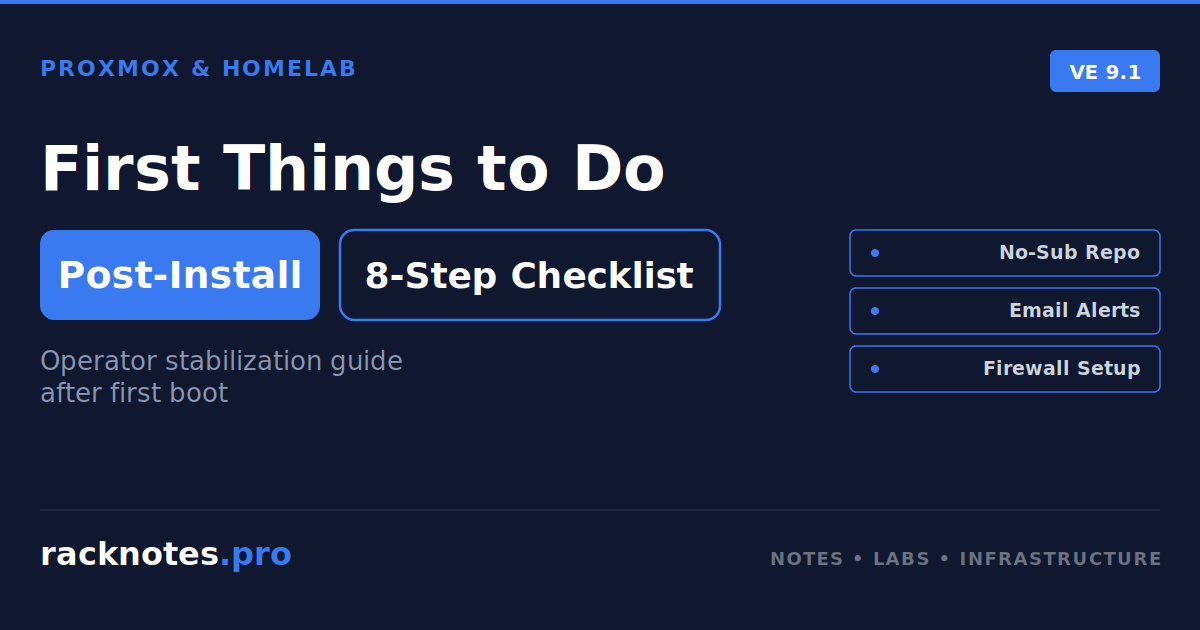
- Configure the correct PVE 9 repository using the Web UI or deb822
.sourcesfiles – not the legacy.listformat. - Install all updates and reboot if a new kernel or critical system package was installed.
- Secure administrator access: strong password, TOTP or WebAuthn MFA, and a verified recovery path.
- Validate the management bridge, gateway, DNS, hostname resolution, IPv4/IPv6 routing, and NTP.
- Configure a native Proxmox notification target at Datacenter – Notifications and send a test notification.
- Restrict management access with the Proxmox firewall and use a VPN for remote administration – not a port forward.
- Verify storage status, free space, ZFS health, and SMART/NVMe indicators before creating VMs.
- Configure off-host guest backups and complete at least one test restore before placing important workloads.
A fresh Proxmox VE install boots, the web UI loads, and the first thing it shows is a subscription reminder. Then apt update may return errors depending on the repository configuration. Then you wonder which things to do after installing Proxmox before creating the first VM.
Most of the things to do after installing Proxmox are not dramatic. They are a short sequence of steps that turn a fresh host into one ready for actual VM workloads. The order matters: repositories before updates, updates before package installs, access security before firewall changes, storage verification before creating VMs.
This guide covers the 8 essential steps to do after installing Proxmox VE 9.x on bare metal. Each step addresses a specific gap between the fresh installer state and a host ready for real workloads. Plan 30-45 minutes start to finish. For the install itself, see the Proxmox VE installation guide.
Why this order matters
The 8 steps below are the things to do after installing Proxmox in the order they should be done. They build on each other. Repositories must work before any updates can run. Updates must finish before new packages install correctly. Access security must be established before firewall changes can lock out the wrong person. Email notifications need a working host before testing delivery makes sense. Storage must be verified before VMs are created on it.
Skipping ahead usually creates work later. A fresh install with the wrong repository set will fail every apt run, and chasing those errors takes longer than fixing the repository first. The sequence reflects how errors cascade – and where fixing the root problem is always faster than fixing downstream symptoms.
Who this checklist is for
This is for homelab and small-business Proxmox VE installs where the host runs in a private network or behind a router. The intended reader just finished the installer, sees the Datacenter view with the subscription reminder, and wants to know which things to do after installing Proxmox before creating the first VM.
Out of scope: enterprise multi-node clusters with paid subscriptions, directly internet-exposed Proxmox hosts (different TLS and access-control requirements), automated provisioning via Ansible or Terraform. For hardware context, see the mini PC for Proxmox guide. For platform comparison, see Proxmox vs ESXi Free 2026.
Step 1: Configure the correct repositories
A fresh unlicensed node shows a subscription reminder. Separately, the enterprise repository requires a valid subscription key and will return authentication errors without one. These are two different mechanisms – switching repositories does not remove the reminder, and the reminder does not affect functionality.
The simplest path on Proxmox VE 9 is the Web UI repository panel:
Node – Updates – Repositories
Disable the enterprise repository if the node has no subscription. Add the no-subscription repository for homelab or non-production use. This approach avoids the file format mismatch described below.
PVE 9 uses deb822 .sources files, not the legacy one-liner .list format from PVE 8. On a fresh PVE 9 install, the relevant files are:
- Enterprise:
/etc/apt/sources.list.d/pve-enterprise.sources - No-subscription:
/etc/apt/sources.list.d/proxmox.sources - Ceph:
/etc/apt/sources.list.d/ceph.sources
To disable the enterprise stanza without deleting the file, add Enabled: no to the deb822 block. To enable the no-subscription repository, the proxmox.sources file should contain:
Types: deb
URIs: http://download.proxmox.com/debian/pve
Suites: trixie
Components: pve-no-subscription
Signed-By: /usr/share/keyrings/proxmox-archive-keyring.gpg
The no-subscription repository receives packages earlier and with less validation than the enterprise repository. It is suitable for homelab and testing but not the recommended option for production systems. The Proxmox repository documentation explains both options and their validation policies.
If Ceph is not in use and the Ceph enterprise repository returns authentication errors, disable it through the Web UI repository panel or add Enabled: no to the Ceph stanza. NFS and iSCSI storage do not require the Ceph repository.
Using legacy .list file syntax alongside existing deb822 .sources files on a PVE 9 host creates duplicate repository definitions that conflict on the Signed-By field. The result is apt update errors about conflicting values. The fix: remove the legacy .list file and manage repositories through the deb822 files or the Web UI panel. If apt returns Could not resolve, the cause is DNS or network connectivity – not the repository format.
Step 2: Install all updates and reboot if required
With repositories configured, check the current version and run a full update:
pveversion -v
apt update
apt full-upgrade
full-upgrade is what Proxmox documentation recommends over upgrade. The difference: full-upgrade allows package removals when needed to resolve dependencies. Read the transaction plan before confirming – especially on a first update where the delta from the installed ISO may be substantial.
Watch the output for kernel updates. If a new kernel package installs, reboot before continuing – some packages depend on the running kernel version matching the installed headers:
rebootAfter the reboot, verify the kernel and web UI:
uname -r
pveversion -v
Prior kernel files remain on disk for rollback. For ongoing update strategy – when to update, how to stage, kernel rollback – see the Proxmox update guide.
Step 3: Secure administrator access
Securing administrator access is one of the most important things to do after installing Proxmox – it belongs before the firewall, before notifications, and well before the first VM. An unprotected root account on a fresh install is the largest single attack surface a new Proxmox host has.
In the web UI: Datacenter – Permissions – Two-Factor Authentication
Proxmox supports TOTP (Google Authenticator, Bitwarden, Aegis, any standard TOTP app) and WebAuthn (hardware security keys). For most homelab setups, TOTP is the practical choice.
- Set a strong root password if not already done:
passwd - Add TOTP in Datacenter – Permissions – Two-Factor Authentication
- Record recovery codes or note the TOTP seed securely
- Open a second browser session and verify MFA login works before closing the current session
- Confirm physical or IPMI console access as the recovery path if MFA becomes inaccessible
For multi-operator environments: create a named administrator account under Datacenter – Permissions – Users rather than sharing the root account. The root account is also the recovery path – keeping it distinct from daily-use accounts reduces the risk of locking out recovery access.
Step 4: Verify networking, DNS, and time
Before creating VMs, confirm the management network is configured correctly. Time sync issues and network misconfiguration are both silent failures – they do not produce visible errors until something downstream breaks.
Network verification:
ip -br addr
ip route
ip -6 route
cat /etc/network/interfaces
getent hosts download.proxmox.com
ping -c 3 $(ip route | awk '/default/ {print $3; exit}')
Verify the management bridge is up, the gateway is reachable, and DNS resolves correctly. If the host is clustered or will be, hostname resolution matters – each node must resolve the others. For bridge and VLAN configuration, see the Proxmox networking guide.
Time sync: Proxmox uses chronyd for time sync by default. Wrong system time causes problems with log timestamps, certificates, and cluster or Ceph operations.
chronyc tracking
chronyc sources -v
Check the System time offset and Leap status fields. If all sources show “?” status, the configured NTP servers are not reachable. For isolated networks with no internet access, configure a local NTP server or GPS-based time source in /etc/chrony/chrony.conf before adding external pool servers. Restart after any config change:
systemctl restart chronydA note on IPv6: do not disable IPv6 as routine post-install cleanup. Many container ecosystems assume IPv6 availability, and Proxmox firewall handles both protocol families. If there is a specific documented reason to disable IPv6 for the deployment, handle it as a network design decision – not a default step after installing Proxmox.
Step 5: Configure and test notifications
Modern Proxmox VE includes a native notification system that does not require manual Postfix configuration. The recommended path for most things to do after installing Proxmox:
Datacenter – Notifications
Proxmox supports native SMTP, Sendmail, Gotify, and Webhook notification targets. For homelab setups, an SMTP target connecting directly to an external relay is the simplest option – it avoids manual editing of Postfix configuration files and uses the built-in test function to verify delivery.
Add an SMTP target:
- Datacenter – Notifications – Add – SMTP
- Enter the SMTP server, port, TLS mode, credentials, sender address, and recipient
- Click Test to send a test notification immediately
- Check the notification matcher to confirm backup failures and system alerts route to the target
Note: native SMTP targets do not provide local message queuing or retry behavior. If queued delivery and retry on failure are required – for example, when the network path to the relay may be intermittently unavailable – use a Sendmail target with a locally configured Postfix relay instead. The Proxmox administration guide covers notification targets and matchers in detail.
A common pattern in homelab deployments: notifications are configured but never tested until the first backup failure. When that failure arrives, the notification path turns out to be broken too – expired app password, misconfigured relay, or a spam filter silently discarding the message. The test button in Datacenter – Notifications exists precisely to close this gap. Run it immediately after setup and verify delivery at the destination before relying on it for actual alerts.
Step 6: Configure firewall and secure remote access
The Proxmox firewall operates at three levels: datacenter, node, and VM/container. By default it is disabled. Most homelab setups sit behind a router that provides perimeter protection, but enabling the node-level firewall adds defense in depth and is the correct baseline before creating VMs. The Proxmox firewall guide covers the full zone model and rule design in more depth than this checklist of things to do after installing Proxmox has room for.
The correct sequence – rules before enforcement:
- Identify the management IP or subnet before touching firewall settings
- Keep the current SSH or web UI session open throughout
- Go to Datacenter – Firewall – IPSet and create a
managementIPSet with the management subnet - Go to Datacenter – Firewall and add ACCEPT rules for port 8006 (web UI) and port 22 (SSH) from the management IPSet
- Verify the rules with:
pve-firewall status - Enable the firewall: Datacenter – Firewall – Options – Firewall: Yes, Input Policy: DROP, Output Policy: ACCEPT
- Open a second browser session and verify the web UI is still reachable before closing the first session
PVE 9 supports both the legacy pve-firewall backend and a newer nftables-based proxmox-firewall. The recovery command depends on which backend is active. If locked out, the recovery path in either case is physical or IPMI console access to the host, then stopping the active firewall service. Verify which backend is running: pve-firewall status or systemctl status proxmox-firewall.
Remote access: do not forward port 8006 through the router. The Proxmox management interface is a high-value control plane – direct internet exposure increases the reachable attack surface and makes authentication, patch latency, and access-control mistakes internet-facing. The practical options for remote access:
- WireGuard or Tailscale VPN – simplest, most secure
- SSH tunnel to the host, then access the web UI via
localhost:8006 - Reverse proxy with auth, rate limiting, and IP allowlist – more setup, more risk if misconfigured
The management UI should not be a port-forward away from the open internet regardless of which option is chosen.
Step 7: Verify storage health and layout
Before creating VMs, confirm that the storage configuration is correct and healthy. Verifying storage is one of the things to do after installing Proxmox that gets skipped most often – and discovered most painfully. Storage problems found after a VM exists are more disruptive than storage problems found before.
pvesm status
zpool status
lsblk -o NAME,MODEL,SERIAL,TRAN,SIZE,TYPE,MOUNTPOINT
smartctl --scan-open
Check that all configured storage targets show as active in pvesm status. If ZFS is in use, verify pool health with zpool status – a pool that installed in a degraded or FAULTED state needs investigation before it receives VM workloads. Run basic SMART checks on all drives after scanning for their device paths with smartctl --scan-open.
Also verify storage layout:
- Backup storage should be on a separate failure domain from primary VM storage – not a second dataset on the same pool
- Content types on each storage should match what will actually be stored there (VM disks, ISO images, backups)
- Confirm free space on each storage target before sizing the first VMs
For storage architecture decisions – ZFS vs LVM-thin vs Ceph for production-like homelabs – see the Proxmox storage guide. For shared storage with NFS or iSCSI, see the Proxmox shared storage guide.
Step 8: Configure backups and run a test restore
This step must happen before placing important workloads on the host, not after. Among things to do after installing Proxmox, this is the one most consistently deferred and most consistently regretted. A backup configuration that has never been tested is not a backup.
A host configuration export of /etc/pve is useful but covers only Proxmox cluster configuration – VM definitions, user permissions, firewall rules. It does not contain VM or container disks. Treat the two as separate concerns.
Guest backup setup:
- Add an off-host backup target: Proxmox Backup Server, a NAS over NFS/SMB, or another independently protected storage
- Datacenter – Backup – Add: configure a scheduled backup job, select VMs/containers, set retention
- Enable failure notifications on the backup job
- Run one backup immediately and verify it completes without errors
- Restore a test VM or container and verify the guest boots correctly
ZFS send to a separate pool counts as a backup only if that pool is on a separate system or independently protected storage. A second pool on the same host, same chassis, same PSU, and under the same administrative credentials does not provide meaningful disaster recovery.
Host configuration export:
tar -czf /backup/pve-config-$(date +%F).tar.gz /etc/pve
chmod 600 /backup/pve-config-$(date +%F).tar.gz
The /etc/pve directory can be read and copied with standard file tools. The archive may contain private keys, storage passwords, API tokens, TFA configuration, and cluster authentication data. Store it with restrictive permissions on independently protected storage – not world-readable, not unencrypted in a shared folder.
Note that a full pmxcfs recovery also involves /var/lib/pve-cluster/config.db. File-level exports of /etc/pve are useful for selective configuration recovery but are not a complete substitute for the database recovery procedure documented in the Proxmox pmxcfs documentation. For ongoing VM data backup strategy, see the backup strategy guide.
Snapshots are not backups
This belongs in the things to do after installing Proxmox list because operators frequently discover this distinction at the worst possible time – after a storage failure.
Snapshots are useful for short rollback windows – rolling back a failed update inside a VM, testing risky configuration changes before commit. Proxmox snapshots normally remain on the same storage and under the same administrative control as the running VM. If the host storage fails, both the VM and its local snapshots can be lost together.
Ransomware inside a guest VM cannot normally delete Proxmox-managed snapshots – ordinary guest VMs do not have access to the hypervisor management plane. Snapshots can be deleted if an attacker compromises the Proxmox host directly, the Proxmox API, storage management credentials, or the backup credentials. This is a reason to protect those access paths, not a reason to avoid snapshots – but it illustrates why snapshots on the same host as the VM do not constitute a separate protected copy.
What snapshots are good for:
- Rolling back a failed update inside a VM
- Testing risky configuration changes before commit
- Short-term point-in-time consistency during fast operations
What snapshots are not:
- Disaster recovery (storage failure can eliminate VM and snapshots together)
- Long-term retention (snapshot chains affect performance on some backends)
- Off-host protection (same physical failure domain)
A real backup writes VM data to different storage that can be physically separated from the host. See the backup strategy guide for the breakdown of when each approach is appropriate.
Common issues after installing Proxmox
Even with the things to do after installing Proxmox followed in order, a few patterns show up repeatedly from new installs.
apt update returns 401 Unauthorized from enterprise.proxmox.com. The enterprise repository stanza is active without a valid subscription key. Disable it through the Web UI repository panel (Node – Updates – Repositories) or add Enabled: no to the enterprise stanza in /etc/apt/sources.list.d/pve-enterprise.sources.
apt update returns “Could not resolve.” This is a DNS or network connectivity problem, not a repository configuration issue. Disabling the enterprise repository will not fix it. Check DNS resolution: getent hosts download.proxmox.com. Check gateway: ping -c 3 $(ip route | awk '/default/ {print $3; exit}'). Verify /etc/resolv.conf contains a reachable nameserver.
Subscription reminder reappears after upgrade. The reminder is tied to subscription status, not repository configuration. It is a UI notice only – it does not affect functionality or repository access.
Locked out of web UI after enabling firewall. The input policy is DROP but no rule allows the management address. Recovery: physical or IPMI console, then pve-firewall stop (legacy backend) or systemctl stop proxmox-firewall (nftables backend). Fix the management rules, then re-enable.
Time drift after a few days. Chronyd was not running or NTP servers were unreachable. chronyc tracking shows the actual offset and sync status. Check systemctl status chronyd and verify NTP server reachability.
Test notification not arriving. Use the built-in test button in Datacenter – Notifications rather than a CLI mail command. If the test fails, check the notification job log in the Proxmox task log. Common causes: wrong SMTP credentials, TLS mode mismatch, destination filtering as spam, or no notification matcher routing events to the target.
After installing Proxmox, VMs lose network connectivity. The management bridge (vmbr0) configuration in /etc/network/interfaces may not match the actual NIC name. Run ip -br link to confirm interface names, then verify the bridge is up and the correct NIC is the bridge port.
FAQ
Can I remove the no-subscription popup?
Community patches modify package-managed Web UI files and can break after updates – documented cases on the Proxmox forum include broken Web UI after PVE 9 upgrades caused by no-nag scripts. The popup does not affect repository access or functionality, and suppressing it is not among the things to do after installing Proxmox that produce operational value. If a future update touches proxmox-widget-toolkit, restore the original with apt install --reinstall proxmox-widget-toolkit rather than reverting a manually saved backup of the file.
Do I need to disable IPv6 after installing Proxmox?
No. Leave IPv6 enabled unless there is a specific documented technical reason to disable it for the deployment. The Proxmox firewall handles both IPv4 and IPv6. Container ecosystems increasingly assume IPv6 availability, and a global disable of IPv6 can affect services that bind to IPv6 addresses, future dual-stack networking, and NDP. The absence of routed IPv6 on the LAN does not require disabling the stack – link-local mechanisms continue to function with no routed prefix.
What should I do if the host loses network after a reboot?
Physical or IPMI console access to the host. Check ip -br addr and ip route to see current state. The most common cause is a network interface name change after a kernel update – verify that the interface name in /etc/network/interfaces matches the actual NIC name from ip -br link.
Is the list of things to do after installing Proxmox the same for cluster nodes as for standalone hosts?
The core steps apply to both, but cluster nodes have additional requirements: all nodes must have consistent time sync before forming a cluster, hostname resolution must work for all nodes by name, and the firewall must allow Corosync and migration traffic between nodes before clustering. The cluster recovery guide covers what breaks when these prerequisites are missed.
Next steps
The host now has a safer operational baseline and is ready for controlled workload testing. Several natural next steps follow:
- Update strategy – when to update, how to stage, kernel rollback: Proxmox update guide
- RAM sizing – ZFS ARC, VM allocation, actual host overhead: RAM sizing guide
- Storage architecture – ZFS vs LVM-thin vs Ceph for production-like homelabs: storage architecture guide
- Networking – bridges, VLANs, bonds, SDN: Proxmox networking guide
- Automated service deployment – use Proxmox Helper Scripts to quickly deploy common LXC/VM-based homelab services.
For platform context, see the What is Proxmox VE explainer and the ESXi to Proxmox migration guide.
This guide covers Proxmox VE 9.x on Debian 13 Trixie, homelab and small-business deployment patterns, as of July 2026. Tested configuration context: PVE 9.2 clean install. Repository instructions use deb822 .sources format introduced with PVE 9; legacy .list file format applies to PVE 8 and earlier or upgraded systems that have not been migrated. Not covered here: enterprise subscription workflows, multi-node cluster initial setup, automated provisioning, ARM-based deployments.
Proxmox VE Series
28 articles – Installation · Storage · Networking · HA · Recovery