
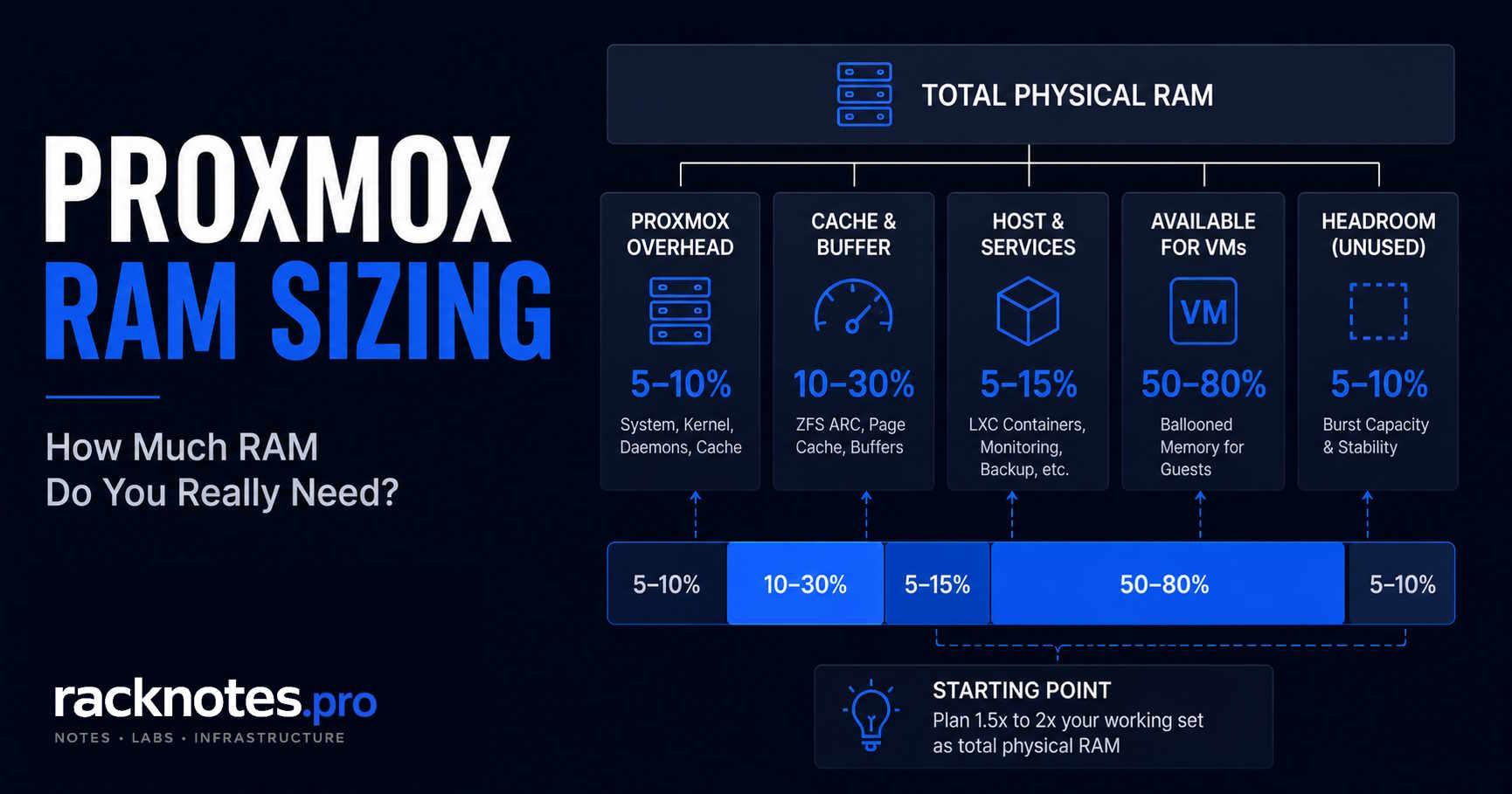
For Proxmox RAM sizing, calculate from the host inward: reserve memory for Proxmox services first, subtract the active ZFS ARC allowance, account for Ceph or cluster roles where applicable, keep a margin for backup jobs and migrations, and assign the remaining budget to guests. That method is the foundation of any Proxmox RAM sizing calculation, regardless of how much physical RAM the host has. Updated for Proxmox VE 9.2 and applicable to Proxmox VE 8.x unless a version-specific difference is noted.
RAM sizing is not a math problem. It is a workload prediction problem dressed up as a math problem, and the gap between “total installed RAM” and “VM-allocatable RAM” is larger than most documentation suggests.
This guide covers what actually consumes RAM on a Proxmox host, how to size VMs without over-allocating, the ZFS ARC reality on current Proxmox VE versions, Ceph memory overhead on hyper-converged nodes, when memory ballooning helps and when it makes debugging harder, where ECC memory matters, and the decision points operators hit when figuring out whether to upgrade or partition workloads.
- Reserve 2-4 GB for the host before allocating to VMs
- OpenZFS can use up to roughly 50% of RAM for ARC when nothing caps it; Proxmox VE 8.1+ fresh installs normally set a lower ceiling – 10% of installed RAM, capped at 16 GiB
- Proxmox has no edition-based RAM cap; the practical ceiling is physical hardware and Linux platform support
- Windows VMs need more than vendor minimums suggest – budget 8 GB for a usable desktop
- Memory ballooning can improve density when guest peaks are staggered and the driver is working, but it does not make simultaneous peak demand safe
- Over-allocation is worse than slightly under-allocating
- Treat 70-80% sustained peak utilization as a starting heuristic, not a hard rule
- Adding RAM is usually simpler than re-architecting workloads, provided the platform has free DIMM capacity
How to calculate your Proxmox guest RAM budget
The calculation that actually produces a reliable Proxmox RAM sizing budget starts with total physical RAM and subtracts each layer of overhead before allocating anything to VMs.
Safe guest RAM budget =
  Total physical RAM
  - Host OS and Proxmox services reserve (2-4 GB minimum)
  - Active ZFS ARC allowance (check arc_summary for the actual cap)
  - Ceph OSD and daemon overhead (if hyper-converged)
  - Cluster and HA services (variable by role)
  - Transient workload margin (backups, migrations, peak spikes)
  - HA failover reserve (when required)
  = Allocatable guest RAM budget
Applied to common installed-RAM sizes, that calculation produces roughly these starting budgets on a fresh Proxmox VE 8.1+ install with ZFS and the installer-generated ARC cap:
| Host RAM | Host reserve | ARC allowance (installer cap) | Operational margin | Approximate guest budget |
|---|---|---|---|---|
| 16 GB | 2-3 GB | ~1.6 GB | 2 GB | About 9-10 GB |
| 32 GB | 3-4 GB | ~3.2 GB | 3-4 GB | About 21-25 GB |
| 64 GB | 4-6 GB | ~6.4 GB | 6-8 GB | About 44-48 GB |
| 128 GB | 6-8 GB | ~12.8 GB | 10-16 GB | About 91-99 GB |
These are planning examples, not universal limits. Confirm the active ARC cap on the specific host, measure actual guest working sets, check swap activity, and account for transient jobs before finalizing any allocation. Upgraded or manually configured hosts may have a different ARC ceiling than the installer-generated default – check with arc_summary rather than assuming the figures above apply.
The environment table below shows sensible starting targets by deployment type:
| Environment | Minimum starting point | More comfortable target | Main driver |
|---|---|---|---|
| Small LXC homelab | 16 GB | 32 GB | Leaves space for services and host headroom |
| Mixed Linux and one Windows VM | 32 GB | 64 GB | Windows quickly consumes the guest budget |
| AD or Windows test lab | 48 GB | 64-128 GB | Multiple Windows guests plus snapshot and backup jobs |
| ZFS-heavy single node | 32 GB | 64 GB+ | Separate ARC and guest working sets |
| HA cluster node | Workload-dependent | Size for node failure | Must absorb migrated or restarted guests |
| Hyper-converged Ceph node | Not suitable for a generic minimum | Measure per role and OSD count | Guests and storage daemons compete for RAM |
Why RAM sizing matters more than CPU sizing
Most homelab operators get burned by RAM allocation before they get burned by CPU.
Moderate CPU overcommit usually causes progressive slowdown before it causes outright failure. Memory exhaustion is less forgiving: once the host enters sustained reclaim or swap pressure, latency can increase sharply and both guests and management services may become unresponsive.
As available memory falls, Linux first reclaims cache and may swap inactive pages. Under sustained VM pressure, swap I/O and reclaim latency can rise sharply; if the system cannot recover enough memory, the OOM killer may terminate processes – sometimes VMs, sometimes Proxmox services. This is why experienced operators size RAM first, then CPU, then storage performance.
One of the most common avoidable Proxmox homelab failures is a host becoming unresponsive after most physical RAM was assigned to guests without leaving enough headroom for the host and storage stack.
What the documentation says vs. what the host actually does
Official Proxmox RAM sizing documentation lists minimum requirements: 2 GB for the host, then whatever VMs need on top. Technically accurate. Operationally incomplete.
In practice, the host consumes:
- 2 GB baseline for Proxmox services, kernel, and basic operations
- A variable share of remaining RAM for ZFS ARC if ZFS is the storage backend. The share depends on the ARC configuration active on that specific host, not a single universal number
- Additional memory for cluster, HA, monitoring, and storage services – the amount is workload- and role-dependent; do not treat it as a fixed constant across deployments
- Memory reserved by the kernel that is not strictly accounted for in user-space tools
There is no single “usable VM RAM” figure that applies to every 32 GB or 64 GB Proxmox host. A fresh Proxmox VE 8.1+ install with the installer-applied ARC cap leaves far more headroom than an upgraded or manually configured host where ARC is allowed to grow toward 50%. Measure the active cap on the specific host before calculating a guest budget.
Operators sometimes see apparently available memory in Linux tools while a VM start is rejected or the node is already under pressure. Compare the available value from free -h, current ARC size, the configured ARC maximum, swap activity, and the memory guarantees of already-running guests. ZFS ARC will release memory under pressure, but the release is not instantaneous, and the timing can matter during sudden VM startup load.
How ZFS ARC affects Proxmox RAM sizing
ZFS adaptive replacement cache (ARC) is one of the most misunderstood parts of Proxmox RAM sizing, and it is version-dependent in a way that trips up even experienced operators.
OpenZFS can grow ARC aggressively when memory is available, historically up to roughly 50% of system RAM by default. Proxmox VE’s ZFS documentation confirms that new installations starting with Proxmox VE 8.1 apply a generated ARC maximum of 10% of installed physical memory, capped at 16 GiB. Older systems, upgraded systems, manually installed configurations, or hosts where that generated setting was later changed may still behave under the older, more permissive default.
Do not estimate VM capacity from a universal “ARC uses 50%” rule. The actual behavior on any given host depends on:
- Proxmox VE version at install time
- whether the host was freshly installed or upgraded from an older release
- whether ZFS was configured by the Proxmox installer or set up manually
- whether
zfs_arc_maxwas changed after install - whether the generated configuration file still exists and is being read
- current ARC pressure and workload
Three operator decisions on ZFS ARC:
- Leave the active configuration alone if it is already appropriate for the host’s total RAM and VM count. Check it first with
arc_summaryrather than assuming either the 10% installer cap or the 50% OpenZFS default. - Lower the cap to leave more guaranteed RAM for VMs. Check the active ZFS module configuration under
/etc/modprobe.d/before creating a new override, since current Proxmox installs may have already written one. Setoptions zfs zfs_arc_max=X(X in bytes) in the relevant file, runupdate-initramfs -u, reboot, and confirm the loaded value withcat /sys/module/zfs/parameters/zfs_arc_maxorarc_summary. - Raise the cap for heavy storage workloads. Rare in homelabs, more common in production storage tiers where read cache directly affects application latency.
The most common mistake here: assuming a fixed ARC percentage instead of checking the host’s actual configuration, then being surprised when guest capacity does not match the calculation. For ZFS-specific architecture decisions beyond ARC sizing, see the Proxmox storage layout guide.
Per-VM RAM allocation: starting ranges by guest type
The documentation-vs-reality gap exists at the VM level too. Vendor minimums are usually too low for sustained use, but the numbers below are starting ranges for small labs and lightly loaded environments, not universal production targets. Actual requirements depend on guest OS edition, GUI versus Server Core, active services, working set, database cache, user count, and backup or scanning jobs running inside the guest.
Linux containers (LXC):
- Minimum useful: 256-512 MB for single-purpose containers
- Most homelab containers: 1-2 GB depending on what is running
- Databases or heavier services: 2-4 GB
- Containers are efficient – do not over-allocate “just in case”
Linux VMs (full virtualization):
- Minimum useful: 1 GB for headless servers
- Standard server VM: 2-4 GB
- Docker host VM running 5-10 containers: 4-8 GB
- Anything with Java applications: budget more; JVMs consume RAM aggressively
Windows VMs:
- Windows 11 desktop: 8 GB as a defensible starting point – Microsoft’s stated minimum is 4 GB, but that is a boot minimum, not a usable-desktop number
- Windows Server 2022/2025 without GUI: 4 GB may be sufficient for lightly loaded roles
- Windows Server with GUI: 6-8 GB as a starting point
- AD domain controllers: 4 GB can be enough for a small lab; do not treat this as a universal figure for production
- Exchange or SQL Server: budget well above 16 GB and verify against actual workload data, not a fixed number
Network appliances (pfSense, OPNsense, and similar):
- 2-4 GB for typical homelab routing and firewall use
- More if running heavy IDS/IPS workloads, since memory needs scale with throughput and active rulesets rather than a fixed baseline
The Windows VM allocation gap is where most homelab RAM budgets break. Three Windows 11 VMs at 8 GB each is 24 GB. Add a couple of Linux VMs and whatever ZFS ARC is configured to use, and a 32 GB host is full before the interesting workloads even start. For VM templates and cloning that carry these memory settings into new guests, check the allocation before deploying a batch.
Memory ballooning: when to use it
Memory ballooning is Proxmox’s mechanism for letting a guest return memory to the host, within a configured minimum and maximum, when the host needs it back. It requires a functioning balloon driver inside the guest. Linux support is commonly built in; Windows guests normally require the VirtIO balloon driver installed and validated for full functionality and reporting.
Ballooning can improve density when guest peaks are staggered and the driver is working, but it does not make simultaneous peak demand safe. Capacity planning must still assume that several guests can require their configured working set at the same time.
Ballooning works well when:
- Workloads are predictable
- VMs rarely peak simultaneously
- The host has enough memory to absorb edge cases
- Guest drivers are installed and validated, especially the VirtIO balloon driver on Windows
Ballooning breaks down when:
- Multiple VMs peak at the same time
- Workload spikes faster than the balloon driver can respond
- Debugging is needed, since dynamic RAM usage becomes harder to reason about
- The host is already close to its RAM limit
For fixed-memory VMs, plan against the configured allocation. For ballooned VMs, track the minimum, maximum, and observed working set separately; the sum of guest maximums is not a guaranteed capacity figure, but it still represents potential simultaneous demand. Use fixed memory for latency-sensitive, NUMA-sensitive, or tightly benchmarked workloads. Validate the balloon driver and guest-memory reporting on Windows before relying on it.
Start conservative. Observe actual usage for a few weeks before increasing allocation. Avoid future-proofing every VM with double the RAM it needs. Adding RAM to a VM later takes seconds. Reclaiming over-allocated RAM after a host crash takes longer.
How Ceph changes Proxmox RAM sizing
Ceph nodes need a separate memory budget for storage daemons before any guest allocation is calculated. On a hyper-converged node, guest VMs, OSD processes, monitor and manager daemons, recovery operations, scrubbing, and HA failover all compete for the same physical RAM simultaneously. Applying the single-host homelab tables from above directly to a Ceph node will produce an undersized guest budget.
OSD memory usage scales with OSD count, configuration, and workload. Proxmox’s published Ceph memory guidelines provide only a rough planning starting point and should not substitute for measurement on the actual hardware. Treat them as a floor, not a final answer.
The practical approach for a hyper-converged Proxmox and Ceph node:
- Reserve the standard Proxmox host overhead first
- Budget per-OSD memory separately – check Proxmox and Ceph documentation for current per-OSD recommendations and measure actual usage after the cluster is running
- Reserve additional headroom for monitors, managers, recovery, and scrubbing activity
- Apply a failover reserve if the cluster must absorb a failed node’s guest load
- Calculate the VM guest budget from what remains after all of the above
A hyper-converged Ceph node with 64 GB RAM may have significantly less than 44 GB available for guests once storage daemons and their operational headroom are subtracted. Measure before committing to a guest density target.
Decision matrix for Proxmox RAM sizing: how much RAM do you actually need?
Real-world guidance based on what operators actually run, not theoretical minimums. Treat these as starting points for lightly loaded environments and adjust after measuring actual usage.
Single-host homelab (no cluster)
| Workload | Recommended host RAM |
|---|---|
| 3-5 Linux containers, 1 Linux VM | 16 GB |
| 3-5 containers + 1 Windows VM | 24 GB |
| 5-10 containers + 2-3 VMs (mixed) | 32 GB |
| Home Assistant + media server + 2-3 service VMs | 32 GB |
| Running a Windows and AD lab | 48-64 GB |
| Heavier homelab (10+ services, Docker hosts, NAS) | 64 GB+ |
Small cluster (2-3 nodes)
| Per-node workload | Recommended per-node RAM |
|---|---|
| Light HA setup, mostly containers | 32 GB |
| Mixed VMs + containers, live migration capacity | 48-64 GB |
| Production-like with failover headroom | 64 GB+ |
Many small deployments target no more than roughly 70-80% sustained peak memory use per node, leaving room for ARC behavior, backup jobs, migration, and host services. That is a heuristic, not an official Proxmox requirement. HA clusters need additional headroom on top of it: in a three-node cluster with evenly distributed workloads, each node must normally stay at or below roughly two-thirds of usable capacity to absorb one full node’s workload after a failure. Uneven VM placement, reserved resources, and migration overhead can push that figure further. More on this in the Proxmox HA cluster guide and the Proxmox HA Explained overview.
When to upgrade RAM vs. partition workloads
Upgrade RAM when the platform has free DIMM capacity, the workload pattern is stable, and a single-host setup is simpler than splitting.
Partition workloads when the platform is already at its supported DIMM limit – common on mini PCs (see the mini PC for Proxmox guide for typical limits), workloads are independent, or adding a second node also solves other problems such as HA or fault isolation.
When the platform has free DIMM capacity, adding RAM is usually simpler and often cheaper than splitting workloads. Once the platform is at its supported limit, or HA and fault isolation are also goals, adding another node tends to provide more value than squeezing more RAM into one box.
Does Proxmox have a maximum RAM per host limit?
Proxmox VE does not impose a product-edition or license-based host RAM cap. The effective limit is determined by the server platform: CPU memory controller, motherboard and DIMM support, firmware, Linux architecture and paging support, and the memory topology (NUMA) of the actual workload.
| Limit type | What actually sets it |
|---|---|
| Proxmox product / license | No edition-based host RAM cap |
| Server hardware | CPU memory controller, motherboard, sockets, DIMM slots, firmware |
| Linux platform | Kernel architecture support, paging, NUMA topology |
| Practical workload limit | ZFS ARC configuration, guest allocation, HA failover headroom |
In practice, per-host RAM ceilings break down by platform category, not by Proxmox version:
| Platform category | Common practical range | Main constraint |
|---|---|---|
| Mini PC | 16-96 GB | SODIMM count, firmware, memory-controller support |
| Consumer desktop / workstation | 64-256 GB | Board validation, DIMM density, CPU controller |
| Used dual-socket server | Hundreds of GB to over 1 TB | DIMM population rules and CPU generation |
| Current enterprise server | Multiple TB | Platform model, socket count, NUMA, cost |
These are illustrative examples, not Proxmox limits. Verify the exact system manual and CPU specification before buying memory – board revisions and BIOS support shift these ranges over time. The Proxmox VE system requirements page documents the minimum side; the maximum side is entirely a hardware-platform question.
The “proxmox maximum ram per host limit 12TB” queries that appear in search data reflect awareness of high-core-count EPYC and Xeon server platforms, not a Proxmox software restriction. For the vast majority of deployments, homelab or small SMB, the real ceiling is far lower and set entirely by socket and DIMM count. What operators actually hit before the hardware ceiling: ZFS ARC configuration, VM over-allocation, and sustained-peak headroom.
ECC memory: when it matters, when it does not
ECC (Error-Correcting Code) memory attracts more forum debate than it deserves. The operational reality is simpler than the arguments suggest.
ECC matters more when:
- The host runs 24/7 with valuable data on it
- ZFS is the storage backend, since silent memory corruption occurring before data reaches stable storage can still slip past on-disk checksums
- The workload is sensitive to subtle data corruption (databases, AD domain controllers, financial records)
- The host is meant to run for years without manual intervention
ECC matters less when:
- It is a lab environment that gets rebuilt regularly
- Important data lives off-host (NAS, separate storage)
- The host is consumer hardware where ECC is not realistic (most mini PCs, gaming-grade boards)
- Budget is constrained and ECC means giving up significantly more RAM capacity per dollar
ZFS does not require ECC to function. ECC reduces the risk of undetected memory errors for any storage or virtualization workload, and checksums cannot protect data from every error that occurs before data reaches disk. The stronger the data-integrity requirement, the stronger the case for ECC, but this applies to any storage system, not uniquely to ZFS. For homelab use with backups elsewhere, non-ECC ZFS is widely used without disaster.
Server platforms with ECC often provide better validation, telemetry, and serviceability alongside higher memory capacity, but they typically cost more and consume more power than consumer systems. Match the choice to what the host actually does and how much data loss would hurt.
Common Proxmox RAM sizing mistakes
A small set of failures accounts for most problems in homelabs.
Allocating most of the host’s physical RAM to VMs. Forgets ZFS ARC, host overhead, and cluster services. The host runs out, swaps, becomes unresponsive. Recovery: stop VMs from console, free RAM, restart.
Trusting Windows VM minimums. Windows 11’s “4 GB minimum” is technically true and operationally painful. The VM boots and runs slowly. Budget 8 GB for desktop Windows VMs that need to feel responsive.
Confusing an LXC memory limit with permanently reserved RAM. Containers share the host kernel and consume memory according to actual workload, subject to their cgroup limits – they are not preallocated the way fixed QEMU guest memory is. The real risk is setting limits high enough that many containers can peak simultaneously without sufficient host headroom.
Assuming a fixed ARC percentage instead of checking it. Operators running ZFS without checking the active configuration routinely miscalculate VM allocation ceiling in both directions – assuming either too little ARC (old 50% assumption) or too much (ignoring that installer-capped hosts leave more room). Check with arc_summary rather than assuming.
Over-provisioning ballooned VMs. Setting VM maximum to 16 GB when actual usage is 4 GB inflates declared allocation. Hard limits on declared RAM still apply when multiple guests peak together.
Ignoring swap thrashing as a symptom. When a Proxmox host swaps heavily, the cause is rarely “needs more swap.” It is almost always “needs more physical RAM” or “VMs over-allocated relative to what is actually free.”
Buying more RAM before measuring. The cheapest fix is sometimes “stop the VM nobody uses.” Run qm list and pct list and check what is actually running. Containers and VMs accumulate over months.
How to detect memory pressure
Three signs the host is running out of headroom:
- High swap usage in
free -horswapon --show. If swap is used regularly and growing, RAM is tight. - VM failures to start with “not enough memory” despite the UI showing free RAM. Check the current ARC size and cap before assuming this is a Proxmox bug.
- Random VM unresponsiveness without high CPU, usually memory contention, not CPU.
Monitoring via the Proxmox dashboard is enough for most Proxmox RAM sizing decisions in a homelab. For deeper analysis, run these from the host shell:
free -h
swapon --show
arc_summary
cat /sys/module/zfs/parameters/zfs_arc_max
grep -E '^(size|c_max)' /proc/spl/kstat/zfs/arcstats
qm list
qm config <vmid>
pct list
pct config <ctid>
journalctl -k | grep -i -E 'oom|out of memory|killed process'
arc_summary shows ZFS ARC state including the active cap. qm config and pct config show per-guest memory settings. free -h shows host-level reality. If the host is logging OOM events, check Proxmox logs – the kernel OOM killer leaves a clear trail. Memory pressure is also one of the more common root causes behind a VM that will not start at all, not just one that runs slowly. If a storage failure coincides with memory exhaustion symptoms, the Proxmox ZFS recovery guide covers that overlap.
FAQ
Does Proxmox have a maximum RAM per host limit?
No. Proxmox VE imposes no product-edition or license-based limit on host RAM. The ceiling is entirely determined by the hardware platform – the motherboard’s DIMM slot count, the CPU memory controller’s maximum supported capacity, and Linux architecture support. Consumer mini PCs typically top out well below server-class hardware; used dual-socket server platforms support far more.
Can Proxmox use 12 TB of RAM?
Yes, on hardware that supports it. The “12 TB” figure that surfaces in search data refers to high-core-count EPYC or Xeon server configurations with enough sockets and DIMM slots to physically hold that much memory, not a Proxmox software cap. Proxmox VE runs on whatever RAM the Linux kernel and the platform can address.
How much RAM should I reserve for Proxmox itself?
Reserve at least 2-4 GB for host services before any VM allocation. If running ZFS, check the active ARC configuration on top of that: fresh Proxmox VE 8.1+ installs normally cap ARC at 10% of installed RAM up to 16 GiB, while older or upgraded systems may allow ARC to grow toward the OpenZFS default of roughly 50%. Check arc_summary rather than assuming either number applies to the specific host.
Is 16 GB enough for Proxmox?
For a light homelab – a few Linux containers and one Linux VM – yes. After host reserve (~2-3 GB) and ZFS ARC allowance (~1.6 GB on an installer-capped host), roughly 9-10 GB is available for guests. One Windows VM would consume most of that budget, leaving little room for anything else. 16 GB is workable for lightweight use; 32 GB is more comfortable as soon as Windows or multiple concurrent services are involved.
Is 32 GB enough for Proxmox?
For a mixed homelab with a handful of Linux containers and one Windows VM, 32 GB works. After host overhead and ZFS ARC, roughly 21-25 GB is available for guests on a fresh installer-capped install. Three Windows VMs would consume 24 GB alone. 32 GB is a comfortable target for a mixed Linux homelab; 48-64 GB is more appropriate as soon as multiple Windows guests or AD lab scenarios are planned.
Should I use ECC memory with Proxmox?
For 24/7 production-like hosts running ZFS, ECC is the stronger choice, since undetected memory corruption occurring before data reaches disk can still slip past ZFS checksums. For lab environments that get rebuilt regularly, or setups where important data lives on external storage with regular backups, non-ECC works fine in practice.
What happens when Proxmox runs out of RAM?
As available memory falls, Linux first reclaims cache and may swap inactive pages. Under sustained VM pressure, swap I/O and reclaim latency rise sharply. If the system cannot recover enough memory, the OOM killer terminates processes – sometimes VMs, sometimes Proxmox services. Recovery usually requires stopping VMs from the console and freeing memory before restarting services.
Can I overcommit RAM in Proxmox?
Yes, via memory ballooning: the sum of configured guest maximums can exceed physical RAM when ballooning is used, provided the host retains enough memory for actual simultaneous demand. Ballooning improves density when workloads do not peak simultaneously and the guest has a working balloon driver. It fails badly when multiple VMs need their maximum allocation at the same time. Use fixed allocation for latency-sensitive VMs.
How much RAM does a Windows VM actually need in Proxmox?
Windows 11 technically boots at 4 GB but runs painfully at that level. Budget 8 GB as a general-purpose starting point for a usable desktop experience. Windows Server without GUI can run on 4 GB for lightly loaded roles; Windows Server with GUI usually needs 6-8 GB. SQL Server or Exchange need well above 16 GB, and the exact figure should come from actual workload data, not a fixed number.
How do I check ZFS ARC usage on a Proxmox host?
Run arc_summary for a full ARC state report, or check /proc/spl/kstat/zfs/arcstats directly. The c_max field shows the current ARC size cap; size shows current usage. Before creating a new override, check whether the installer already wrote one under /etc/modprobe.d/. To cap ARC manually, add options zfs zfs_arc_max=<bytes> to the relevant file, run update-initramfs -u, reboot, and confirm the loaded value with cat /sys/module/zfs/parameters/zfs_arc_max.
Does an LXC container reserve all its assigned RAM?
No. Containers share the host kernel and consume memory according to actual workload, subject to their configured cgroup limits. Unlike a fixed QEMU VM where the declared allocation is reserved from the host, container memory is demand-driven up to the configured limit. The risk is not wasted idle allocation – it is setting limits high enough that many containers can peak simultaneously without sufficient host headroom to cover them all.
How much RAM without ZFS?
Without ZFS, the host overhead drops to 2-4 GB for Proxmox services and the kernel, with no ARC allowance to subtract. On a 32 GB non-ZFS host using LVM-thin or directory-based storage, roughly 26-28 GB may be available for guest allocation before operational margin. More of the installed RAM reaches guests, at the cost of the caching and data-integrity features ZFS provides.
How much RAM does Ceph need on a Proxmox node?
OSD memory usage scales with OSD count, configuration, and workload – use Proxmox and Ceph documentation for current per-OSD recommendations and measure actual usage after the cluster is running. On a hyper-converged node, budget for OSD processes, monitors, managers, recovery overhead, and scrubbing activity before calculating how much RAM remains for guest VMs. A hyper-converged 64 GB node may have significantly less than 44 GB available for guests once storage daemons and operational headroom are accounted for.
Final sizing rule
The safest way to approach Proxmox RAM sizing is to calculate from the host inward, not from the VMs outward. Reserve memory for Proxmox services, confirm the active ZFS ARC configuration with arc_summary, account for Ceph or cluster roles, preserve transient and failover headroom, and only then assign the remaining budget to guests.
Start conservatively, measure real working sets after a few weeks of operation, and expand after observing peak behavior rather than relying on vendor minimums or a universal RAM-per-VM rule. The numbers that matter are not the ones in the documentation – they are the ones reported by free -h, arc_summary, and the memory graphs in the Proxmox dashboard on the specific host under the actual workload.
Proxmox VE Series
28 articles – Installation · Storage · Networking · HA · Recovery