
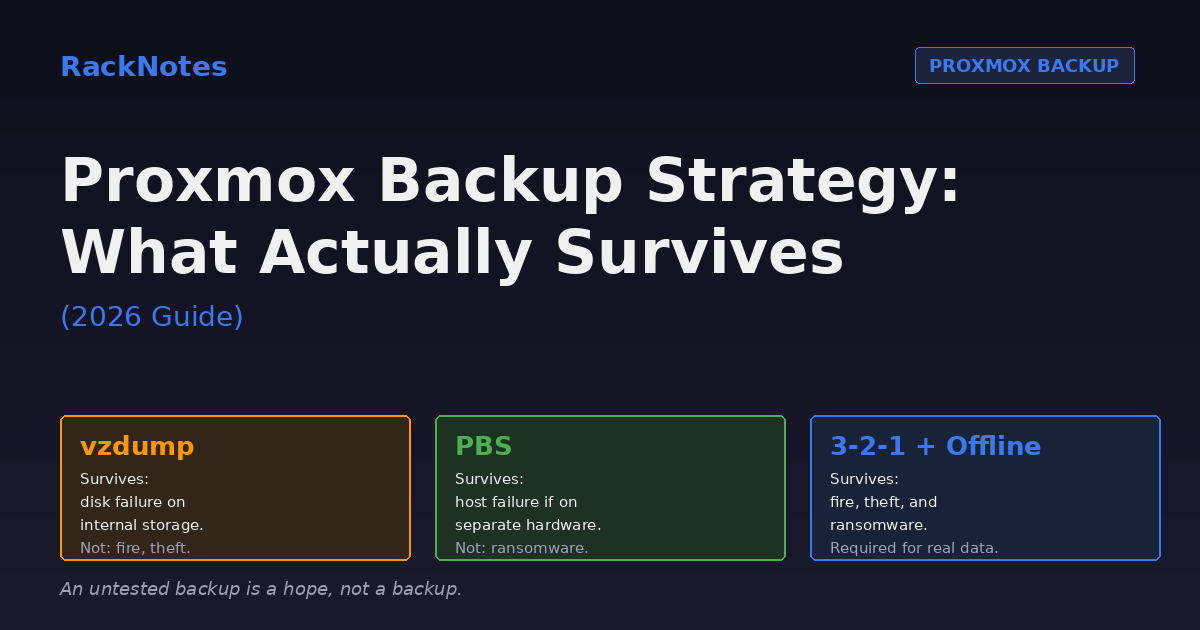
A Proxmox backup strategy works in production not because it captures everything, but because the operator has restored from it before the disaster happened. Many operators have backups they cannot actually restore. The Proxmox Backup Server Restore guide covers the full restore procedure.
An untested backup is a hope, not a backup.
This guide covers what a Proxmox backup actually means, how PBS and vzdump differ, where backups should live, what 3-2-1 looks like in homelab reality, how to validate restores before you need them, and the restore-time problem that turns “working backups” into multi-day disasters.
For most serious homelabs: daily PBS backups to storage on a separate physical system, server-side retention and verification jobs, a weekly off-site or offline copy, and a monthly sample restore. For a small lab, scheduled vzdump backups to separate storage can be sufficient if retention, off-site rotation, and restore testing are actually maintained.
Avoid relying on:
- Snapshots alone
- Single backup destination
- Untested backup schedules
- Snapshots are not backups. Backups must live on separate storage.
- PBS gives deduplication, integrity verification, incremental chunk transfer
- vzdump is the built-in fallback for simple environments
- 3-2-1 rule: 3 copies, 2 media types, 1 offsite
- Test restore monthly, not annually. Backups age silently.
- “Backup successful” is not “restore tested”
Why a Proxmox backup plan is the topic operators avoid until they can’t
Backup is the topic homelab operators schedule for “next weekend” until disaster makes it urgent.
The pattern: VMs are running, services work, dashboards show green. Backup configuration looks tedious – setting up PBS, configuring schedules, allocating external storage, documenting restore procedures. None of it feels urgent.
Then something breaks. Suddenly it’s all urgent at once, and the cost of skipping prep becomes obvious.
RackNotes principle
Backup quality is measured at restore time, not backup time. The backup dashboard reporting “successful” tells you the job ran. It does not tell you whether the data will come back when you need it.
Many backup defects become visible only during restore. The rest of this article reflects that reality.
What a Proxmox backup actually means
Three different mechanisms get called “backup” in Proxmox conversations. They protect against different failures.
Snapshots preserve a point-in-time state of the guest’s storage, and may optionally include VM memory depending on how they are created. They remain dependent on the source storage and are therefore rollback points, not independent backups.
Backups copy data to separate storage at a point in time. The backup is independent of the source. Storage failure on the source doesn’t affect the backup. Backups are what most operators mean when they say “backup.”
Replication periodically copies supported guest volumes to another node according to a configured schedule. It improves recovery from a node failure, but it is not a historical backup: corruption, deletion, or unwanted changes can be included in the next replication cycle.
| Mechanism | Protects against | Doesn’t protect against |
|---|---|---|
| Snapshot | Fast rollback from a recent change | Loss of the source storage or host |
| Backup | Source loss, deletion, and older-point recovery when retention is sufficient | Changes newer than the latest successful backup |
| Replication | Failure of the source node or local copy | Historical recovery after bad changes have replicated |
This article focuses on backups. Snapshots and replication get covered in the storage architecture guide. Some production environments combine all three, but the correct combination depends on RPO, RTO, storage design, and failure domains. Typical hobby setups start with backups only (correct minimum) and add the others as needs grow.
The three things you’re protecting against
A useful Proxmox backup strategy starts with naming the failures it must survive. Different failures require different mechanisms.
Hardware failure. Disk dies, host crashes, controller fails. The data on that hardware is gone. Backup protects this by living on different hardware.
Data corruption. Software bug writes garbage to a VM disk. Database transaction commits inconsistent state. ZFS scrub finds checksum errors. The data on the source is wrong, not missing. Backup protects this by preserving a point-in-time before corruption – which requires backups that capture multiple historical points, not just the latest.
Ransomware and adversarial deletion. Attacker (or compromised account, or angry employee) deliberately destroys data including backups. The source is wiped. Network-accessible backups are wiped. This requires backup storage that cannot be reached from the systems being attacked – air-gapped, immutable, or offline media.
Many homelab backup strategies protect against the first two and ignore the third. That’s a defensible choice for personal labs. For anything touching real-world data – family photos, business records, financial documents – the third failure mode matters more than the first two combined.
RPO and RTO: the two numbers that should drive every decision below
RPO defines how much recent data the environment can afford to lose. RTO defines how long the service can remain unavailable. A daily backup has an RPO of up to roughly 24 hours, regardless of how quickly it can be restored. Tool choice, schedule, retention, and destination should be derived from both values, not chosen first and checked against RPO/RTO afterward.
| Workload | Example RPO | Example RTO | Design implication |
|---|---|---|---|
| Disposable lab VM | 7 days | 1 day | Weekly vzdump may be sufficient |
| Home services | 24 hours | 4-8 hours | Daily backup and tested local restore |
| Business application | 1-4 hours | 1-4 hours | Frequent PBS backups, app-aware protection, fast local restore tier |
| Archive data | 1 day | Several days | Long retention and strong off-site protection |
Treat these as illustrative starting points, not universal targets – the right numbers depend on what the workload actually costs you when it’s unavailable or when data is missing.
Proxmox Backup Server (PBS) – what it is and what it’s not
PBS is a dedicated backup target server. It runs on its own host (physical or VM) and provides deduplication, integrity verification, incremental chunk transfer, and a restore interface.
What PBS gives you:
- Deduplication – only changed blocks stored, dramatically reducing storage requirements
- Incremental transfer – PBS transfers and stores only new chunks after the first backup, while each snapshot remains a complete restore point through its chunk indexes; it does not rely on a traditional full-plus-incremental chain that must be replayed in sequence
- Integrity verification – periodic checksum validation catches corruption before restore
- Encryption – client-side encryption protects backup contents from PBS host compromise
- Single-file restore – individual files from supported VM and CT backups without restoring the whole guest
- Retention policies – keep daily for week, weekly for month, monthly for year, automatically
What PBS is not:
A single-host solution. PBS runs on its own host. Putting PBS on the same Proxmox node as the VMs it backs up loses most of its protection value.
A magic fix for bad backup hygiene. PBS still requires schedule discipline, monitoring, and restore testing.
Free of resource cost. PBS uses RAM proportional to dataset size (covered in our RAM sizing guide), plus CPU for compression and dedup operations.
A replacement for offsite storage. PBS in the same building as your Proxmox cluster doesn’t protect against fire, theft, or local disasters.
Operator stores PBS datastore on the same ZFS pool as production VMs. Pool corruption destroys both production and backup simultaneously. For ZFS pool recovery procedures, see the Proxmox ZFS Recovery guide. The “backup” was storage duplication, not disaster recovery.
When PBS is overkill: single-host setups with 2-3 VMs, lab environments that get destroyed regularly, test setups where backup is “nice to have,” or environments where the second backup tier will never get set up anyway.
For small lab environments serious enough to need backup but small enough that PBS feels like overhead, vzdump to external storage is genuinely fine.
vzdump – the built-in Proxmox backup tool
vzdump is Proxmox’s native backup tool. It creates compressed archive files (.vma for VMs, .tar for containers) and stores them in any configured backup storage location. For containers specifically, what gets included in that .tar depends on the mount type – a container’s storage-backed volumes are covered, but host-path bind mounts often aren’t included the way operators assume. The LXC bind mounts guide covers exactly which mount types vzdump captures and which need a separate backup plan.
What vzdump gives you:
- Works out of the box, no separate server needed
- Multiple backup modes (snapshot, suspend, stop)
- Compression options (none, lzo, gzip, zstd)
- Works with Proxmox storage backends that support the backup content type, including common file-based destinations such as directory, NFS, and CIFS storage
- Email notifications on success/failure
- Retention policies – file-based vzdump storage supports prune rules such as keep-last, keep-hourly, keep-daily, keep-weekly, keep-monthly, and keep-yearly
What vzdump lacks:
- Deduplication – every backup is a full backup. Disk usage grows linearly.
- Incremental transfer – limited support, mostly full backups in practice
- Integrity verification beyond basic checksums
- Cross-backup storage efficiency, remote synchronization, and centralized datastore management that PBS provides
- Restore-time efficiency – large VMs take their full size to restore
Single-file restore is available through the Proxmox VE File Restore interface for supported backups, so traditional vzdump archives aren’t limited to full-guest restore only. PBS remains more efficient for repeated backups and large retention sets – the real comparison is cross-backup deduplication, incremental transfer, scheduled verification, storage efficiency, remote synchronization, live restore support, and centralized datastore management, not the presence or absence of file-level restore.
Proxmox uses different backup mechanisms for VMs and containers. QEMU live backup can provide a consistent point-in-time block image on supported storage without requiring a native storage snapshot. LXC snapshot mode requires snapshot-capable storage for all included volumes; otherwise suspend or stop mode may be required. Either way, a live backup is not automatically application-consistent – for databases and other transactional services, use the QEMU guest agent where appropriate and retain application-native dumps or pre/post-backup hooks as an additional recovery layer.
Typical hobby pattern: vzdump backups to external USB drive, weekly schedule, prune rules keeping a handful of recent restore points, accept that disk usage grows with retention period. Works fine until backup data exceeds available external storage.
Proxmox backup destinations – where backups actually live
A Proxmox backup is only as good as its destination. Choosing where backups physically live determines what failures they survive.
External USB or eSATA drive connected to the Proxmox host:
- Survives single-disk failure on internal storage
- Doesn’t survive host theft, fire, or coordinated disaster
- Doesn’t survive ransomware if drive stays connected
- Acceptable as the only backup for casual hobby setups
Network attached storage (NAS) via NFS or SMB:
- Survives Proxmox host failure
- Doesn’t survive NAS failure or coordinated disaster
- Doesn’t survive ransomware if mount stays active
- Good middle tier for serious labs
Dedicated PBS host on separate hardware:
- Survives Proxmox cluster failure
- Doesn’t survive coordinated attack reaching PBS host
- Doesn’t survive building-level disasters
- Standard pattern for production-like environments
Offsite/cloud backup:
- Survives most local disasters
- Slower restore (network bandwidth bound)
- Costs money continuously
- Required for the third backup tier (ransomware/disaster protection)
Cold storage (offline media):
- Survives ransomware and active attackers
- Requires manual rotation discipline
- Often skipped, then regretted
- The tier that separates “backup” from “actually protected”
The destination matters more than the tool. PBS to a NAS in the same room is operationally less protective than vzdump to a USB drive that gets stored offsite weekly.
3-2-1 Proxmox backup rule (and why many homelabs violate it)
The 3-2-1 rule is industry shorthand:
- 3 copies of important data
- 2 different storage media types
- 1 copy offsite (physically separated)
The original Proxmox VMs count as copy 1. A backup to PBS or NAS is copy 2. An offsite copy is copy 3.
Typical hobby backup strategies in practice:
- 2 copies (original + one backup)
- 1 storage media type (all spinning disks or all SSDs)
- 0 copies offsite
This is “backup that works most of the time.” It fails for fire, theft, ransomware, or any disaster affecting the building.
Practical 3-2-1 implementations:
| Tier | Copy 1 | Copy 2 | Copy 3 |
|---|---|---|---|
| Minimum | VMs on Proxmox | Weekly to NAS or USB | Monthly to external drive stored offsite |
| Better | VMs on Proxmox | Daily to PBS | Weekly to cloud backup |
| Serious | VMs on Proxmox cluster | Daily to PBS | Weekly to cloud + monthly to offline media |
The biggest gap in typical strategies is the “1 offsite” piece. It feels disproportionately expensive for hobby use. The honest question: would the data being lost cost more than the offsite storage costs? For people with family photos or business records, yes.
Proxmox backup restore validation – the step everyone skips
Backups age silently. A backup configured in January and never tested by June may be:
- Still working correctly
- Corrupted on storage, undetected
- Pointing to deleted source data
- Encrypted with a password no one remembers
- On a drive that has failed since last write
- In a format the current PBS version no longer reads
The only way to know which one is to actually restore.
PBS verification tests backup-data integrity. A restore test validates recoverability. Both are required: verification can detect corrupted chunks, while an isolated boot and application check prove that the restored workload is usable.
What restore testing means in practice:
- Pick a recent backup
- Restore it to a different storage location (not over the source)
- Boot the restored VM
- Verify the data inside looks correct
- Document the restore time and any issues encountered
The time required ranges from minutes to many hours depending on guest size, storage performance, application checks, and automation. Test representative workloads on a schedule, and automate restores when the number of guests makes manual testing unrealistic. Doing it once during initial setup and never again is a common backup mistake.
Backup dashboards report successful jobs. Restore attempts report reality.
Restore tested once during initial PBS setup. Six months later, disaster strikes. Encryption password was stored only in a password manager on a laptop that died. The “tested backup” is now unrecoverable encrypted data.
Most operators discover restore problems during emergencies because that’s the first time they actually perform a restore.
Restore-time realism – backup exists, but can you recover fast enough?
“Backup exists” and “recovery within acceptable time” are different problems.
A backup that takes 18 hours to restore protects against eventual data loss but does not provide rapid recovery. Operators discover this during actual disasters: backup ran successfully, restore process started, ETA shows “tomorrow afternoon.”
Disaster recovery is where theoretical backups meet real hardware speed.
Restore time depends on several factors:
Network bandwidth. At an effective 110 MB/s, transferring 500 GB takes about 76 minutes before restore overhead. Real recovery usually takes longer because datastore reads, chunk access, decompression or decryption, and target writes all contribute. Multi-TB VMs take many hours.
Storage I/O on the target. Restoring to spinning disks creates a write bottleneck. Restoring to SSD is faster but consumer SSDs may throttle during sustained writes.
Deduplication restore overhead. PBS deduplicated backups need chunk reassembly during restore. The dedup tradeoff is great for storage savings, less great for emergency restore speed.
Datastore latency and IOPS. PBS restore performance depends mainly on datastore latency and IOPS, chunk access, network throughput, decompression or decryption work, and target-storage write speed – not on replaying a traditional incremental chain.
Define your RTO before designing the backup strategy, not after disaster:
- Single critical service: hours acceptable? days?
- Family photo archive: weeks acceptable
- Production VM: minutes? hours?
- Test environment: rebuild from scratch is fine
If your acceptable RTO is 1 hour and your restore process actually takes 8 hours, the backup strategy doesn’t meet operational needs even though backups exist.
Reducing restore time:
- Local PBS instance for fast restore, offsite copy for disaster
- 10GbE between Proxmox and PBS for serious environments
- SSD-based PBS storage for fast read paths
- Smaller VMs (split workloads across multiple smaller VMs)
- Pre-staged restore destinations (don’t allocate storage during emergency)
Troubleshooting Proxmox backup restore failures
When a restore fails or stalls, the diagnostic flow matters more than the symptoms.
Restore attempt fails or hangs:

1. Open the failed task in the Proxmox VE task viewer
2. Review /var/log/pve/tasks/ and the matching UPID task log
3. Check journalctl -u pvedaemon for backend task errors
4. Confirm target-storage state with pvesm status and df -h
5. Check PBS connectivity and datastore status
6. Verify the selected backup snapshot
7. Check for stale locks - use qm unlock <vmid> only after confirming no backup, restore, migration, or snapshot task is still running
8. Restore to alternate storage when target-specific failure is suspected
For PBS-specific issues:
PBS backup or verify reports errors:

1. Check disk health on PBS storage
   (smartctl, zpool status)
2. Run garbage collection
   (proxmox-backup-manager garbage-collection start <store>)
3. Run integrity verification
   (proxmox-backup-manager verify <store>)
4. Review PBS logs (journalctl -u proxmox-backup)
5. Check available disk space
   (PBS needs working space beyond raw backup size)
Common restore blockers include insufficient target space, unavailable backup storage, missing encryption keys, stale locks, and guest-specific boot or application problems – not, in most cases, corrupted backup data itself.
Ransomware-resistant Proxmox backup strategy
The backup tier that gets skipped most often is the one that matters during active attacks.
The attack pattern: ransomware reaches a system with network access to backup storage. It encrypts source data. It also encrypts all reachable backup files. Backup automation continues running and creates new “backups” that are actually encrypted garbage. Detection happens days later. By then, all online backups are compromised.
Online backups are still online systems.
A writable NFS or SMB backup share provides limited ransomware resistance when the source host can modify or delete existing backup files. PBS offers a stronger model: existing backup blocks are not rewritten, and a narrowly scoped DatastoreBackup token can create backups without permission to delete existing snapshots. Pruning should run as a server-side PBS job rather than through the PVE backup credential.
PBS still requires an independent copy. A compromised PBS administrator account, physical access, or a fully compromised backup server can defeat on-site protection, so off-site sync, tape, offline media, or externally immutable storage remains necessary for stronger disaster recovery.
NAS backups work correctly for months. Daily SMB share mount, scheduled backups, retention policy keeping 30 days. Ransomware encrypts the mounted share before detection. Daily backup job continues running, encrypting older backups via retention rotation. By the time detection happens, the entire 30-day window contains encrypted garbage. A PBS datastore with server-side pruning and a non-deletion token would not have let the compromised source overwrite or prune existing snapshots the same way.
What actually protects against ransomware:
Air-gapped media – backups on storage that is physically disconnected when not actively backing up. External drives rotated weekly. Tape libraries with offline slots. Manual carry-offsite drives.
PBS protected snapshots, restricted API-token permissions, and server-side pruning – a protected PBS snapshot cannot be pruned or manually deleted until an administrator removes the protected flag. This is useful operational protection, but it isn’t a time-based immutable retention lock the way some cloud WORM policies are. Remote sync configured without deletion propagation, tape, or storage with an external immutability policy adds a further layer.
Out-of-band credentials – backup access keys stored outside the protected network, in password managers or hardware tokens. Compromised user accounts shouldn’t grant backup deletion access.
Short retention windows convert slow corruption into permanent loss. The longer the retention, the higher the chance that at least one usable backup exists when corruption is detected weeks or months after it started.
A rotated offline drive can provide a simple independent copy, but only when rotation, encryption, verification, and off-site storage are consistently maintained.
Don’t forget the host itself in your Proxmox backup plan
VM backups dominate backup discussions. The host configuration around them is often skipped.
When a Proxmox host dies and gets rebuilt, restoring VMs is only half the work. The other half is rebuilding everything that made the host functional.
Host-level items that need backup:
- The
pmxcfsdatabase at/var/lib/pve-cluster/config.db– the authoritative source for cluster configuration, VM definitions, HA config, firewall rules, and storage definitions /etc/network/interfaces– bridge, VLAN, bonding configuration (node-specific, not replicated via pmxcfs)- Proxmox firewall configs – cluster, node, and per-VM firewall rules
- PBS encryption keys – without these, encrypted backups are unrecoverable
- API tokens – automation credentials for PBS, monitoring, deployment tools
- SSH keys – host keys, authorized_keys for cluster access
- DNS / reverse proxy configs – nginx, Caddy, Traefik configurations outside VMs
- Docker compose files – if you run Docker outside VMs (which most operators don’t, but some do)
- License and subscription info – Proxmox subscription details, PBS subscription, hardware support contacts
Most of these are small files. Total host-level backup is typically under 100MB. The disproportion matters: VM disks might be terabytes, but losing 100MB of configuration can extend cluster rebuild from hours to days.
Practical pattern: back up the pmxcfs database file /var/lib/pve-cluster/config.db from a healthy host, and separately back up node-specific files such as /etc/network/interfaces, repository configuration, custom scripts, and any service configuration stored outside /etc/pve. Also export readable copies of critical /etc/pve configuration for auditing and selective reconstruction. Store it alongside VM backups. Encrypt it if it contains credentials.
Do not present “extract a tarball over /etc/pve” as a normal restore procedure. /etc/pve is a live pmxcfs mount, and blindly extracting an archive into it is how a recoverable configuration turns into a corrupted one. Full pmxcfs recovery requires stopping the relevant cluster service on a clean host and following a documented recovery process – the Proxmox Cluster File System documentation covers that procedure, and it deserves its own tested runbook rather than a one-line mention here.
The host that backs up VMs perfectly but loses its own configuration is rebuilding from memory after disaster. Memory is unreliable in the middle of disaster recovery.
Common Proxmox backup mistakes
A short list of failures that account for most homelab backup disasters.
Backing up guests but not the platform configuration. Guest backups restore individual VMs and containers, but a complete host or cluster rebuild still requires storage definitions, networking, firewall rules, users, HA configuration, certificates, and other Proxmox settings.
Trusting backup dashboards. A successful backup job means the file was created. It says nothing about whether the file can be read back, whether the VM inside it boots, whether the data inside is consistent.
Single backup destination. All backups on one NAS. NAS fails. All backups lost simultaneously.
Untested restore procedure. Backups exist. Procedure for restoring documented. Operator never walks through the steps. During disaster, procedure has errors, missing details, or assumes tools that don’t exist anymore.
Backup retention too short. A policy that keeps only a small number of recent restore points may remove the last clean backup before delayed corruption or ransomware is detected.
Forgetting offsite rotation. Offsite drive set up properly. Rotated for the first month. Then life happens. Six months later, “offsite” drive is sitting on the same desk as the Proxmox host.
PBS on same host as Proxmox. Convenient for setup. Defeats the purpose. PBS must run on different physical hardware for the protection model to work.
Not testing the full restore process. Operators test “can I restore this VM” but not “can I restore this VM from this specific backup to this specific target with these specific credentials in this specific timeframe.”
The backup hierarchy maturity ladder
Proxmox backup strategies have an operator maturity progression similar to storage choices. The ladder below is organized around failure isolation and tested recovery, not around which product is in use – a PBS instance on the same production host is less mature than a rotated vzdump drive that’s genuinely kept off-site.
| Stage | Capability |
|---|---|
| 1 | No scheduled backup |
| 2 | Scheduled backup on separate storage |
| 3 | Retention, notifications, and documented restore steps |
| 4 | Separate physical failure domain plus integrity verification |
| 5 | Off-site copy and measured RPO/RTO |
| 6 | Offline or immutable copy, least-privilege credentials, automated restore testing, and a rehearsed DR runbook |
PBS can implement several of these stages efficiently, but the maturity level is determined by failure isolation and tested recovery, not by which tool is installed. Many setups sit at Stage 2-3 indefinitely, which is fine for hobby data. Anything irreplaceable deserves Stage 4 minimum. Anything business-critical deserves Stage 5-6.
The progression isn’t strictly linear. Some operators jump from Stage 1 to Stage 4 because they already have PBS experience from work. The point is matching backup investment to actual data value.
What changes for clusters
Cluster backup requirements differ from single-host setups in three ways.
Cluster configuration is the most valuable data. A cluster’s pmxcfs database contains all VM definitions, cluster topology, HA configuration, storage definitions, firewall rules, and is already replicated across cluster nodes – it isn’t an unrelated configuration set on every node. Back up one verified copy of the replicated pmxcfs database from a healthy cluster member, and back up each node’s local configuration separately. Node-local items include networking, repository settings, custom scripts, local certificates or service configuration, and any storage credentials or mount definitions not represented in the cluster database.
Live migration affects backup planning. VMs that migrate between nodes may have different storage attached on different nodes. PBS handles this correctly when configured properly, but backup paths need consistent definitions across the cluster.
Cluster restore is multi-step. Restoring a cluster after total failure means: rebuild cluster, restore the pmxcfs database on a clean host following the documented recovery process, restore VMs from backup, validate cluster state. Recovery time can range from hours to days depending on cluster size, storage availability, documentation quality, and whether replacement hardware and restore targets are pre-staged. Document it. Practice it on a test cluster before the production cluster needs it.
HA-enabled VMs add restore complexity. Restoring an HA-managed VM requires either recreating HA configuration or restoring to a non-HA state first and re-enabling HA after.
For typical homelab clusters: weekly vzdump or daily PBS backup of VMs, plus separate backup of the pmxcfs database. The cluster-specific restoration procedure deserves its own documented runbook.
Final implementation checklist
- RPO is defined for each important workload
- RTO is measured through an actual restore
- Backup destination is in a separate failure domain
- Guest configuration is included and host configuration is backed up separately
- Databases have application-native dumps or quiescing
- PBS clients use least-privilege tokens without delete rights
- Retention preserves older recovery points
- Verification jobs run on schedule
- Encryption keys are stored separately from the protected host
- Off-site, offline, tape, or immutable copy exists
- Representative restores are tested regularly
- Cluster and node rebuild steps are documented
FAQ
Are Proxmox snapshots backups?
No. Snapshots depend on the source storage and are primarily rollback points.
Is PBS required for a Proxmox homelab?
No. Small environments can use scheduled vzdump backups, but PBS is more efficient for frequent backups, long retention, verification, and remote synchronization.
Does a Proxmox backup include the VM configuration?
Yes. Normal VM and CT backups include the guest configuration required for restoration. Host and cluster settings still require a separate backup plan.
Can vzdump restore individual files?
Yes, Proxmox VE provides File Restore for supported backups. PBS still offers significant efficiency and management advantages for repeated backups and large retention sets.
How often should Proxmox restores be tested?
Test representative backups at least monthly or automate restore testing. Critical workloads should be tested according to their RPO, RTO, and change rate.
Can PBS protect against ransomware?
PBS provides stronger protection than a writable backup share when least-privilege tokens and server-side pruning are used, but it still requires an off-site, offline, tape, or externally immutable copy.
Should PBS run on the same Proxmox host?
It can, but this does not protect against failure of that physical host. A separate physical failure domain is recommended when the backups matter.
Proxmox VE Series
28 articles – Installation · Storage · Networking · HA · Recovery