
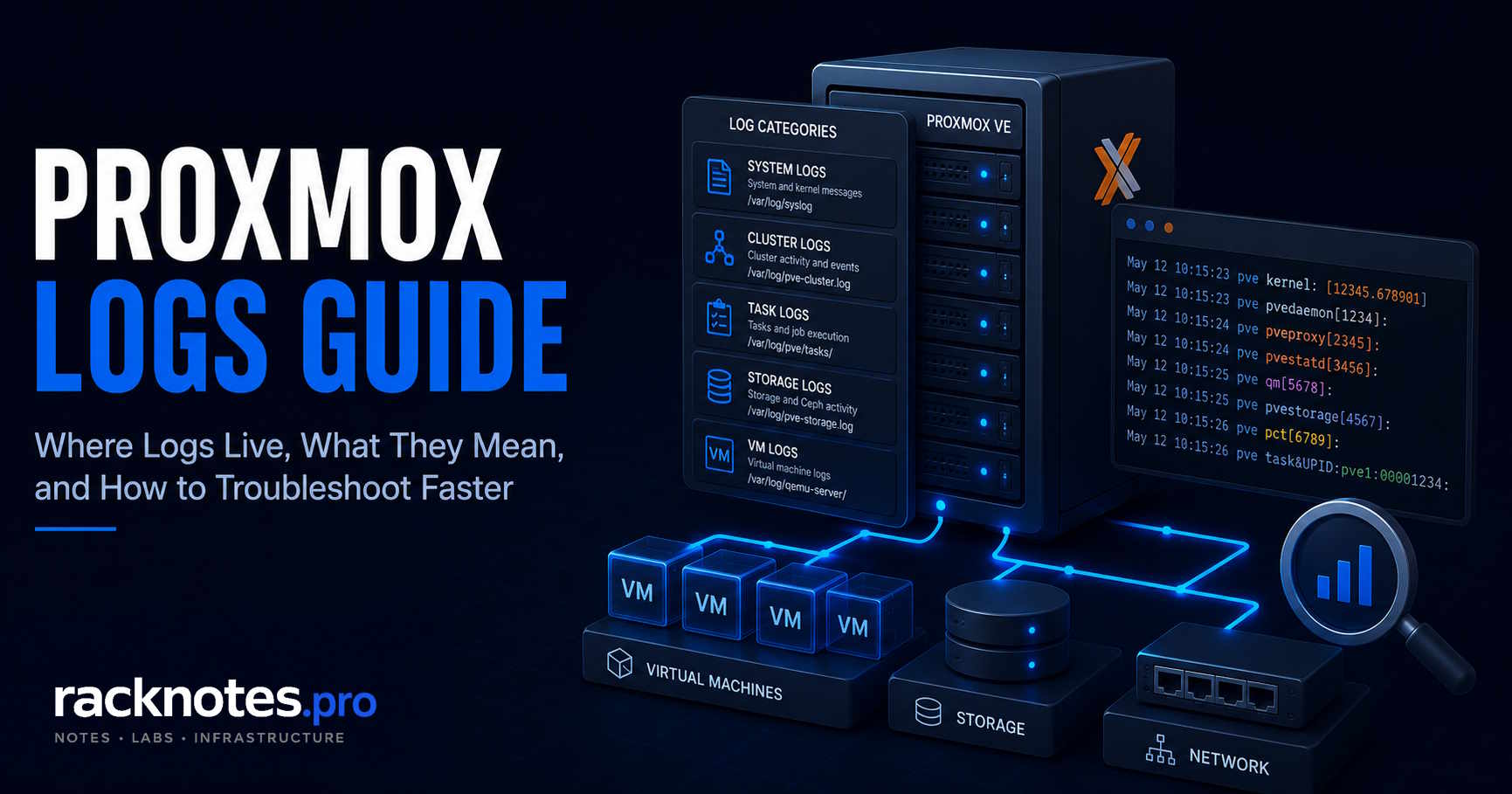
To check Proxmox logs, use journalctl for host services and kernel events, Task History or pvenode task log for failed operations, and component-specific tools such as zpool status or ceph health detail for storage. After a crash or reboot, start with the previous boot: journalctl -b -1 and journalctl -k -b -1.
Proxmox doesn’t have a single log file. That’s the first thing operators get wrong when troubleshooting – they go looking for “the Proxmox log” and end up either in the wrong place or overwhelmed by raw journal output that doesn’t point anywhere useful.
The better mental model isn’t “where are the logs?” It’s “which component failed?” Once that question is answered, the right Proxmox log becomes obvious. A failed backup points somewhere different than a GUI that won’t load, which points somewhere different than a cluster that lost quorum. The component tells you where to look. The log narrows the failure domain and often reveals the cause.
This guide maps Proxmox log locations and architecture to the actual failure scenarios operators run into – what each log captures, what it doesn’t, and where evidence actually hides during diagnosis.
- There is no single “pve-manager.log” – Proxmox logs are split by component
- On PVE 8 and 9, journald is the primary source for host services and kernel messages;
/var/log/syslogmay not exist on fresh installs - Failed tasks → Task History first, then the system journal
- Web UI/API frontend (port 8006, TLS, 500 response) →
pveproxy+access.log; login/authentication and backend execution →pvedaemon - Grey question marks →
pvestatdjournal - Cluster/quorum problems →
corosyncjournal - Firewall logging depends on whether the node runs legacy
pve-firewallor the newer nftables-basedproxmox-firewall– check which is active before trusting one file path - Host lockup with nothing in journald → investigation moves to IPMI/serial
- Journald retention depends on `Storage=auto` and local config – verify with
journalctl --list-boots, don’t assume
This guide applies to Proxmox VE 8.x and 9.x. Fresh PVE 8/9 installations normally rely on journald as the primary source for host services and kernel messages; older or upgraded systems may also retain rsyslog-managed files such as /var/log/syslog. PVE 9 can also run the newer nftables-based firewall, which is covered separately below.
How to Check Proxmox Logs
# Current boot
journalctl -b

# Current boot, errors and above
journalctl -b -p err

# Previous boot
journalctl -b -1

# Previous boot, kernel errors only
journalctl -k -b -1

# Which boots does the journal actually have?
journalctl --list-boots

# Recent failed Proxmox tasks
pvenode task list --errors
For a failed backup, migration, snapshot, restore, or VM operation, open the failed task in the GUI or with pvenode task first. For a host crash or unexpected reboot, start with the previous boot using journalctl -b -1 and journalctl -k -b -1. The sections below go deeper on each of these, plus the cases the six commands above don’t cover.
| Problem | First command |
|---|---|
| Failed backup, migration, snapshot | pvenode task list --errors |
| VM will not start | journalctl -b | grep -iE "qemu|kvm|start failed" |
| Host crashed or rebooted | journalctl -b -1 |
| Kernel panic or OOM | journalctl -k -b -1 |
| GUI/API problem | journalctl -u pveproxy -u pvedaemon |
| Grey question marks | journalctl -u pvestatd |
| Cluster/quorum issue | journalctl -b -u corosync |
| ZFS problem | zpool status -v + journalctl -k |
| Backup never started at all | journalctl -u pvescheduler |
Proxmox Log Locations at a Glance
Before opening any log, identify which layer failed. This single step eliminates most of the time operators waste looking in the wrong place during troubleshooting.
| Layer | What failed | Where to look first |
|---|---|---|
| Operation | Backup, restore, migration, clone, snapshot | Task History / pvenode task log |
| GUI / API frontend | Web UI unreachable, TLS/certificate errors, 500 response recorded, frontend worker crashes | journalctl -u pveproxy.service + access.log |
| API backend | Login rejected (authentication failure), VM operation failures, backend API errors, task execution issues | journalctl -u pvedaemon.service |
| Status path | Grey ?, unknown VM/CT status, slow storage list | journalctl -u pvestatd |
| Cluster integrity | Quorum lost, node disappeared, fencing | journalctl -b -u corosync |
| Storage | ZFS errors, NFS/CIFS mount failures, Ceph OSD down | journalctl -k + storage-specific logs |
| HA | HA not restarting VMs, unexpected fencing | journalctl -u pve-ha-lrm / pve-ha-crm |
| Host hardware | Hard lockup, random reboot, complete silence | journalctl -k -b -1 → IPMI/serial if empty |
How to Read Proxmox Logs from the Previous Boot
Most crash and reboot searches end up here, so it earns its own section instead of staying scattered across the article.
journalctl --list-boots
journalctl -b -1
journalctl -b -1 -p err
journalctl -k -b -1
-1 means the previous retained boot, not “yesterday.” Run --list-boots first to see what’s actually available and to pick an older boot by index if the crash wasn’t the most recent one. No previous boot listed usually means volatile journald or expired retention, both covered below.
An abruptly ending previous-boot log, one that just stops with no panic trace and no shutdown sequence, suggests a hard lockup, a power event, or a failure below the point where userspace logging still runs. A clean-looking previous-boot journal doesn’t rule out a kernel panic either; the storage path needed to persist that final trace may already have been unavailable when it happened. For recurring, unexplained reboots, configure pstore, kdump, a serial console, netconsole, or remote logging before the next incident, waiting for local journald to explain a hard lockup after the fact usually doesn’t work.
Proxmox Logs: The System Journal as Primary Source
On Proxmox VE 8 and newer, journald is the primary source for host service and kernel messages. Services like pveproxy, pvedaemon, pvestatd, pve-cluster, and corosync all write to it, and the GUI’s “Syslog” view under Node → System → Syslog reads from journald directly. It doesn’t replace Proxmox task logs, access logs, storage health commands, or hardware-controller logs, each of those still needs its own check, covered in the sections below.
One thing to verify early: on fresh PVE 8/9 installations, /var/log/syslog and /var/log/kern.log may not exist at all. These files only appear if rsyslog is installed and receiving journal output. Many forum threads and older guides reference these files – operators who upgraded from older Proxmox versions or followed legacy documentation are regularly surprised when ls /var/log/syslog returns nothing. Check journald first; don’t assume the text files are there.
Volatile journal after reboot. With the default systemd Storage=auto behavior, journald stores logs persistently when /var/log/journal exists, and falls back to volatile storage under /run/log/journal when it doesn’t. A reboot is exactly what happens after a crash, so if the host was running in volatile mode, post-mortem investigation starts with an empty journal. Check both the directory and the active config:
ls -ld /var/log/journal

grep -R "^[[:space:]]*Storage=" \
  /etc/systemd/journald.conf \
  /etc/systemd/journald.conf.d/ 2>/dev/null
Fix: mkdir -p /var/log/journal && systemd-tmpfiles --create --prefix /var/log/journal && systemctl restart systemd-journald && journalctl --flush. Do this before you need it, then confirm actual retention after the next reboot, directory existence alone isn’t proof, with journalctl --list-boots and journalctl --disk-usage.
Journald does not keep logs for a fixed number of days. With default systemd settings, persistent journal usage is generally constrained by filesystem-relative limits, including a default SystemMaxUse calculation of around 10% of the filesystem with an upper cap near 4 GiB, the effective limit can be lower, since journald also reserves free disk space and respects any local configuration. Full configuration options are documented in the systemd journald.conf man page. During a log storm, a failing backup generating thousands of entries per minute, older records disappear much faster than expected. When investigating a slow-burning incident, check whether the relevant time window is still present before building a theory.
There’s also a common trap with systemctl status: after journal rotation, it shows “Journal has been rotated since unit was started. Log output is incomplete or unavailable.” This isn’t a Proxmox problem, it means the journal rotated and systemctl status can only show the recent buffer. Switch to journalctl --since/--until with the specific time window:
journalctl \
  -u pveproxy.service \
  -u pvedaemon.service \
  --since "2026-07-05 10:00" \
  --until "2026-07-05 10:10"
Proxmox Task Logs: Where Operation-Level Proxmox Logs Live
For any background operation, backup, restore, migration, clone, snapshot, replication, the Proxmox task log is the first place to look, not the system journal. Normal VM start, stop, and migration operations initiated through Proxmox also generate tasks, so this isn’t limited to scheduled jobs.
Proxmox stores these under /var/log/pve/tasks. The CLI interface is documented in the pvenode man page. The GUI’s Task History panel reads from the same location. Each task has a UPID that identifies it across both interfaces.
# List recent failed tasks
pvenode task list --errors

# Filter by VM
pvenode task list --errors --vmid 100

# Filter by task type
pvenode task list --typefilter vzdump

# Read a specific task log
pvenode task log UPID:pve:...
Task logs show the operation step by step: snapshot creation, compression phase, transfer, storage write, cleanup. When a backup fails, the task log usually shows the exact phase and error. Common patterns: I/O errors during the zstd phase pointing to failing storage, “cannot activate storage on node” indicating a mount problem. For backup task failures that trace back to storage issues, the backup strategy guide covers the storage architecture decisions that prevent most of them.
Why operators get this wrong: they go straight to journalctl for backup or VM operation failures, wade through unrelated system messages, and miss the task log that has the answer in three lines. Task first, journal second, use pvedaemon to correlate backend execution or authentication errors at the same timestamp, not to find the failure itself.
One gap: task logs capture operation output, not always root cause at the storage layer. Proxmox support staff regularly asks for both, the task log to see what failed, and the system journal around the same timestamp to see why the underlying resource was unavailable.
One case the task log can’t help with: a backup or replication job that’s missing from Task History entirely. That means the job was never created in the first place, a scheduling problem, not an execution problem, and the evidence lives in pvescheduler instead.
journalctl -u pvescheduler.serviceProxmox VM and QEMU Logs
Proxmox VM and QEMU logs deserve their own quick path, since VM start, stop, and migration failures are one of the most common reasons operators end up reading Proxmox logs in the first place.
# Failed VM tasks
pvenode task list --errors --vmid 100

# Current boot QEMU/KVM messages
journalctl -b | grep -iE "qemu|kvm|start failed|TASK ERROR"

# Backend execution around a failure
journalctl -u pvedaemon.service --since "10 minutes ago"

# VM configuration, for comparing against a working VM
qm config 100
The task log is still the first source, since VM operations initiated through Proxmox create a task either way. pvedaemon adds backend execution context the task log sometimes doesn’t capture in full. Kernel logs matter here too, for OOM kills, PCI passthrough failures, and hardware-related QEMU crashes, covered in the kernel logs section below. None of this reaches inside the guest; a VM that starts fine at the hypervisor level but has problems once the OS is running needs the guest’s own logs, that’s out of scope here. For the full VM-start diagnostic workflow, see Proxmox VM Won’t Start.
pveproxy and pvedaemon: GUI, API, and Backend Operations
These two services cover different layers of the same stack and are worth understanding separately.
pveproxy: The HTTPS Frontend
pveproxy is the HTTPS frontend on port 8006; every web UI request and API call passes through it. Use its logs when port 8006 is unreachable, TLS or certificate loading fails, the web UI won’t load, or frontend workers crash. A login that gets rejected after the request reaches the backend is a pvedaemon question, not a pveproxy one, see the next section.
journalctl -u pveproxy.service
journalctl -fu pveproxy.service          # follow live
tail -f /var/log/pveproxy/access.log
ls -lh /var/log/pveproxy/access.log*     # check rotation
The journal shows service startup failures, SSL/certificate problems, permission errors on key files, worker crashes. The access log records requests processed through the proxy, client address, requested endpoint, response status, timestamp, useful for spotting patterns: repeated 401s from a specific IP, a specific endpoint consistently returning 500, API integrations that started failing after an update.
The access log records the request and response status, but it may not contain the backend exception that produced an HTTP 500, this is a recurring complaint from API integrations. Correlate it with pvedaemon at the same timestamp to find the actual cause.
pvedaemon: Authentication and the API Backend
pvedaemon is the backend API service; it handles the actual execution of requests that pveproxy forwards, including authentication. Use it for login and authentication results (PAM, realm, or ticket rejection), privileged API operations, and the backend error behind a pveproxy 500 that the access log doesn’t explain.
journalctl -u pvedaemon.service
journalctl -fu pvedaemon.service         # follow live
This is where to look for: authentication and login failures (PAM, realm, or ticket rejection), VM operation failures (start/stop/migrate commands that fail at the execution layer), task execution errors that aren’t fully captured in the task log, storage action failures when a specific operation against a storage backend fails, API backend errors that aren’t exposed through pveproxy alone.
Forum threads that ask about “GUI works but VM operations fail” or “API returns 500 for specific endpoints” often end with pvedaemon output. Operators who only check pveproxy miss the backend half of the picture. The two services are complementary, pveproxy shows the HTTP layer, pvedaemon shows the execution and authentication layer.
pvestatd and Grey Question Marks
Grey question marks on VMs and containers, “unknown” statuses, and storage entries that won’t update are symptoms that often surface through pvestatd, although the underlying cause may be storage, cluster communication, a blocked API path, or the affected node itself.
pvestatd is the status daemon. It polls VM and CT status, storage availability, and metric server connections. When it can’t reach something, the status goes grey.
journalctl -u pvestatd
journalctl -fu pvestatd                  # follow live
Common journal entries: got timeout, long status update intervals, metric server send errors, NFS/CIFS/RBD mounts that stopped responding. Metric-server failures can produce these too, but widespread grey resource states more often come down to blocked storage polling, node communication, or a daemon that’s stopped responding, rather than the metric server specifically.
Why operators get this wrong: grey question marks look like VMs crashed. Often the VMs are running fine, only the status polling path is broken. A dying NFS mount can make everything appear unknown without affecting actual workloads. If the VMs themselves won’t respond after status is restored, the VM won’t start diagnostic guide covers the next layer of investigation.
pvestatd is an indicator, not the root cause. It tells you polling failed. The actual problem is in whatever pvestatd was trying to reach.
Kernel Panic, OOM, and Crash Logs
Kernel messages are where hardware-layer problems leave evidence, and for many homelab crashes, they’re the only evidence that exists before the system goes silent.
journalctl -k                             # kernel messages, current boot
journalctl -k -b -1                       # kernel messages, previous boot
journalctl -k -p err                      # kernel errors and above only
What shows up here that doesn’t appear elsewhere:
OOM killer events. When the kernel kills a process due to memory pressure, OOM killer messages appear in the kernel log with the process name, PID, and memory stats. These don’t appear in service journals.
Soft lockup and RCU stall warnings. “watchdog: BUG: soft lockup” entries indicate a CPU core isn’t responding to the scheduler. Common with overloaded systems or certain driver bugs.
Storage I/O errors. Block device errors, SCSI error messages, and disk timeout warnings all surface in the kernel log. ata1.00: failed command: READ FPDMA QUEUED or blk_update_request: I/O error, dev sda are typical patterns indicating a failing drive. Correlate with the device directly before assuming the worst:
lsblk -o NAME,SERIAL,MODEL,SIZE,TYPE,MOUNTPOINTS
smartctl -a /dev/sdX
journalctl -k --since "1 hour ago" | grep -iE "I/O error|reset|timeout|ata|nvme|scsi"
smartctl syntax and available attributes vary by controller, some HBA and RAID setups need controller-specific flags to expose the underlying drive at all. When these appear alongside ZFS pool state changes, the ZFS recovery guide covers the pool degraded and faulted scenarios.
NIC resets and driver errors. Link drops, driver reset events, and network interface errors appear here before showing up anywhere in application logs. Some Intel i226-V systems have shown link resets or power-management-related failures under specific kernel, firmware, and hardware combinations, treat the NIC model as a lead, not as proof of root cause. If pvestatd shows timeouts and the kernel log shows NIC resets around the same time, the two usually correlate and narrow the failure toward the network path.
Kernel panics. A clean-looking previous-boot journal does not rule out a kernel panic, the storage path needed to persist the final trace may already have been unavailable when it happened. For hosts that reboot without obvious cause, the random crashes guide maps the full diagnostic path from symptom to root cause.
Homelab operators running consumer hardware on recent kernels tend to see more kernel-level noise than production deployments on validated hardware. NIC link instability tied to specific kernel, firmware, and motherboard combinations is a recurring pattern in Proxmox forum reports, link drops surface in kernel logs first, then in pvestatd timeouts, then in VM connectivity issues. Tracing backwards from the application symptom to the kernel log usually takes a few minutes once you know where to look.
Storage Logs: ZFS, NFS, CIFS, and Ceph
Most homelab Proxmox setups use ZFS, NFS, or CIFS. Ceph is less common outside multi-node clusters. Each storage type leaves evidence in different places.
ZFS
ZFS problems surface in two places: the kernel log and zpool status.
# Current pool health
zpool status

# I/O error counts and scrub results
zpool status -v

# Kernel messages about ZFS
journalctl -k | grep -i zfs
zpool status shows pool health, disk error counts, and scrub results, often more actionable at a glance than anything in the system journal. A DEGRADED pool or checksum errors on a specific vdev identify the affected I/O path, but they don’t by themselves prove the drive is the root cause, correlate zpool status -v with SMART data, kernel I/O errors, cabling, the HBA, power stability, and RAM before swapping a disk.
ARC-related issues (unexpected memory pressure, slow VM performance after RAM is exhausted) don’t generate obvious log entries, arc_summary is more useful than any log for diagnosing ZFS memory behavior. For ZFS-specific sizing decisions, see the Proxmox RAM sizing guide.
NFS and CIFS/SMB
NFS and CIFS mount problems typically appear in two places: the kernel log and pvestatd.
# Mount errors and NFS timeouts
journalctl -k | grep -iE "nfs|cifs|mount"

# pvestatd polling failures resulting from the mount problem
journalctl -u pvestatd
NFS timeouts often appear in kernel messages before or alongside pvestatd status failures, nfs: server not responding or nfs: server timed out are typical. The exact order depends on polling timing and the nature of the mount failure. CIFS credential failures and connection drops also surface in the kernel log. The practical sequence for “storage shows grey in the GUI”: check pvestatd for the timeout, then the kernel log for the mount error at the same timestamp.
Ceph
Ceph adds its own daemon, health, and crash-reporting layers, but the systemd journal is still a primary source for individual Ceph services. File-based logs under /var/log/ceph/ depend on the Ceph version and logging configuration, so don’t assume they exist by default.
# Specific OSD service
journalctl -u ceph-osd@3.service

# Cluster health, more actionable than crash list alone
ceph health detail

# Recent Ceph crashes
ceph crash ls
ceph crash info <crash-id>

# File-based logs, if enabled
ls -lah /var/log/ceph/
Even with Ceph symptoms, the root cause isn’t always in Ceph logs. Official Proxmox Ceph documentation explicitly recommends checking system logs on the affected node, disk health (SMART), and IPMI or RAID controller logs alongside Ceph daemon logs. Forum reports include cases where Ceph logs showed nothing obvious and the actual cause was a failing HBA.
Corosync and pve-cluster: Cluster Integrity
Quorum loss, node disappearing from the cluster, fencing, join failures, start with corosync.
journalctl -b -u corosync
pvecm status                              # current quorum state
journalctl -u pve-cluster.service
Corosync logs show cluster membership events: nodes joining and leaving, quorum gained and lost, link down events, qdevice connectivity. pvecm status shows the current state, useful for confirming whether quorum is currently healthy before digging through logs. For full quorum loss recovery procedures, see the cluster quorum guide.
pve-cluster handles the cluster filesystem under /etc/pve; pmxcfs access problems and join/sync errors appear here. Related auth-key, lock, or ticket symptoms can also surface in pvestatd, pvedaemon, or pveproxy, correlate the same timestamp across services rather than assuming pve-cluster is the only place to look. For deeper pmxcfs troubleshooting, enable verbose logging temporarily:
echo "1" > /etc/pve/.debug
journalctl -fu pve-cluster.service
Disable it again once you’ve collected the evidence you need, verbose pmxcfs output grows fast and shouldn’t stay on longer than it takes to reproduce the problem:
echo "0" > /etc/pve/.debugCorosync logs often show consequences, not causes. “Node left cluster” or “link down” doesn’t explain whether the physical switch failed, the NIC dropped, or the node locked up. Corosync sees the result; the kernel log or IPMI shows the cause.
HA Logs
If HA isn’t restarting VMs after a node failure, or fencing behavior doesn’t match expectations, the HA stack logs explain the decision chain.
journalctl -u pve-ha-lrm                 # local resource manager on the node running the service
journalctl -u pve-ha-crm                 # cluster resource manager on the master node
HA logs record every decision: start, stop, recovery attempts, error states, fencing triggers, maintenance mode transitions, watchdog events. These are the authoritative record of what HA decided and why. For the broader HA architecture and how fencing decisions are made, see the Proxmox HA cluster guide.
These logs don’t replace corosync or storage logs. If HA didn’t fence because quorum was never actually lost, corosync explains that. If HA couldn’t start a VM because storage was unavailable, storage logs explain that.
Firewall and Network Logs in Proxmox
Firewall logging depends on which implementation the node is actually running. Proxmox VE 9 can use the newer nftables-based proxmox-firewall, while older or legacy configurations use pve-firewall. Log locations and service names differ between them, so check which is active before trusting one file path:
systemctl status pve-firewall.service
systemctl status proxmox-firewall.service

journalctl -u pve-firewall.service
journalctl -u proxmox-firewall.service
journalctl -k | grep -iE "drop|reject|firewall"
On systems using the legacy firewall implementation, /var/log/pve-firewall.log may also contain logged traffic:
tail -f /var/log/pve-firewall.logWhether entries appear at all depends on the logging level configured for the relevant firewall rule or zone. The official Proxmox VE firewall documentation covers both implementations and the logging options for each. For the zone model, rule design, and safe rollout sequence behind these logs, see the Proxmox firewall guide. For bridge and interface-level connectivity problems that aren’t firewall-related, see Proxmox Networking: Bridges, VLANs, Bonds.
SSH access has its own trail, separate from the GUI/API authentication covered under pvedaemon above. On PVE 8/9 it’s worth checking the service unit directly rather than reaching for /var/log/auth.log by habit, rsyslog may not be installed.
journalctl -u ssh.serviceCluster-Specific Complications
Two things make log investigation harder in multi-node setups.
pveproxy forwards requests across nodes. The node receiving the browser request may record the frontend access, while the node executing the operation records the backend task and service failure. If investigation of a GUI or API error on node A shows nothing conclusive, check the node that actually owns the resource, the request may have been forwarded silently.
The GUI aggregates tasks from all nodes. The lower Task Log panel shows recent tasks from the entire cluster. This is convenient but creates false confidence, “I can see the logs” may mean aggregated output from multiple nodes. When something specific goes wrong, identify which node was responsible and check that node’s journal directly.
How to Export Proxmox Logs for Support
Before opening a Proxmox support case, or before a reboot that might lose volatile evidence, capture the current state while it’s still there.
pvereport > /root/pvereport-$(date +%F-%H%M).txt

journalctl \
  --since "2026-07-05 10:00" \
  --until "2026-07-05 11:00" \
  > /root/proxmox-journal.txt

journalctl -k -b -1 > /root/previous-boot-kernel.txt
pvereport is worth calling out on its own, capture it while the failure state still exists. Don’t wait until after multiple restarts if the system is still accessible, a lot of the evidence above is exactly what disappears once the system is “fixed.” Review the report before sharing it publicly or with a third party: it can contain hostnames, IP addresses, storage configuration, cluster details, and package versions. Task logs sometimes need exporting separately from the main journal capture, and for clusters, collect from both the node that executed the operation and any relevant peers, not just the node you happened to be logged into.
The Complete Command Reference
# Current boot overview, reverse chronological
journalctl -b -r

# Errors and above only (includes crit, alert, emerg)
journalctl -b -p err

# Errors from the previous boot
journalctl -b -1 -p err

# Specific services
journalctl -u pveproxy.service
journalctl -u pvedaemon.service
journalctl -u pvestatd.service
journalctl -u pvescheduler.service
journalctl -b -u corosync
journalctl -u pve-cluster.service
journalctl -u pve-ha-lrm
journalctl -u pve-ha-crm
journalctl -u ceph-osd@3.service

# Kernel messages
journalctl -k
journalctl -k -b -1          # previous boot
journalctl -k -p err         # kernel errors and above only

# Journal health and retention
journalctl --list-boots
journalctl --disk-usage
journalctl --verify          # checks journal-file integrity, not whether events were logged

# Time window
journalctl --since "2026-05-30 08:00" --until "2026-05-30 09:00"

# Follow live
journalctl -fu pveproxy
journalctl -fu pvestatd

# Task investigation
pvenode task list --errors
pvenode task list --errors --vmid 100
pvenode task list --typefilter vzdump
pvenode task log UPID:pve:...

# Storage health
zpool status
zpool status -v
ceph health detail
ceph crash ls

# Before escalating to support
pvereport > /root/pvereport-$(date +%F-%H%M).txt
journalctl --verify checks journal-file integrity; it doesn’t validate whether every expected Proxmox event was actually logged, that’s a different question answered by the sections above.
Proxmox Log Blind Spots: Where Evidence Disappears
Knowing where logs are missing matters as much as knowing where to look.
| Blind spot | What it means for diagnosis |
|---|---|
| Hard lockup, power loss, hardware reset | The journal may simply stop. No error, no warning, just silence where the log ends. Investigation moves to IPMI/iDRAC/iLO event logs, RAID or HBA controller logs, UPS event history, serial console, or kdump if configured. |
| HTTP 500 without internal detail | access.log records the 500 response but not the internal reason. API integrations regularly report this as the only trace available. Check the pvedaemon journal for backend errors around the same timestamp. |
| pvestatd shows symptoms, not causes | Grey question marks mean polling failed, not that VMs are down, and they don’t identify why polling failed. Look at what pvestatd was trying to reach. |
| Guest-internal problems | Proxmox host logs cover host services, task workers, kernel, and storage stack. They don’t show what’s happening inside a VM or LXC container. Guest-side investigation requires accessing the guest’s own logs directly. |
| Volatile journal after reboot | If journald isn’t set to persistent mode, the crash evidence is gone by the time investigation starts. Configure persistent journald before it’s needed. |
- Check
journalctl -k -b -1– previous boot kernel messages may capture the last events before silence - Check
journalctl -b -1 -p err– errors from previous boot across all services - If the previous-boot journal is empty or ends abruptly, the local host may have no further persisted evidence to offer
- Move to IPMI/iDRAC/iLO event logs – hardware-level events survive host crashes
- Check RAID or HBA controller logs if storage is involved
- Check UPS event history if power loss is possible
- Check any remote logging destination if one is configured – it may have captured more than the local host did
- Check
pstore(/sys/fs/pstore) if the platform supports it; some panics persist a trace there across reboot - Consider configuring kdump for future incidents if the crash is recurring
Frequently Asked Questions
Where are Proxmox logs stored?
There’s no single location. Host services and kernel messages go through journald (query with journalctl). Task-level operations, backup, restore, migration, clone, live under /var/log/pve/tasks and are best read via pvenode task or the GUI’s Task History. pveproxy keeps an HTTP access log at /var/log/pveproxy/access.log. Firewall logging, storage tools, and Ceph add their own sources depending on configuration.
How do I check Proxmox logs?
journalctl -b for the current boot, journalctl -b -p err for current-boot errors, and pvenode task list --errors for failed operations covers most first-look cases. See the “How to Check Proxmox Logs” section above for the full six-command answer.
How do I see logs from the previous Proxmox boot?
Run journalctl --list-boots to see what’s retained, then journalctl -b -1 for the full previous boot or journalctl -k -b -1 for just the kernel messages. If nothing is listed before the current boot, journald is likely running in volatile mode or retention already expired.
Where are Proxmox task logs stored?
Under /var/log/pve/tasks on disk, identified by UPID. The GUI’s Task History panel and the pvenode task list / pvenode task log commands both read from the same location, so either interface shows the same data.
Which log shows why a Proxmox VM failed to start?
Check the failed task first, either in Task History or with pvenode task list --errors --vmid <ID>, then journalctl -u pvedaemon.service for backend execution context and journalctl -k for hardware or OOM-related failures. The VM won’t start guide covers the full decision tree by error string.
Why does /var/log/syslog not exist on Proxmox?
Fresh PVE 8 and 9 installs don’t install rsyslog by default, so there’s nothing writing to that path. Check journald first with journalctl -b. If rsyslog is installed later or the system was upgraded from an older Proxmox release, /var/log/syslog may reappear alongside journald.
How do I export Proxmox logs for support?
Run pvereport > /root/pvereport-$(date +%F-%H%M).txt while the failure state still exists, plus a timestamp-scoped journalctl --since ... --until ... export if the journal covers it. Review the output first, pvereport includes hostnames, IPs, and cluster configuration that you may not want to share as-is.
Final Thoughts
Proxmox’s logging architecture reflects how the software is built: separate daemons for separate responsibilities, with journald as the common thread for host services and kernel messages, alongside task logs, access logs, and storage-specific tools that journald doesn’t replace. The frustration most operators experience during troubleshooting comes from looking for a unified “Proxmox log” that doesn’t exist.
Reading Proxmox logs well is mostly a matter of knowing which one to open first: identify the failure layer, go to the corresponding log, and treat absence of evidence as its own signal. A hard lockup with nothing in journald isn’t “no logs”, it’s a finding that the failure may have occurred below the point where the host could persist additional evidence, which strongly points toward hardware-level investigation.
For homelab setups specifically: configure persistent journald before you need it. Make that change today. The post-mortem investigation after an unexpected reboot depends on a decision made before the reboot happened. If the host is already crashing and logs aren’t helping, the random crashes diagnostic guide covers the full hardware investigation path.
Proxmox VE Series
28 articles – Installation · Storage · Networking · HA · Recovery