

Active Directory time sync problems usually trace back to one of three places: the client itself, the domain controller it’s trying to reach, or the forest-root PDC Emulator at the top of the hierarchy. On a normal domain-joined machine, W32Time should already be pulling from the AD domain hierarchy without manual configuration. If you need to sync time with domain controller sources manually, the correct fix depends on which machine is wrong; repeatedly forcing a resync without identifying the broken layer wastes time.
This Active Directory time synchronization guide covers the full path: checking and forcing a client or server resync, verifying the domain hierarchy, configuring the forest-root PDC Emulator with an authoritative time source, and recovering from Local CMOS Clock, “no time data available,” Kerberos clock skew, and domain-wide drift.
Active Directory Time Sync: How to Sync Time with Domain Controller
w32tm /query /source
w32tm /query /status
w32tm /resync /rediscover
On a normal domain member, Source should show the AD domain hierarchy, not a manual peer or Local CMOS Clock. /rediscover tells W32Time to redetect available time sources before resyncing, which is why it succeeds more often than a plain /resync. If the machine still won’t sync after this, the problem usually isn’t the client: verify DC reachability and the domain hierarchy configuration instead of repeating /resync. If several machines show wrong time at once, start with the domain controllers, not each client individually.
| Symptom | Start here |
|---|---|
| One workstation or server is wrong | Query source/status, then /resync /rediscover |
| Many domain members are wrong | Check the domain controllers and PDC hierarchy first |
| A non-PDC domain controller is wrong | Confirm it is set to follow the domain hierarchy (NT5DS) |
| The forest-root PDC Emulator is wrong | Verify its authoritative external time source |
| Source shows Local CMOS Clock | Identify whether the affected machine is the PDC, another DC, or a member |
| “No time data was available” | Source discovery, domain hierarchy, then DNS/NTP reachability |
| Kerberos reports clock skew | Compare client and DC clocks, then fix the source, not the SPN |
How Active Directory Time Synchronization Works
Domain members normally synchronize through the AD domain hierarchy rather than through a manually configured source. A member computer selects a domain controller in its own domain as a time source; domain controllers in turn seek out a more authoritative source above them. Within each domain, the PDC Emulator role holder is authoritative for that domain. PDC Emulators in child domains follow the domain hierarchy upward toward the parent. The PDC Emulator in the forest root domain sits at the top of the entire hierarchy, and that machine specifically should be configured with a reliable external or hardware time source rather than the domain hierarchy.
It is not accurate to say every DC in the forest contacts the forest-root PDC Emulator directly. Time flows down through each domain’s own hierarchy; the forest-root PDCe is the ultimate upstream authority, not a machine every DC talks to individually.
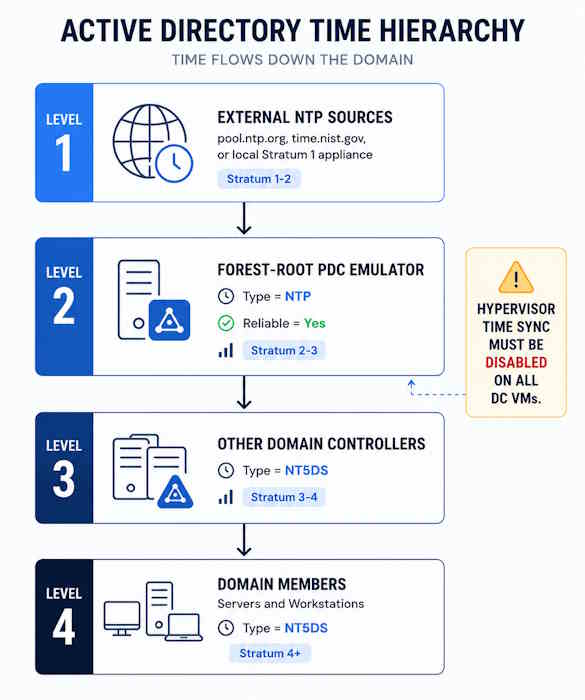
Two misconfigurations break this hierarchy: pointing non-PDCe domain controllers at external NTP directly, which creates competing time sources, and leaving hypervisor time synchronization enabled on a virtual DC, which overrides W32Time with the host clock.
Official reference: How the Windows Time Service Works.
How to Check Domain Controller Time Sync
# Find the PDC Emulator
netdom query fsmo

# Check source, status, and configuration
w32tm /query /source
w32tm /query /status
w32tm /query /configuration

# Scan every DC in the domain at once
w32tm /monitor /domain:contoso.com
In /query /status, the fields that matter are Source (should name an actual time source, not Local CMOS Clock), Last Successful Sync Time (should be recent), and Stratum. Stratum 16 specifically means unsynchronized. Beyond that, don’t treat any particular stratum number as universally normal for a DC; it depends on how many hops separate that machine from the authoritative source, which varies by topology.
In /query /configuration, a non-PDCe DC should show Type: NT5DS. The forest-root PDCe should show Type: NTP with its configured peers. If a non-PDCe DC shows Type: NTP with manual peers, that’s a misconfiguration creating a competing time source, and it should be returned to the domain hierarchy.
Configure the Forest-Root PDC Emulator with an Authoritative Time Source
Run this only on the PDC Emulator of the forest root domain. Never configure a non-root DC this way.
# Configure an authoritative external or hardware time source
w32tm /config /syncfromflags:MANUAL /manualpeerlist:"0.pool.ntp.org,0x8 1.pool.ntp.org,0x8" /reliable:YES /update

net stop w32time && net start w32time
w32tm /resync

w32tm /query /source
w32tm /query /status
The ,0x8 flag forces client mode. Many public NTP servers reject Windows’ default symmetric active mode without it; verify the flag requirement against your specific source before assuming every peer needs it. /reliable:YES marks this DC as authoritative for the domain, without which other DCs may not treat it as the top of the hierarchy.
The peers above are examples, not a mandatory choice. Public NTP is one valid option; an internal hardware time source (GPS or Stratum-1 appliance) is equally valid and is what Microsoft recommends where reachability or accuracy requirements make it a better fit. Configure at least two peers for redundancy, a single peer is a single point of failure at the top of the entire domain time chain.
Do not configure the forest-root PDCe with Type=NT5DS. That’s the domain hierarchy mode: the PDCe would try to sync from itself or another DC, find nothing above it, and fall back to Local CMOS Clock, taking the whole hierarchy down with it. To return a DC that was accidentally misconfigured back to the domain hierarchy:
w32tm /config /syncfromflags:DOMHIER /reliable:NO /update
net stop w32time && net start w32time
w32tm /resync /rediscover
Official reference: Configure an authoritative time server.
Return a Non-PDC Domain Controller to the Domain Hierarchy
Non-root domain controllers should follow the AD hierarchy, not their own manual NTP peers. If one was misconfigured, whether by hand or by an old GPO, the fix is the same DOMHIER command shown above. Before changing local settings, check w32tm /query /configuration for values marked (Policy), Group Policy can override local W32Time configuration, and repeatedly editing the local setting won’t stick if a GPO is pushing something else.
Fix “Local CMOS Clock” on a Domain Controller
“Local CMOS Clock” in w32tm /query /source means W32Time has fallen back to the hardware clock because it found no valid time source. The fix depends on which machine is showing it.
Forest-root PDC Emulator: no external source is configured or reachable. Configure it as shown above, then confirm UDP 123 isn’t blocked outbound from this specific DC.
Any other DC: it has lost contact with the PDCe or the domain hierarchy. Confirm Type: NT5DS, check network connectivity to the PDCe, then run w32tm /resync /rediscover. If the PDCe itself is broken, fix that first, everything downstream depends on it.
Member server or workstation: check domain connectivity and DC discovery before assuming a time-specific problem, a machine that can’t authenticate to a DC can’t sync from one either.
w32tm /query /source
w32tm /query /configuration
nltest /dsgetdc:contoso.com
w32tm /resync /rediscover
w32tm /resync: What It Does and When to Use /rediscover
/resync tells W32Time to synchronize with whatever source it’s currently configured to use. /rediscover additionally tells the service to redetect available time sources on the network before syncing. If source selection or the domain hierarchy configuration is wrong, fixing that configuration is the actual fix, repeatedly forcing /resync against a broken source won’t produce a different result.
# Basic resync against the currently configured source
w32tm /resync

# Redetect sources first, then resync (usually more effective)
w32tm /resync /rediscover
Check source and status before and after: if /query /source still shows the wrong thing after a resync, the resync isn’t the problem, the configuration is.
Official reference: Windows Time Service tools and settings.
Fix “The Computer Did Not Resync Because No Time Data Was Available”
This error surfaces from several different root causes, so work through them in order rather than jumping to a service reset.
- Check source and configuration:
w32tm /query /sourceandw32tm /query /configuration. Confirm the machine is set to follow the domain hierarchy (Type=NT5DSfor members and non-PDCe DCs) unless it’s intentionally on a manual source. - If this is the PDCe, test whether the configured external peer actually responds:
w32tm /stripchart /computer:0.pool.ntp.org /samples:5 /dataonly. - If a named peer is configured, check DNS resolution separately:
Resolve-DnsName 0.pool.ntp.org. A DNS failure looks identical to a time failure and is easy to misdiagnose as one. - Verify NTP reachability with an NTP-aware test, not a TCP port check.
Test-NetConnection -Port 123tests TCP, not UDP; NTP runs over UDP 123, so a TCP port test doesn’t prove anything about NTP reachability. Usew32tm /stripchartfor this instead. - If sources are reachable but sync still fails, try
w32tm /resync /rediscoverbefore anything more invasive. - Only as a later step, if the above hasn’t resolved it: the W32Time service registration may be corrupt. Re-registering resets configuration to defaults, so back up current settings first with
w32tm /query /configurationif you have non-default values:net stop w32time w32tm /unregister w32tm /register net start w32time w32tm /resync /rediscover - Verify with
w32tm /query /status: a valid Source and a recent Last Successful Sync Time confirm the fix.
Official reference: “The computer did not resync because no time data was available”.
NTP and UDP 123 Troubleshooting
A generic timeout when contacting an NTP peer can come from several places, not just a firewall: the upstream service being unavailable, DNS failing silently, routing, UDP 123 actually being blocked, a peer mode/flag mismatch, or upstream rate-limiting policy. Test the specific peer before assuming which one it is.
# Test the configured peer
w32tm /stripchart /computer:0.pool.ntp.org /samples:5 /dataonly

# Try a different peer if the first times out
w32tm /stripchart /computer:time.windows.com /samples:5 /dataonly
If stripchart shows timeouts against every peer tried, check outbound UDP 123 at the DC’s own firewall and any perimeter firewall between it and the internet. If a peer responds to stripchart but W32Time still won’t sync from it, check the manualpeerlist flags, the ,0x8 client-mode flag is required by many public NTP servers that reject Windows’ default symmetric active mode.
Kerberos Clock Skew and the Five-Minute Tolerance
Kerberos uses timestamps as part of its replay-attack protection. Every authentication request carries a timestamp the KDC checks against its own clock; if the difference exceeds the configured tolerance, default five minutes, set at Computer Configuration > Policies > Windows Settings > Security Settings > Account Policies > Kerberos Policy > Maximum tolerance for computer clock synchronization, the ticket is rejected with KRB_AP_ERR_SKEW. Do not widen this tolerance to work around drift, that treats the symptom and weakens a real security control; fix the time source instead.
| Error / Event | Meaning | First check |
|---|---|---|
KRB_AP_ERR_SKEW | Clock skew exceeds Kerberos tolerance | w32tm /query /status on client and DC, compare directly |
| Event 4769, failure code 0x25 | Kerberos service ticket request failed due to clock skew | Check DC and client time before SPNs |
| “Clock skew too great” | Same root cause, platform-agnostic wording on Linux, Java, appliances integrated with AD Kerberos | Compare the appliance clock against the DC it authenticates against |
Time skew can contribute to “there are currently no logon servers available” alongside DNS and DC health issues, it is not automatically the cause. Check DNS with the Active Directory DNS problems guide and DC health with dcdiag /test:Advertising alongside a time check rather than assuming one specific cause.
KRB_AP_ERR_MODIFIED is a different error from clock skew and can have several causes of its own, don’t reduce every Kerberos failure to “it’s probably the SPN.” If clocks check out clean and Kerberos is still failing, that points toward a Kerberos-specific issue rather than a time problem, continue troubleshooting Kerberos directly instead of re-touching W32Time.
Official reference: Kerberos authentication troubleshooting guidance.
Virtual Domain Controllers and Hypervisor Time Sync
Hypervisor time synchronization can override W32Time on a virtual DC, replacing the domain hierarchy with the host clock. Disable the hypervisor’s guest time sync feature on DC VMs so the domain hierarchy stays authoritative. For general VM-level Hyper-V settings unrelated to Active Directory, see the Hyper-V VM Settings guide, this section covers the AD-specific reasoning and verification.
Hyper-V
Hyper-V injects a time provider called VMICTimeProvider into the guest, which can override W32Time when enabled. Microsoft recommends disabling host/guest time synchronization for VMs configured as domain controllers so the guest follows the domain hierarchy.
# Check Integration Services state from the Hyper-V host
Get-VMIntegrationService -VMName "DC01" | Where-Object {$_.Name -eq "Time Synchronization"}

# Disable it
Disable-VMIntegrationService -VMName "DC01" -Name "Time Synchronization"
The loop worth avoiding: a virtual DC syncs from the Hyper-V host, and that host is itself a domain member syncing from that same DC. Both drift together with neither correcting the other.
Official reference: Virtualized Domain Controllers on Hyper-V.
VMware ESXi
VMware Tools has two separate time-sync mechanisms: periodic sync, and one-off sync triggered by lifecycle events (vMotion, snapshot consolidation, resume from suspend). Disabling the visible periodic-sync checkbox does not disable one-off sync, per Broadcom KB 432522 the guest clock can still be corrected during those events even when periodic sync shows disabled. For DC VMs, verify both mechanisms independently and keep the ESXi host clock accurate regardless, since a one-off correction pulls from the host clock.
# Verify the source after any migration or resume event
w32tm /query /source
w32tm /query /status
Proxmox and KVM
Proxmox’s “Use local time for RTC” setting controls whether the hypervisor presents local or UTC time to the guest at boot; Windows guests generally expect the RTC in local time while Linux expects UTC. Getting this wrong produces a clock offset at boot equal to the timezone difference. This is a startup-only mechanism, not ongoing sync, once the guest OS is running its own time service is what keeps it accurate. Whatever the setting, it must not fight the AD hierarchy: verify the DC’s actual synchronized time after every start, not just its uptime.
# After VM start, verify before allowing domain operations
w32tm /query /status
w32tm /query /source
Recover From Domain-Wide Time Drift
When multiple DCs show wrong time, after a snapshot restore, a hypervisor host failure, or a prolonged NTP outage, the operational principle is to restore the authoritative source first and let the hierarchy converge downstream. If the drift is severe (hours or days), plan for a maintenance window: moving clocks can invalidate existing Kerberos tickets and disrupt authentication during the correction.
- Identify the PDC Emulator:
netdom query fsmo. - If the PDCe is a VM, check whether hypervisor time sync is interfering before touching the clock, disable it if it is.
- Correct the PDCe clock first. A small offset resolves with
w32tm /resync /force; a large offset may be rejected by the phase-correction limits below, in which case set the clock manually first. - Confirm or configure the PDCe’s external source, then verify:
w32tm /query /statusshould show the correct source and stratum. - On each other DC:
w32tm /resync /rediscover. Let them pull from the corrected PDCe rather than setting their clocks manually. - On member machines:
w32tm /resync /rediscoverspeeds up what they’d otherwise do on their own schedule. - Validate domain-wide:
w32tm /monitor /domain:contoso.com, all DCs should show offsets of a few seconds and sources pointing into the hierarchy.
If a DC was recovered from a snapshot restore, check AD replication state before assuming the time fix is complete, replication recovery and time recovery can need to happen in a specific order. See the Active Directory replication not working guide for that recovery path; it isn’t covered here.
Large Time Offsets: MaxPosPhaseCorrection and MaxNegPhaseCorrection
Windows restricts how large a time jump W32Time accepts automatically. On current domain controllers, MaxPosPhaseCorrection (maximum forward correction) and MaxNegPhaseCorrection (maximum backward correction) default to 172800 seconds (48 hours). If an offset exceeds this limit, W32Time discards the sample rather than applying it, the clock stays wrong even though the correct time was available from a working NTP source.
# Check current limits (seconds; 172800 = 48 hours)
reg query HKLM\SYSTEM\CurrentControlSet\Services\W32Time\Config /v MaxPosPhaseCorrection
reg query HKLM\SYSTEM\CurrentControlSet\Services\W32Time\Config /v MaxNegPhaseCorrection

# Set the clock manually first (run as Administrator)
Set-Date -Date "2026-06-14 10:30:00"

# Then let W32Time resync normally
w32tm /resync /force
w32tm /query /status
Do not permanently raise these limits to unlimited on domain controllers. The 48-hour default exists specifically to stop a corrupted or spoofed source from moving a DC clock by an arbitrary amount, a controlled manual correction for a genuine exceptional case is the right tool, not a permanently wider safety margin.
Official reference: Configure W32Time against a huge time offset.
After Moving the PDC Emulator Role
When the PDC Emulator FSMO role moves, time configuration doesn’t follow automatically. The new holder is still configured as a standard DC, and the old holder may still be marked reliable with manual peers. Left uncorrected, the top of the hierarchy breaks within hours. This applies specifically to the forest-root domain’s PDC Emulator; a role transfer in a child domain doesn’t require external NTP, that domain’s PDCe still follows the forest hierarchy.
# Identify the current PDCe
netdom query fsmo

# On the NEW forest-root PDCe: configure as authoritative
w32tm /config /syncfromflags:MANUAL /manualpeerlist:"0.pool.ntp.org,0x8 1.pool.ntp.org,0x8" /reliable:YES /update
net stop w32time && net start w32time
w32tm /resync

# On the OLD PDCe: return to the domain hierarchy
w32tm /config /syncfromflags:DOMHIER /reliable:NO /update
net stop w32time && net start w32time
w32tm /resync /rediscover

# Verify domain-wide
w32tm /monitor /domain:contoso.com
This step is easy to skip during a stressful FSMO seizure. Add it to the seizure runbook. See FSMO roles in Active Directory for the transfer and seizure procedure itself.
Secure Time Seeding (STS) on Windows Server
STS uses timestamp metadata from outgoing SSL/TLS connections to correct a grossly incorrect clock. It’s enabled by default on Windows Server 2016, 2019, and 2022. Windows Server 2025 disables it by default, after customer reports of unexpected large time jumps on certain deployments.
Microsoft’s current guidance is a direct recommendation, not a wait-and-see suggestion: disable STS on Windows Server machines hosting time-sensitive workloads, explicitly including AD DS domain controllers and VM hosts, and consider disabling it more broadly on other Windows Server machines too.
# Disable STS
reg add HKLM\SYSTEM\CurrentControlSet\Services\W32Time\Config /v UtilizeSslTimeData /t REG_DWORD /d 0 /f
A reboot is required for this change to take effect, restarting the W32Time service alone is not sufficient. On Windows Server 2025 this step isn’t needed since STS is already off by default; on Server 2022 and earlier it’s worth doing proactively rather than only after seeing unexplained jumps.
If clocks check out clean but Kerberos authentication is still failing, continue with Kerberos-specific troubleshooting rather than making further changes to W32Time or STS.
Official reference: Secure Time Seeding recommendations for Windows Server.
W32Time Event ID Reference
Common Windows Time Service events seen during source-discovery and synchronization problems. Treat this as a reference, not a guaranteed fixed sequence, which events appear and in what order depends on the specific failure.
| Event ID | Meaning | What to check |
|---|---|---|
| 12 | PDC Emulator is configured to use the domain hierarchy, but it’s the forest-root PDCe with nothing above it | Configure external/manual NTP and set Reliable=Yes if this is the forest-root PDCe |
| 24 | No valid response from a configured DC peer after repeated attempts; DC discarded as a source | DC reachability, UDP 123, domain hierarchy config |
| 29 | NtpClient has no accessible time source at all | Manual peers, firewall UDP 123, peer flags, DNS resolution for peer names |
| 35 | Time service is now synchronizing with the named source | Success confirmation after a fix |
| 36 | Time not synchronized for an extended period | Upstream availability; expected on an unconfigured forest-root PDCe, abnormal elsewhere |
| 37 | Valid time data currently being received from a peer | Success confirmation |
| 38 | NtpClient cannot reach or validate time from a configured peer | Peer reachability, UDP 123, manualpeerlist flags |
| 47 | No valid response from a manually configured peer after repeated attempts; peer discarded | UDP 123, client-mode flag (,0x8), NTP service on the peer |
| 50 | Large time difference detected and corrected | VM drift, hypervisor time sync, phase-correction limits |
| 129 | NtpClient could not set a domain peer due to a discovery error | Domain hierarchy, PDCe health, run w32tm /resync /rediscover |
| 134 | DNS resolution failure for a manually configured peer name | DNS resolver config, Resolve-DnsName <peer>, or switch to an IP |
| 142 | DC stopped advertising as a time source because its own clock isn’t synchronized | Fix the underlying sync issue, then dcdiag /test:Advertising /v |
Validation Checklist
- PDCe source is external/hardware, not Local CMOS Clock:
w32tm /query /source. - PDCe stratum is not 16 (unsynced):
w32tm /query /status. - Domain-wide scan shows all DCs within a few seconds of the PDCe:
w32tm /monitor /domain:contoso.com. - No DC shows Local CMOS Clock as source.
- Event Viewer (Applications and Services Logs > Microsoft > Windows > Time-Service) shows successful sync events, not repeated 29/38/142.
dcdiag /test:Advertising /von each DC confirms it’s advertising as a time server.- On a member or workstation:
w32tm /resync /rediscover, then confirm it matches the DCs. - If Kerberos failures were occurring, confirm authentication succeeds to a domain resource from the affected machine.
Prevention
Two standing practices prevent most of what’s covered above: keep hypervisor time sync disabled on every DC VM, and configure at least two external or hardware sources on the forest-root PDCe. The rest of the hierarchy follows automatically once those two are correct.
Where the PDCe can’t reach public NTP, air-gapped networks or strict outbound rules, a hardware Stratum-1 source removes the public-NTP dependency entirely. Add a time-sync check to the DC post-install checklist; see the Active Directory post-install checklist for the full sequence. When the PDCe FSMO role moves, update time configuration on both the new and old holder immediately, it’s a step that gets skipped during a stressful failover and causes problems hours later.
Official reference: Windows Time Service tools and settings.
Frequently Asked Questions
How do I sync time with a domain controller?
On a normal domain member, run w32tm /query /source and w32tm /query /status to check current state, then w32tm /resync /rediscover to force a sync. If Source isn’t showing the domain hierarchy, or the resync fails, the domain controllers or PDC hierarchy need checking before trying the client command again.
What command forces Windows to sync time with a domain controller?
w32tm /resync /rediscover. The /rediscover flag redetects available sources before syncing, which resolves cases where a plain /resync fails.
What does w32tm /resync do?
It asks W32Time to synchronize against its currently configured source. It does not fix a broken source or a wrong hierarchy configuration, if the configuration is wrong, resync will keep failing the same way regardless of how many times it’s run.
Why is my computer not syncing time with the domain controller?
Most often: it can’t reach a DC (check nltest /dsgetdc:), its configuration doesn’t point to the domain hierarchy, or the DC it’s trying to reach is itself out of sync. Check source and configuration before assuming the client itself is broken.
Why does a domain controller show Local CMOS Clock?
W32Time found no valid upstream source and fell back to the hardware clock. On the forest-root PDCe this means no external source is configured or reachable. On any other DC it means contact with the domain hierarchy has been lost.
Should the forest-root PDC Emulator use NTP or NT5DS?
NTP, with external or hardware manual peers and /reliable:YES. NT5DS is the domain-hierarchy mode; if the forest-root PDCe uses it, it has nothing above it to sync from and falls back to Local CMOS Clock. Every other DC should use NT5DS.
Why does w32tm /resync say no time data was available?
Usually one of: no reachable source (PDCe misconfigured, or UDP 123 blocked), a DNS failure resolving a named peer, or a domain member that can’t discover the PDCe. Query source and configuration first to narrow it down before considering a service re-registration.
How do I check which time server a domain controller is using?
w32tm /query /source on that DC, or w32tm /monitor /domain:contoso.com to see the source for every DC in the domain at once.
Should Hyper-V time synchronization be disabled on domain controllers?
Yes. Disable the Time Synchronization integration service on every DC VM so W32Time and the domain hierarchy stay authoritative instead of the hypervisor clock.
What does KRB_AP_ERR_SKEW mean?
The client and KDC clocks differ by more than the Kerberos tolerance, five minutes by default, so the authentication ticket was rejected. Compare the affected machine’s clock against the DC it authenticates against, then fix the time source rather than the Kerberos configuration.
Why won’t a domain controller correct a very large time offset?
MaxPosPhaseCorrection and MaxNegPhaseCorrection limit automatic corrections to 48 hours by default on current DCs. Beyond that, W32Time discards the sample instead of applying it. Set the clock manually first with Set-Date, then let W32Time resync normally.
Is Secure Time Seeding enabled on Windows Server 2025?
No, it’s disabled by default on Windows Server 2025. On Server 2022 and earlier it’s enabled by default, and Microsoft now recommends disabling it on time-sensitive workloads including domain controllers and VM hosts, a reboot is required for the change to apply.
Active Directory Series
25 articles – Windows Server 2025 · Forest & Domain · FSMO · GPO · Replication · DNS · Security · Backup & Recovery