
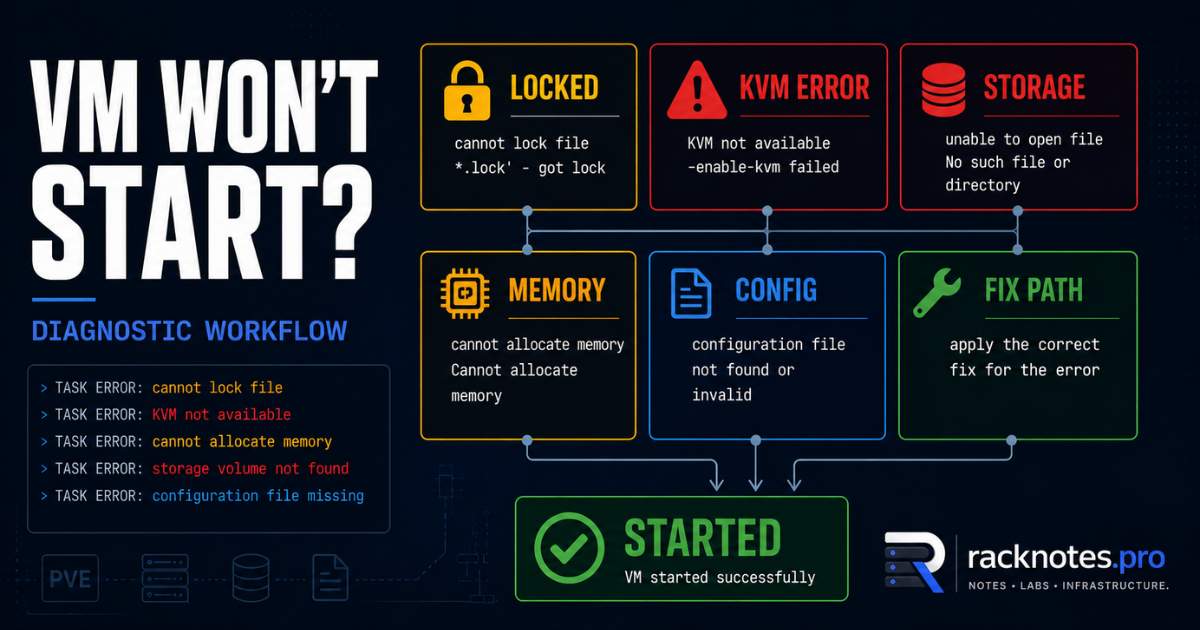
When a Proxmox VM won’t start, open the failed Start task and read the final TASK ERROR or kvm: line. That exact message identifies the failure class: a stale lock, unavailable KVM, inactive storage, insufficient memory, a missing bridge or device, or an invalid CPU configuration. The task log is the fastest path to the right fix – and the safest one, because most destructive mistakes happen before anyone reads it.
Do not begin with qm unlock, kill -9, zpool import -f, or disk repair. First confirm whether Proxmox failed to launch QEMU, the guest started but could not boot, or the VM started and later crashed. Each state requires a different troubleshooting path.
This article covers Proxmox VMs in stopped state that refuse to enter running state. If the VM was running and died unexpectedly, see Proxmox Random Crashes. If the node recently lost cluster quorum, start with Proxmox Cluster Quorum Lost first.
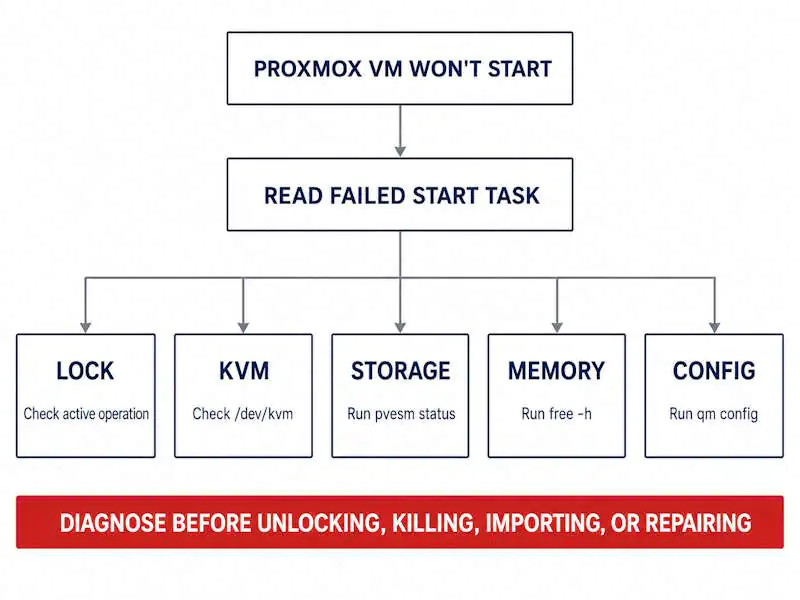
- Read the failed task log first: GUI Task History or
pvenode task list --vmid <VMID>thenpvenode task log <UPID> - Lock: confirm no active operation is running, then
qm unlock <VMID>– do not force-kill a process just because it holds a lock - KVM not available: check
/dev/kvmdirectly, then enable VT-x or SVM in BIOS, or verify nested-virtualization passthrough - Disk not found: check
pvesm statusbefore activating anything – scopevgchangeorzpool importto the specific pool - Resource exhaustion: check
free -hand the active hugepage configuration before reserving pages - Config problems: save
qm config <VMID>before changing anything, then compare against a working VM
Quick diagnosis: did the VM fail to start or fail to boot?
| What you see | Failure class | Correct path |
|---|---|---|
Start task ends with TASK ERROR |
Proxmox or QEMU failed to launch | Continue in this article |
| Console opens to UEFI shell, boot loop, GRUB, or Windows recovery | Guest boot failure | Section 7 below – not a Proxmox start failure |
| VM reaches running state, then stops or reboots | Runtime crash | Proxmox Random Crashes |
Find the exact Proxmox error
In the Proxmox GUI: click the VM, go to the Task History tab, double-click the failed Start entry. The full error is at the bottom.
On the CLI, retrieve the task log using the pvenode task commands available on the installed version. Confirm the available options before relying on specific flags:
pvenode task list --vmid <VMID>
pvenode task log <UPID>
pvenode task list returns task UPIDs for a VM. pvenode task log prints the full output including the final error line. For surrounding host and daemon context, use:
journalctl -b -u pvedaemon -u pvestatd --no-pager
journalctl -k -b --no-pager
Before changing anything, run these quick state checks:
qm status <VMID>      # current state
qm config <VMID>      # full VM configuration
pvesm status           # all storage pools, active or inactive
free -h                # available host RAM
These take ten seconds and prevent fixing the wrong problem. For deeper log reading beyond the task log, see Proxmox Logs Explained.
Error lookup table
Match the exact string from the task log to the section below:
| Error fragment | Likely cause | First check |
|---|---|---|
VM is locked (backup) / VM is locked (clone) / got timeout |
Active or stale operation lock | qm config <VMID> | grep '^lock:' |
KVM virtualisation configured, but not available |
BIOS, nesting, or module | test -e /dev/kvm && echo exists |
volume '...' does not exist / Could not open '/dev/...': No such file |
Storage inactive or disk missing | pvesm status |
Cannot allocate memory / hugepage allocation failed |
RAM or hugepages exhausted | free -h |
bridge 'vmbr0' does not exist |
Missing node bridge | ip link show type bridge |
host doesn't support requested feature: CPUID |
CPU model mismatch | qm config <VMID> | grep cpu |
swtpm_setup: error |
TPM state or process failure | qm config <VMID> | grep tpmstate |
QEMU exited with code 1 (only line visible) |
Specific cause on the line above it | qm showcmd <VMID> --pretty |
| Console shows UEFI shell / GRUB / Windows recovery | Guest boot failure – QEMU did start | Section 7 below |
timeout waiting on systemd |
Stale systemd scope | Section 9 below |
1. VM is locked
One of the most common reasons a Proxmox VM won’t start. Proxmox locks a VM before any operation that modifies it: backup, snapshot, clone, migration, suspend. If that operation is interrupted – power cut, network drop, backup job killed mid-run – the lock stays.
TASK ERROR: VM is locked (backup)
TASK ERROR: VM is locked (clone)
can't lock file '/var/lock/qemu-server/lock-103.conf' - got timeout
Diagnose before unlocking
qm config <VMID> | grep '^lock:'
qm status <VMID>
ps aux | grep -E "vzdump|qmigrate|qemu-system" | grep -v grep
lsof /var/lock/qemu-server/lock-<VMID>.conf
# Alternative if lsof is not installed:
fuser -v /var/lock/qemu-server/lock-<VMID>.conf
An empty lsof result does not automatically confirm no Proxmox operation is active. Check the VM config lock and the process list together. Unlocking a VM while a backup, snapshot, migration, or clone is still active can interfere with the operation and may produce an inconsistent or failed result.
Fix: qm unlock
qm unlock <VMID>Run only after verifying the locked operation is genuinely no longer active. Use the GUI’s task controls to cancel an operation cleanly if it is still shown as running.
Fix: stuck process holding the lock
If qm unlock fails, work through this in order:
- Identify the operation from the GUI task history or process list
- Confirm whether it is still actively progressing or genuinely stuck
- Cancel it through the GUI if possible
- Try a normal signal first
- Escalate to forced termination only after confirming the process is not an active backup, migration, or snapshot mid-write
# Find the PID holding the lock
lsof /var/lock/qemu-server/lock-<VMID>.conf

# Normal termination first
kill <PID>

# Only if it does not respond and you have confirmed it is genuinely stuck:
kill -9 <PID>

qm unlock <VMID>
SIGKILL does not let a process flush state or clean up. It is a last resort, not step one.
Community reports show cases where confirming the process is stale, terminating it normally, and retrying qm unlock resolves the lock without SIGKILL – even when qm unlock initially failed with an I/O error. pmxcfs load and stale file descriptors are the typical explanation.
When the lock keeps coming back
If the same VM keeps getting stuck locked after every backup, the backup job is failing partway through – often a QEMU guest agent fsfreeze timeout. Check the backup job logs and the guest agent first before disabling fsfreeze, which reduces backup consistency for that VM.
2. KVM virtualization not available
A Proxmox VM won’t start with this error when the host CPU does not have hardware virtualization enabled, or the KVM kernel module is not loaded.
TASK ERROR: KVM virtualisation configured, but not available. Either disable in VM configuration or enable in BIOSConfirm hardware support
test -e /dev/kvm && echo "/dev/kvm exists" || echo "/dev/kvm missing"
grep -E '(vmx|svm)' /proc/cpuinfo | head -3
lsmod | grep kvm
dmesg | grep -i -E "kvm|vmx|svm"
vmx = Intel VT-x, svm = AMD-V. A visible flag in /proc/cpuinfo confirms the flag is exposed to Linux but does not prove /dev/kvm is usable. Check /dev/kvm directly. Absence of the flag can mean firmware disabled, unsupported CPU, or nested virtualization not exposed by an outer hypervisor.
Fix: enable in BIOS or UEFI
Reboot the host. Enter BIOS/UEFI. Enable “Intel Virtualization Technology” or “VT-x” (Intel), or “SVM Mode” or “AMD-V” (AMD). Verify with test -e /dev/kvm after rebooting before trying the VM again.
Fix: load the KVM module
modprobe kvm
modprobe kvm_intel   # or kvm_amd for AMD
If manual modprobe works but the module does not persist after reboot, check for module blacklists, initramfs configuration, and kernel logs before adding a permanent override. A module that should load automatically but does not is usually a symptom of something else that a workaround will only hide.
Nested virtualization
The outer hypervisor must expose hardware virtualization extensions to the Proxmox guest. Verify the nested virtualization setting in the outer platform before changing the Proxmox VM configuration. The error message is identical to a plain BIOS-disabled case from inside the guest.
3. Disk or storage unavailable
A Proxmox VM won’t start if its disk is not accessible. Two sub-cases: the storage is not activated yet, or the disk file is genuinely missing. The Proxmox storage documentation covers all supported backend types.
Could not open '/dev/pve/vm-100-disk-0': No such file or directory
TASK ERROR: volume 'local-zfs:vm-100-disk-0' does not exist
Could not open '/dev/zvol/data/vm-100-disk-0': Unknown error 512
Check storage status first
pvesm statusActive storage shows as “active.” An inactive or missing entry means the disk path does not exist from the host’s perspective yet. That is an activation problem, not data loss.
Primary disk vs. auxiliary devices
A VM can fail to start because of an auxiliary device even when its primary OS disk is intact:
qm config <VMID> | grep -E '^(ide|sata|scsi|virtio|efidisk|tpmstate)'
pvesm status
An ISO referenced by ide2 that was deleted from the storage pool, a cloud-init drive on an inactive datastore, or a missing EFI or TPM state volume can each prevent startup independently of the main OS disk.
Fix: LVM-thin not activated
pvs
vgs
lvs
Then activate only the volume group the VM actually uses:
vgchange -ay <VGNAME>Do not run bare vgchange -ay on a host with multiple volume groups, shared storage, duplicate VG names, or recovery media attached. LVM-thin and ZFS activation timing are two important causes to check when a VM fails during node boot but starts fine manually a few minutes later.
Fix: ZFS zvol not present at boot
zpool status
ls /dev/zvol/<pool>/
zpool import          # list importable pools - safe inspection
If the VM fails immediately after a host reboot but starts later, the pool is still importing. The fix is the node-level Start on Boot Delay (Datacenter > Options). The per-VM startup order “up” delay is different: it controls how long Proxmox waits before starting the next guest in the sequence, not when this VM’s own start is attempted.
For a pool that failed to import entirely, confirm it is not active on another node first:
zpool import <pool> # import by name after confirming ownershipzpool import -f <pool> # HIGH RISK: forces import when ZFS believes pool may still be active or was not cleanly exported. Use only after confirming pool is not active or imported on another system.If the pool shows errors or is degraded, see Proxmox Storage Failure: ZFS Recovery Scenarios before importing.
Fix: directory storage not mounted
findmnt <mountpoint>
systemctl status <mount-unit>
mount <mountpoint>    # only if a valid /etc/fstab entry exists
For Proxmox-managed NFS or CIFS storage, return to pvesm status and the storage configuration rather than direct mount commands.
Fix: LVM thin pool full or read-only
lvs -o name,size,data_percent,metadata_percent,attrA full thin pool can cause allocation failures, I/O errors, suspended volumes, forced read-only behavior, or guest filesystem damage. Treat high data or metadata utilization as an emergency: stop new writes and follow a backend-specific LVM-thin recovery procedure. Do not improvise an extension command without confirming free extents and the exact thin-pool names. The behavior varies by configuration and exactly how full data versus metadata are.
When the disk is genuinely gone
If pvesm status shows the storage active but lvs or zfs list do not show the specific volume, the disk may be deleted or corrupted. See Proxmox Backup Server Restore or Proxmox Storage Failure: ZFS Recovery Scenarios.
4. Host cannot allocate memory
kvm: cannot set up guest memory 'pc.ram': Cannot allocate memory
start failed: hugepage allocation failed
Not enough RAM
free -hA Proxmox VM won’t start with this error when the host cannot satisfy the guest’s configured memory requirement. Check the available column, not just free, and check swap activity and current ZFS ARC size if ZFS is in use. Quick options: reduce the VM’s configured memory, stop another VM to free RAM, or verify ballooning and its guest driver are working. For sizing guidance, see Proxmox RAM Sizing.
Hugepage allocation failed
grep -i Huge /proc/meminfo
qm config <VMID> | grep -i hugepages
Hugepage and locked-memory failures are more common on VMs using PCI passthrough or explicitly configured hugepages, because those configurations impose stricter memory-allocation requirements. Diagnose the configured memory backend rather than assuming every passthrough VM needs a manually reserved hugepage pool. Do not reserve an arbitrary number of pages – calculate from the VM’s actual configured memory and the hugepage size in use. Reserve at boot rather than at runtime where possible.
For passthrough-specific failures, see Proxmox GPU Passthrough.
5. Invalid CPU, bridge, or device configuration
A Proxmox VM that won’t start due to a configuration error usually fails with QEMU exited with code 1 and a more specific error on the line above it. The Proxmox VE QEMU/KVM documentation covers the full VM lifecycle; the qm man page documents all valid parameter values.
CPU type mismatch
kvm: warning: host doesn't support requested feature: CPUID.01H:ECX.ssse3 [bit 9]
TASK ERROR: start failed: QEMU exited with code 1
qm config <VMID> | grep cpu # record the current setting
qm set <VMID> --cpu kvm64 # conservative troubleshooting baselinekvm64 is a troubleshooting baseline, not a permanent default. Changing CPU type can alter guest-visible features. On a cluster, use a model every migration target actually supports. Do not leave kvm64 set permanently without understanding what caused the original failure.
Missing network bridge
TASK ERROR: can't start VM: bridge 'vmbr0' does not existip link show type bridgeFor bridge setup and recovery, see Proxmox Networking: Bridges, VLANs, Bonds. As a workaround when console access is available and the original net0 configuration is saved: change the bridge to a valid temporary bridge if one exists, or as a last resort use qm set <VMID> --delete net0. Do not remove the only management NIC from a remote workload without confirmed console access and the complete original configuration saved first.
PCI or USB passthrough device unavailable
A VM with passthrough can fail to start if the device is missing, claimed by the host driver, mapped to a different PCI address after a system update, or already assigned to another running VM.
# Save current passthrough configuration before changing anything
qm config <VMID> | grep -E '^(hostpci|usb)' > /root/<VMID>-passthrough-before.txt

lspci -nnk
dmesg | grep -i -E "vfio|iommu"
Disable one passthrough device at a time to confirm whether it is the cause. Restore the saved configuration before changing another device.
Corrupt or invalid configuration line
A manually edited .conf file or an option from a previous Proxmox version can prevent startup without a clear error.
qm config <VMID>
qm showcmd <VMID> --pretty
Compare the output against a known-good VM on the same node. Read the generated QEMU command – do not execute it directly. Bypassing Proxmox lifecycle management on a locked or HA-managed VM can create duplicate QEMU processes or split-brain states that are harder to fix than the original problem.
6. PVE 9 upgrade and kernel-specific failures
Version-specific known issue – check official upgrade notes at each article refresh. After upgrading from Proxmox VE 8 to 9 (kernel 6.14), some VMs with PCI passthrough fail to start. The Proxmox VE 8-to-9 upgrade notes document this issue. Review them before doing anything else, as the recommended fix may evolve.
proxmox-boot-tool kernel list
uname -r
As a temporary workaround, boot or pin a known-good kernel already installed on this host. Do not copy a specific version number from a forum post:
proxmox-boot-tool kernel pin <installed-known-good-version>7. EFI, TPM, and guest boot failures
swtpm_setup: error
BdsDxe: failed to load Boot0001
These look similar but are different failure classes.
swtpm_setup: error means the TPM emulation process or its state storage failed before QEMU started. That is a genuine Proxmox start failure.
BdsDxe: failed to load Boot0001 means QEMU started, the VM reached UEFI firmware, and the guest failed to boot its OS. That is a guest boot problem with different fixes.
Why operators get this wrong: a UEFI error appearing immediately after clicking Start looks identical to a Proxmox launch failure from the console, but the two have completely different diagnostic paths. Confirm which one you actually have:
qm config <VMID> | grep -E "efidisk|tpmstate"
qm showcmd <VMID> --pretty | grep swtpm
A missing or inaccessible TPM state volume, or a missing EFI disk, can produce a genuine Proxmox start failure and is especially relevant to Windows 11 VMs that use a TPM state volume. If the volume exists but the referenced storage is inactive, the fix is storage activation, not EFI or firmware configuration.
If the VM starts but the guest cannot boot past firmware, that is a guest OS boot problem out of scope for this article.
8. Corrupt qcow2 image
kvm: qcow2: Image is corrupt; cannot be opened read/write- Confirm the VM is fully stopped:
qm status <VMID> - Never run
qemu-img checkagainst a live image, a block device without confirming support, or a file currently open by another process - Run the read-only check first:
qemu-img check /path/to/vm-<VMID>-disk-0.qcow2 - If corruption is confirmed, create a storage-layer copy or snapshot before attempting repair
- Only run
qemu-img check -r allwhen restore is not available – it modifies the image and can discard or alter damaged metadata
qemu-img check -r all /var/lib/vz/images/<VMID>/vm-<VMID>-disk-0.qcow2This applies to qcow2 files specifically. It does not work the same way against LVM-thin volumes or ZFS zvols. If repair fails, see Proxmox Backup Server Restore.
9. Stale systemd scope or unknown status
timeout waiting on systemdCommon after a host crash or a VM killed without a clean shutdown. Confirm the actual unit name before stopping anything:
systemctl list-units --type=scope | grep -E "<VMID>|qemu"
systemctl status <actual-unit-name>
Stop only the confirmed stale unit after verifying no active QEMU process depends on it:
systemctl stop <actual-unit-name>
systemctl reset-failed
If the VM shows a grey question mark in the GUI, a management daemon restart can refresh the stale state. Check what else is running on the node first, then restart only the service shown as unhealthy:
systemctl status pvestatd pvedaemon
systemctl restart pvestatd
Restarting these affects node-wide management, not just this one VM. The underlying crash that produced the stale state is a separate investigation – see Proxmox Random Crashes.
10. Isolation method – when the cause is not obvious
When the task log produces no specific cause and qm showcmd --pretty does not reveal the problem, strip the VM to a minimal configuration and reintroduce one device at a time.
- Back up the current config:
cp /etc/pve/qemu-server/<VMID>.conf /root/<VMID>.conf.before-isolation - Record
qm config <VMID>so you know exactly what changes - Change one device at a time based on what the task log suggests is involved
- Never delete a disk reference as part of generic isolation
Choose changes based on the suspected device class:
- If a PCIe or USB passthrough device is suspected:
qm set <VMID> --delete hostpci0or--delete usb0 - If a CPU feature or topology problem is indicated by the task log:
qm set <VMID> --cpu kvm64or--sockets 1 --cores 1 - If memory management or ballooning is involved:
qm set <VMID> --balloon 0
Start the VM after each individual change. The change that allows startup identifies the cause. Restore the original config values using the saved backup once the culprit device is identified.
The task log is the fastest path to the right fix. Operators who read it first usually resolve a VM start failure in minutes. Operators who skip it and start rebooting the host or clicking Start again often burn far longer – and sometimes make the problem worse in the process.
Verify the fix is durable
Getting the VM to start once is not enough. Before closing the incident:
qm status <VMID> # should show "running"Log in via console or SSH. Confirm services are running and network is reachable. Then test a controlled reboot:
qm reboot <VMID>
qm status <VMID>
Confirm autostart survives a host reboot in a maintenance window. If the VM starts manually but not on host reboot, check whether the node-level Start on Boot Delay (Datacenter > Options) needs adjusting. The per-VM startup order “up” delay controls when the next guest in the sequence starts, not when this VM’s own start is attempted.
When to stop troubleshooting and restore
Stop troubleshooting and restore when the agreed incident time box has expired and a tested restore is likely to recover service faster than continued diagnosis.
Restore is the right call when:
dmesgshows storage hardware errors (not just activation failures)- SMART data shows pending or reallocated sectors on the underlying disk
- The qcow2 or zvol is confirmed corrupted and repair failed
- Continued diagnosis is making no progress and a recent backup exists
Before restoring: preserve the failed VM configuration and storage state for later analysis. Restore to an alternate VMID when possible to avoid overwriting the only remaining copy. Do not delete the original VM or its storage until the restored instance is confirmed working.
See Proxmox Backup Server Restore for the full recovery walkthrough. If the storage pool is degraded or failed, start with Proxmox Storage Failure: ZFS Recovery Scenarios first.
FAQ
Why does “can’t lock file got timeout” appear?
A previous operation did not finish cleanly and left a lock in place. Check qm config <VMID> | grep '^lock:' and use lsof or fuser to confirm nothing holds the lock. If nothing is running, use qm unlock <VMID>. If it fails, identify the stale process and confirm it is not an active backup before terminating it.
What does “QEMU exited with code 1” mean?
Code 1 is QEMU’s generic failure exit. The actual error is on the line above it in the task log, usually starting with kvm:. Use pvenode task log <UPID> or run qm start <VMID> while tailing journalctl -b --no-pager -u pvedaemon in a second terminal. Use qm showcmd <VMID> --pretty to inspect the generated command – do not execute that output directly.
My VM won’t start after a host reboot but starts fine manually – why?
Almost always a timing issue: autostart fires before storage is ready, LVM-thin volumes not active, ZFS pool still importing, or NFS mount not complete. Fix: the node-level Start on Boot Delay (Datacenter > Options), not the per-VM startup order delay. Also verify storage mount ordering in /etc/fstab and systemd dependencies.
How do I see the real error when a Proxmox VM won’t start?
GUI: click the VM, Task History tab, double-click the failed Start task. CLI: pvenode task list --vmid <VMID>, then pvenode task log <UPID>. For surrounding context: journalctl -b -u pvedaemon -u pvestatd --no-pager.
“KVM virtualisation configured, but not available” – what now?
Check /dev/kvm directly first with test -e /dev/kvm && echo exists. If missing: enter BIOS/UEFI and enable hardware virtualization (VT-x or SVM). If Proxmox runs inside another hypervisor, verify nested virtualization is enabled in the outer platform. The error message is identical in both cases.
“volume ‘…’ does not exist” – is my data lost?
Usually not. Run pvesm status to check storage state. If inactive, activate the specific volume group with vgchange -ay <VGNAME> (LVM) or import the specific pool by name (ZFS). If the storage activates and the disk reappears, data is intact. If the volume is missing from lvs or zfs list, that requires recovery from backup.
Is it safe to run qm unlock when a backup is running?
Do not unlock during an active backup. It can interfere with the job and compromise the consistency of its result. Confirm the operation is finished or has genuinely failed via ps aux | grep vzdump and the GUI task log. Cancel through the GUI before unlocking.
Can I run “qemu-img check -r all” safely?
Only as a last resort, only after creating a copy or storage-layer snapshot, and only when the VM is fully stopped. Never run it against a live image or a file open by another process. Run the read-only qemu-img check first. Use repair only when restoring from backup is not available – it can discard or alter damaged metadata rather than recover it cleanly.
When a Proxmox VM won’t start, the error string in the task log is the fastest path to the right fix. Every section in this article begins from a specific error – look up the line your task log produced, not a general description of the symptom. Lock files, storage activation, BIOS settings, and resource exhaustion cover most cases – each produces a distinct, recognizable error. The failures that take the most operator time are the ones where troubleshooting began before that error was read. For failures that go deeper – corrupted storage, a failed pool, hardware errors – the path is through Proxmox Backup Server Restore and Proxmox Storage Failure: ZFS Recovery Scenarios.
Proxmox VE Series
28 articles – Installation · Storage · Networking · HA · Recovery