
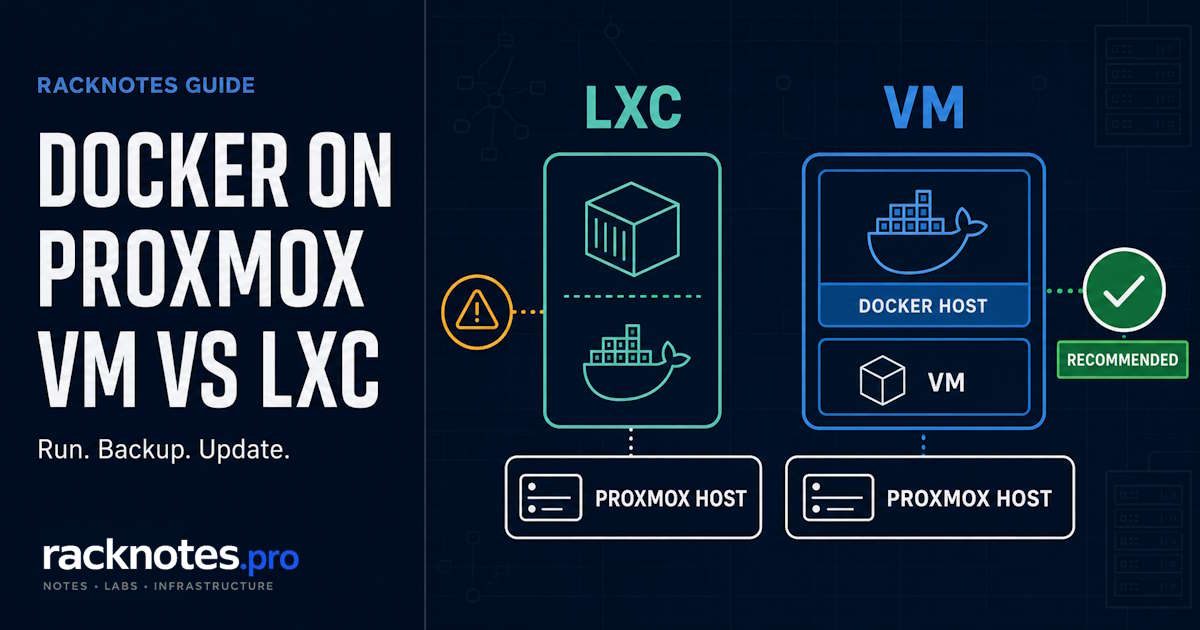
Docker runs well on Proxmox, and almost every setup lands on one of four options: a dedicated VM, an LXC container, Proxmox’s native OCI application containers, or directly on the Proxmox host. A dedicated Linux VM is the default recommendation for Docker on Proxmox – LXC remains a valid choice for selected low-stakes or hardware-sharing workloads, and running Docker directly on the host isn’t recommended for either.
This guide assumes you’ve already made the broader LXC vs VM decision for other workloads and want the Docker-specific answer: how to actually install and run it, what to build, and what breaks if you build it differently.
Yes, Docker runs well on Proxmox. Use a dedicated Linux VM as the default: install Docker Engine from the official APT repository, keep application data on an explicit filesystem you back up, and pair vzdump snapshots with application-level dumps for anything stateful. Use Docker inside an LXC container only when lower overhead or shared-device access is worth trading away VM isolation. Don’t install Docker directly on the Proxmox host.
How to Run Docker on Proxmox
The practical path most operators land on, start to finish:
- Create a Debian 13 or Ubuntu Server VM – 2-4 vCPU and a fixed RAM allocation sized for peak container load is a reasonable starting point. Full settings: Recommended Proxmox VM Settings for Docker, below.
- Use VirtIO networking and VirtIO SCSI Single for the disk controller, with an IO Thread enabled per data disk.
- Install
qemu-guest-agentinside the guest and enable the QEMU Guest Agent option on the VM itself. It lets Proxmox coordinate guest filesystem freeze/thaw during backup and also improves shutdown and IP reporting. - Install Docker Engine from Docker’s official APT repository, not the convenience script. Full steps: How to Install Docker on Proxmox in a VM, below.
- Verify the install:
docker run hello-worldanddocker compose version. - Use Docker Compose for anything beyond a single container. The install command below includes Docker’s Compose plugin, so no separate Compose installation is needed.
- Create a directory structure for Compose files and persistent data – something like
/opt/stacks/<stack-name>/per stack, with application data on an explicit path you can back up. - Configure VM-level backup, plus application-level backup for databases – vzdump snapshots handle the filesystem; a database still needs its own dump. Full detail: Backups That Actually Restore, below.
That’s the install path. The rest of this guide covers why each of these choices is the default, and what to do differently when it isn’t.
Proxmox Docker in LXC or VM: Which Is Better?
The comparison most Docker on Proxmox searches are actually looking for:
| Deployment | Best for | Main advantage | Main limitation |
|---|---|---|---|
| Docker directly on host | Almost never | No guest overhead | Mixes apps with the hypervisor control plane |
| Docker in a VM | Production stacks, Compose, multi-service apps | Isolation, predictable behavior, Proxmox live migration when VM prerequisites are met | Extra guest OS overhead |
| Docker in LXC | Labs, low-stakes workloads, shared devices | Lower overhead, simpler device mapping | Host-kernel coupling, update fragility |
| Native OCI application container | Simple single-service workloads | Proxmox-native management | Technology preview, no Compose orchestration |
Docker in a VM
Most of the operational risk in Docker on Proxmox deployments traces back to skipping this default without a specific reason. Docker in a VM gets the guest’s own kernel, its own cgroup and AppArmor state, and its own update cycle. None of that is shared with the Proxmox host, so a Docker Engine upgrade, a storage-driver change, or a botched docker system prune stays contained to the guest.
Docker in a Proxmox LXC Container
Docker inside LXC saves RAM and disk, and it’s a reasonable choice for a homelab environment or for workloads that specifically need simple shared-device access. What it doesn’t give you is insulation from the host: a Proxmox kernel or cgroup update can change behavior underneath every nested Docker container at once, which is exactly the coupling a VM avoids.
Why operators get this wrong: they assume the LXC overhead savings apply cleanly to Docker the same way they do to a single lightweight service. Docker itself already adds a layer of namespacing and cgroup management – stacking that inside LXC’s own namespacing is where the fragility comes from, not from Docker being heavy.
Running Docker inside an unprivileged LXC typically requires the container features nesting=1 and keyctl=1. Proxmox documents keyctl as required for Docker in an unprivileged container, while nesting enables the nested-container environment Docker depends on. Both settings increase what the LXC guest can see or do compared with the default container profile, so they are part of the isolation tradeoff rather than free compatibility switches. Start from an unprivileged container – Docker-in-LXC works there for most workloads. Privileged mode trades away isolation for a narrower set of edge cases without removing the underlying host-kernel coupling.
Bind-mounted application data inherits the container’s own UID/GID mapping – a common source of Permission denied or files owned by nobody:nogroup inside the Docker containers themselves. The LXC bind mounts guide covers that mapping in detail if this workload needs host-path storage rather than Docker-managed volumes.
Docker Compose works the same way inside LXC as it does in a VM once Docker itself is running – the constraint is the host-kernel coupling and AppArmor/cgroup interaction underneath it, not Compose itself.
A single low-stakes service, a disposable test environment, or a workload that specifically benefits from shared device access is a reasonable candidate for Docker inside an unprivileged LXC container. What changes the calculus: multi-container Compose stacks, anything stateful you’d hate to rebuild, and anything you want insulated from host kernel updates all point back toward the VM. The underlying architecture tradeoff, including RAM overhead between the two models, is covered in more depth in the LXC vs VM guide linked above.
Native OCI Application Containers
A fourth option exists: Proxmox’s native OCI application containers, introduced in Proxmox VE 9.1 and still treated as a technology preview in the current Proxmox VE 9.2 generation. It runs a Docker-format image as a Proxmox-managed application container without a full Docker install. It fits simple single-service workloads, not multi-container Compose stacks – see Native OCI Application Containers, below, for the detail.
Recommended Proxmox VM Settings for Docker
These are Proxmox-specific choices, not generic Docker advice – the same 4-6 settings that separate a Docker VM built correctly from one that behaves unpredictably under load or resizes badly on top of your chosen storage backend over time.
| Setting | Recommended default | Notes |
|---|---|---|
| Guest OS | Debian 13 minimal or cloud image | Ubuntu Server works equally well |
| CPU type | host on a single node | Use a compatible model instead if you need live migration across different hardware |
| vCPU | 2-4 to start | Size by expected container workload |
| RAM | Fixed allocation sized for peak | See ballooning note below |
| SCSI controller | VirtIO SCSI Single | Recommended Proxmox path for Linux VMs |
| IO Thread | Enabled per data disk | Improves parallel disk handling under concurrent container I/O |
| Cache | No cache | Safe general Proxmox default, not a Docker-specific tuning |
| Discard | Enabled if the storage backend supports it | Pair with guest-side TRIM, see below |
| Network | VirtIO, static IP or DHCP reservation | Keeps reverse-proxy targets and port mappings stable |
| Guest agent | Installed and enabled in VM options | Recommended for filesystem freeze/thaw during backup, clean shutdown, and IP reporting |
Two settings deserve more nuance than a table row allows.
Discard is conditional, not automatic. Enabling it only helps if the entire chain supports thin reclamation: guest filesystem, virtual disk, and the underlying Proxmox storage backend. Docker’s constant layer churn means an unreclaimed disk grows quietly if any link in that chain is missing. Verify it rather than assume it:
systemctl status fstrim.timer
fstrim -av
Ballooning is an optimization, not a capacity plan. A Docker host with an aggressively low balloon minimum can run short on memory during boot or during a burst of container startups, before the balloon driver has a chance to expand. Size the VM for expected peak load and treat ballooning as something layered on top, not the thing you rely on to make a too-small allocation work.
Two more Proxmox-specific details worth setting explicitly rather than leaving on install defaults: a VirtIO network adapter attached to the correct vmbr bridge (with a VLAN tag if your network segmentation uses one), and Docker’s own log driver, since container log growth is a more common disk problem in practice than the storage-layer issues that get more attention:
{
  "log-driver": "local",
  "log-opts": {
    "max-size": "10m",
    "max-file": "3"
  }
}
How to Install Docker on Proxmox in a VM
Install Docker Engine from Docker’s official APT repository, not the convenience script. Docker’s own documentation reserves the convenience script for testing and development environments – it isn’t the path for a VM you intend to run as a production Docker host.
Inside the Debian VM:
# Remove conflicting packages from Debian's own repos
for pkg in docker.io docker-doc docker-compose podman-docker containerd runc; do sudo apt-get remove $pkg; done

# Add Docker's official GPG key
sudo apt update
sudo apt install ca-certificates curl
sudo install -m 0755 -d /etc/apt/keyrings
sudo curl -fsSL https://download.docker.com/linux/debian/gpg -o /etc/apt/keyrings/docker.asc
sudo chmod a+r /etc/apt/keyrings/docker.asc

# Add Docker's APT repository
sudo tee /etc/apt/sources.list.d/docker.sources > /dev/null <
For Ubuntu Server, the steps are the same shape with ubuntu in place of debian in the URLs above - see Docker's Ubuntu install guide for the exact commands.
After installation, two defaults deserve attention rather than a quiet accept. Adding your user to the docker group is common practice for avoiding sudo on every command, but that group membership is root-equivalent control over the host - anyone in it can mount the host filesystem through a container. And Docker manages its own iptables rules for published ports, which means a port can be reachable from outside the VM even when UFW or firewalld looks like it should be blocking it. Review published ports independently, using the DOCKER-USER chain or an equivalent policy point, and verify exposure from another host rather than trusting the guest firewall's own view of things. This is also why the Proxmox firewall is worth layering in at the vmbr/VM level for Docker on Proxmox - it filters traffic before it ever reaches the guest's own iptables rules, a separate control point from anything Docker manages internally.
Once the base image is built and tested this way, converting it to a template makes spinning up the next Docker host a clone instead of a repeat install.
Docker Compose on Proxmox
Docker Compose runs inside the Docker guest - the VM or LXC container - not "in Proxmox" itself; Proxmox has no awareness of Compose stacks running inside a guest. The Docker installation used in this guide includes the docker-compose-plugin, so Compose is available as docker compose without a separate installation step.
A VM remains the safer default for multi-service or stateful Compose stacks, for the same reason it's the default for Docker generally: host-kernel updates and cgroup/AppArmor changes can't reach into the guest. Compose itself works the same way inside a properly configured LXC container once Docker is running there - see Docker in a Proxmox LXC Container above for what "properly configured" requires.
Keep project files under a clear, documented path - /opt/stacks/<stack-name>/ is a reasonable convention - rather than scattered across the filesystem or buried inside a user's home directory. Commit compose.yaml to version control where that fits your workflow; don't commit a production .env file, database password, or registry credential alongside it - see the secrets warning in Storage Layout, below.
Store persistent data on explicit volumes or bind mounts, not the container's writable layer. If a Compose stack must return automatically after a VM reboot, define an explicit restart policy such as restart: unless-stopped or restart: always for the relevant services. Running docker compose up -d by itself does not create an automatic reboot policy. Test the behavior with a real VM reboot before treating the stack as recoverable.
Compose stacks also change what a restore needs to verify: a successful VM-level restore only confirms compose.yaml and its containers came back, not that they started in the right order, that custom networks were recreated, or that a database inside one of them is actually consistent. See Backups That Actually Restore, below, for the full checklist.
Using Portainer with Docker on Proxmox
Portainer manages Docker Engine - it doesn't replace Proxmox, and Proxmox has no visibility into what Portainer does inside the guest. It can run in the same Docker VM as everything else, and it works in Docker-in-LXC too, provided Docker itself is functioning there. If Portainer has access to the Docker socket, treat that access as administrative control over the Docker host and secure the Portainer instance accordingly. Keep Compose files understandable and portable on their own; don't build a stack that only makes sense through Portainer's UI, since that's what turns a straightforward restore into a rebuild-from-memory exercise.
Should You Install Docker Directly on the Proxmox Host?
The most common wrong answer to Docker on Proxmox is the simplest one: installing it directly on the hypervisor. Proxmox VE is an infrastructure host, not a general-purpose application server. Installing Docker directly on it mixes Docker's own networking, iptables rules, storage paths, and package dependencies with the virtualization control plane that manages every other VM and container on the node.
It may run without any visible problem for months. The Proxmox VE FAQ doesn't recommend running additional services on the host for this exact reason - it removes the management boundary Proxmox is designed to provide, and it widens the blast radius of a single misbehaving container to include the thing managing all your other VMs.
A Proxmox host has one job: run guests reliably. Every additional service installed directly on it - Docker included - can consume host resources or alter networking, storage, and package state on the same system that manages every VM and container.
Use a VM, an LXC container with the known limitations in mind, or native OCI application containers instead. All three keep application deployment and lifecycle management outside the Proxmox host OS, although LXC-based options still share the host kernel. That separation lets you reboot, restore, or replace the workload without installing Docker directly on the hypervisor.
Storage Layout for Docker on Proxmox
Storage layout is where a Docker on Proxmox build quietly succeeds or fails months later, not at setup time. Inside a full Linux VM, Docker uses the guest's own kernel and normal storage stack, without the nesting and host-kernel constraints that affect Docker-in-LXC. On fresh Docker Engine 29 installations, Docker uses the containerd image store with the overlayfs snapshotter by default. Hosts upgraded from older Docker releases may still be running the classic overlay2 storage driver unless they've been migrated - check which one you're actually running before assuming a specific behavior applies.
ext4 is the simple default guest filesystem. XFS works too, but the classic overlay2 driver requires d_type=true on XFS, which is the default on modern XFS but worth confirming on an older image. Either way, don't hand-edit anything under /var/lib/docker directly - that's Docker's own managed state, not a general-purpose directory.
For persistent and write-heavy application data, use Docker volumes or bind mounts on a normal guest filesystem rather than relying on the container's writable layer, which isn't designed to hold data long-term.
Bind mounts and named volumes get framed as a hard choice more often than they need to be. Use bind mounts when you want application data in an explicit, operator-visible filesystem tree that ordinary file-level backup tools can reach directly. Use named volumes when the application expects Docker-managed storage and direct host-path access isn't required - they're a standard Docker primitive, inspectable and backed up like anything else Docker manages. Whichever model you pick, document it, include it in your backup plan, and test the restore before you need it for real.
A pattern that surfaces repeatedly in homelab and small-team setups: compose files and configuration live in a git repository for good reason, but a production .env file, a database password, or a registry credential ends up committed alongside them. Passwords, API tokens, private keys, and production .env files do not belong in git, sanitized or not - a .env.example with placeholder values is the safe version to commit.
Networking and Firewall Design
Networking for Docker on Proxmox is mostly ordinary Docker networking, with a handful of Proxmox-adjacent gotchas worth knowing up front. The default Docker bridge with published ports and a reverse proxy container in front (Traefik, Caddy, or Nginx Proxy Manager) covers most deployments without any special configuration. For a typical reverse-proxy-based web stack, only ports 80 and 443 usually need to be exposed to the LAN; everything else stays behind the proxy.
Docker's default bridge subnet (172.17.0.0/16) can collide with LANs or VPNs using the wider 172.16.0.0/12 range. If containers can't reach specific internal hosts, that's worth checking before anything more exotic - bip or default-address-pools in daemon.json resolves it.
Macvlan gives containers their own LAN-routable IP, which some self-hosted setups want for services that expect a real network presence. The well-documented limitation: a macvlan parent interface generally can't talk to its own child interfaces, so the Docker host itself may be unable to reach a container on its own macvlan network. The usual fix is a macvlan shim interface on the host with a route to the container subnet - and because that shim isn't part of Docker's own config, it needs to be persisted through a systemd unit or network config file, or it silently disappears on the next reboot.
If containers lose DNS resolution while the VM itself resolves names fine, don't assume any single cause. Inspect Docker's generated resolver configuration, upstream DNS settings in daemon.json, firewall rules, and any local resolver such as systemd-resolved running on the guest. The presence of a stub resolver address alone isn't proof of the failure - it's one thing to rule in or out during diagnosis, not a default explanation.
Backups That Actually Restore
Backup design is where Docker on Proxmox setups are often only partially complete: the VM backs up cleanly, but nobody has verified that the database inside it restores. vzdump snapshot-mode backups with qemu-guest-agent enabled are strongly recommended because the guest agent lets Proxmox coordinate filesystem freeze/thaw during the snapshot. The integration must be enabled in the VM's own options, not just installed inside the guest.
Filesystem consistency is not the same thing as application consistency. A filesystem-consistent snapshot can still capture a database mid-transaction. PostgreSQL, MySQL, and MariaDB are designed to perform crash recovery, but a VM snapshot is not a substitute for an application-aware backup or a tested logical dump when you need predictable database recovery. For databases running in containers, layer an application-level backup on top - pg_dump, mysqldump, or an equivalent native tool - rather than relying on the VM snapshot alone. A PBS-based backup strategy handles the VM side of this well; the database dump is a separate, deliberate addition.
- Confirm the VM boots and qemu-guest-agent reconnects.
- Confirm Docker starts automatically and Compose stacks with configured restart policies come up in the expected order.
- Check bind-mount ownership and permissions - a restore onto different underlying storage can shift them.
- Verify database recovery completed cleanly, not just that the container is running.
- Confirm the reverse proxy resolves routes to the restored containers.
- Check that custom Docker networks were recreated, not just the default bridge.
- If using macvlan or ipvlan, confirm the host-side shim configuration came back too.
- Confirm any passed-through GPU devices are visible where the container expects them.
See the PBS restore guide for the mechanics of the VM-level restore itself - the checklist above is what to verify once that restore completes.
Updates: Three Separate Lifecycles
A Docker VM has three update cycles that move independently: the Proxmox host, the guest OS, and the container images themselves. Treating them as one update event is how a routine host patch turns into an unplanned debugging session.
For container image updates, the tool landscape shifted recently. The original containrrr/watchtower project was archived in December 2025 and shouldn't be the default recommendation for a new deployment - its outdated Docker API client also fails against Docker Engine 29 unless a workaround or maintained fork is used. For most operators, a safer update workflow is notification-only monitoring (Diun is the common choice) followed by a reviewed docker compose pull and docker compose up -d, rather than fully unattended updates on anything stateful.
The practical advantage of the VM path here: a Proxmox host kernel update doesn't touch the Docker VM's own kernel, cgroup state, or AppArmor policy. That decoupling is exactly what Docker-in-LXC gives up, and it's the recurring source of the "worked fine until the last update" reports that show up around Docker-in-LXC specifically.
GPU and Hardware Access
Hardware access is the one place where the clean VM-default story for Docker on Proxmox gets genuinely complicated. For Intel iGPU transcoding workloads (Jellyfin, Plex, Frigate, Immich), an LXC container mapping /dev/dri directly is genuinely the simpler path, and the same iGPU can stay shared with the host and other containers at the same time. A VM needing GPU access instead uses PCI passthrough, and with conventional full-device passthrough, the host and other guests normally lose access to that GPU for as long as the VM is running - specialized approaches like SR-IOV or vGPU can change that tradeoff, but they're a different setup with their own hardware and driver requirements.
This is a real fork for a Docker-on-Proxmox setup built around the VM default: if the workload needs iGPU sharing more than it needs Compose orchestration and live migration, that specific service may belong in an LXC even while the rest of your stack stays in the VM. Full VFIO passthrough details are covered in the GPU passthrough guide - the tradeoff here is which side of it fits the workload, not how to configure VFIO itself.
Native OCI Application Containers
Native OCI support is the newest option for Docker on Proxmox, and it's easy to overrate based on the feature name alone. Proxmox VE's native OCI support pulls a Docker-format image and runs it as a Proxmox-managed application container, still labeled a technology preview as of this writing. It fits best for simple single-service workloads whose state is either disposable or stored on explicit, Proxmox-managed mount points - a static web service, a small exporter, or a disposable test service.
Services like Vaultwarden, Uptime Kuma, or Pi-hole can run this way, but none of them are actually stateless - they can run as single application containers only if their persistent data is externalized onto its own mount point and included in a separate backup and update plan. Native OCI containers currently have no Compose-style multi-container orchestration and no in-place image update path, which rules them out for anything resembling the multi-service stacks this guide is otherwise built around.
Common Failure Modes
Most Docker on Proxmox support requests that aren't covered above trace back to one of a handful of symptoms. These assume the VM itself boots fine - if the VM won't start at all, that's a different diagnostic path entirely.
- Check for a resized VM disk where the guest filesystem was never extended - a common trap with cloud images, where Proxmox shows a larger disk but the guest LVM/partition is still the original size.
- Check
docker infofor the active storage driver and confirm the expected one is actually running. - Check
journalctl -u dockerfor the specific daemon error rather than guessing from symptoms alone - the Proxmox logs guide covers where else to look on the host side. - If the error mentions a missing overlay2 merged directory, treat it as stale storage-driver state, usually following an unclean shutdown or a disk move.
- Confirm
nesting=1andkeyctl=1are actually set on the container config, not just intended -pct config <CTID>shows the active values. - If files show as
nobody:nogroupor writes fail inside a bind-mounted volume, that's a UID/GID mapping issue, not a Docker bug - see Docker in LXC above. - If Docker or its containers broke after a Proxmox host update, that's the host-kernel coupling LXC accepts as a tradeoff - check AppArmor and cgroup-related messages in
dmesgandjournalctl -u dockerbefore assuming a Docker-side regression.
Practical takeaway: most Docker-in-VM problems trace back to one of three things - a guest filesystem that wasn't resized after a disk grow, a subnet collision with the LAN, or an update applied to three different lifecycles at once instead of one at a time.
Final Recommendation
The setup most operators land on for Docker on Proxmox, after trying the alternatives, is a dedicated Debian VM, official Docker Engine install, VirtIO SCSI Single with IO Thread, no cache, discard where supported, and application data on a filesystem that's part of a tested backup plan. It costs more RAM than Docker-in-LXC and more management overhead than the native OCI preview, and it pays that cost back the first time a host update lands and the Docker VM doesn't even notice. Installing Docker directly on the Proxmox host isn't part of that picture at all - the hypervisor stays a hypervisor.
Docker-in-LXC still earns its place for low-stakes workloads and shared-device use cases, Compose runs the same way inside either guest type once Docker itself is healthy, and native OCI containers are worth watching as the feature matures past preview status. For anything running a real Compose stack in 2026, the VM remains the default for Docker on Proxmox.
FAQ
Should Docker run in a VM or LXC on Proxmox?
For Docker on Proxmox, a VM is the right default for anything production-facing or running Compose stacks. LXC is a reasonable choice for low-stakes, single-container, or shared-device workloads where the host-kernel coupling is an acceptable tradeoff.
Can I install Docker directly on the Proxmox host?
Technically yes, operationally no. It mixes Docker's networking and storage with the hypervisor control plane and widens the blast radius of any Docker failure to include the thing managing every other guest on the node.
How do I install Docker on Proxmox?
Create a Debian or Ubuntu Server VM, then install Docker Engine from Docker's official APT repository - not the convenience script. See How to Run Docker on Proxmox above for the full path, and Install Docker Engine on the Proxmox VM for the exact commands.
Can Docker Compose run on Proxmox?
Yes. Compose runs inside the Docker guest - a VM or a properly configured LXC container - the same way it would on any Linux host. Current Docker Engine installs include it as the docker compose plugin by default. See Docker Compose on Proxmox above.
Does Proxmox back up Docker volumes?
vzdump backs up whatever is on the VM's virtual disks, including named volumes and bind-mounted data that live there. It backs up the filesystem, not the application state inside a running database - that still needs a separate dump.
Is Proxmox native OCI a Docker Compose replacement?
No. It runs single containers from OCI images with no multi-container orchestration and no in-place update path as of this writing. It's a convenience feature for standalone services, not a Compose replacement.
Can I run Docker Swarm on Proxmox?
Technically yes - Swarm is a Docker orchestration layer across multiple Docker hosts, and those hosts can be Proxmox VMs. It's unnecessary for most single-node or simple homelab deployments, where a single Docker VM running Compose covers the same workloads with far less operational overhead.
Proxmox VE Series
28 articles - Installation · Storage · Networking · HA · Recovery